

1. Export from your current app
Export your data from your existing app (for Monarch, download your transactions and account history). You’ll upload this file to Treasury in a moment.2. Start the import
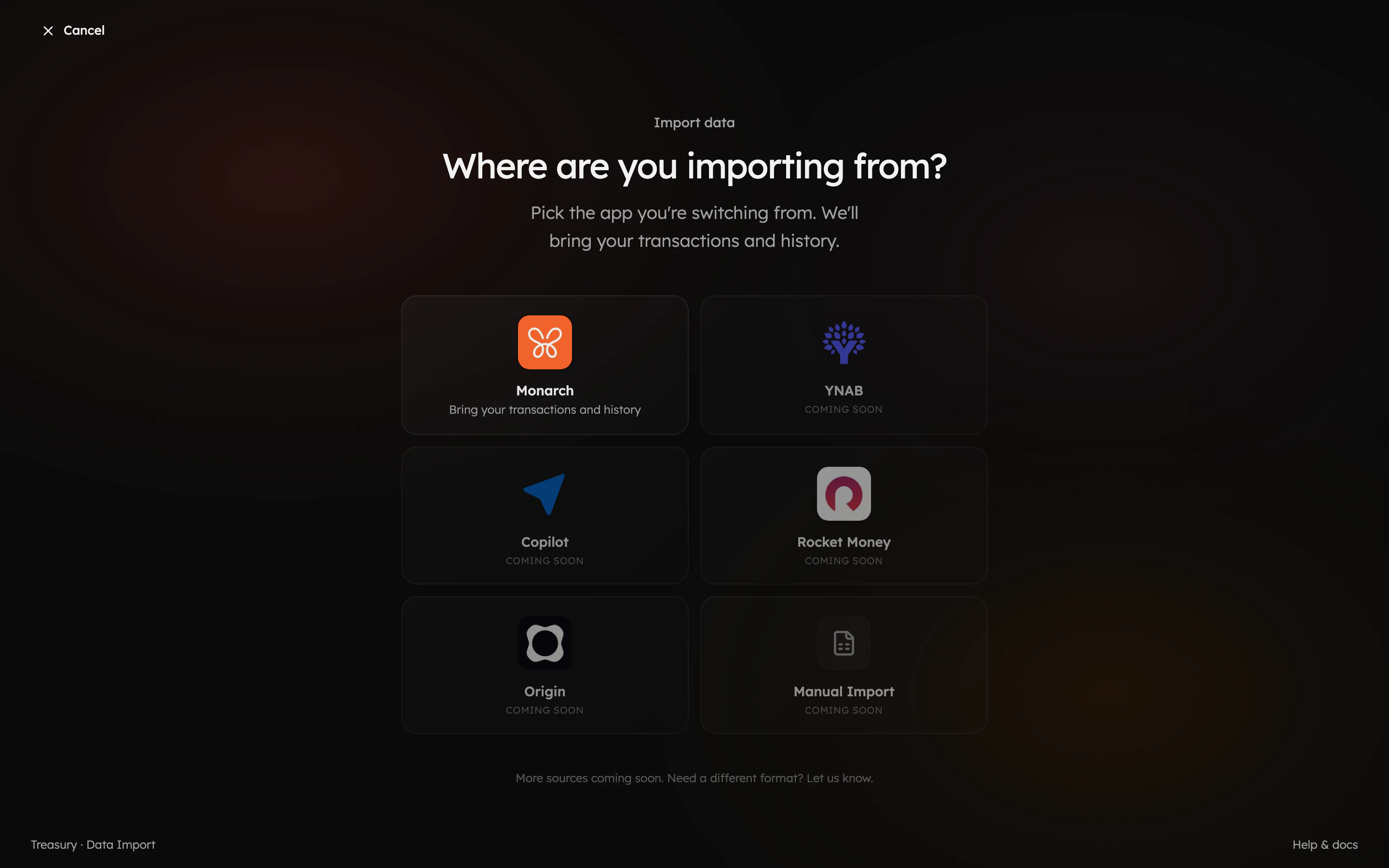
Open the importer from Settings → Data Import (or the Import data prompt on your dashboard) and choose where you’re coming from. Monarch is supported today, with more apps on the way.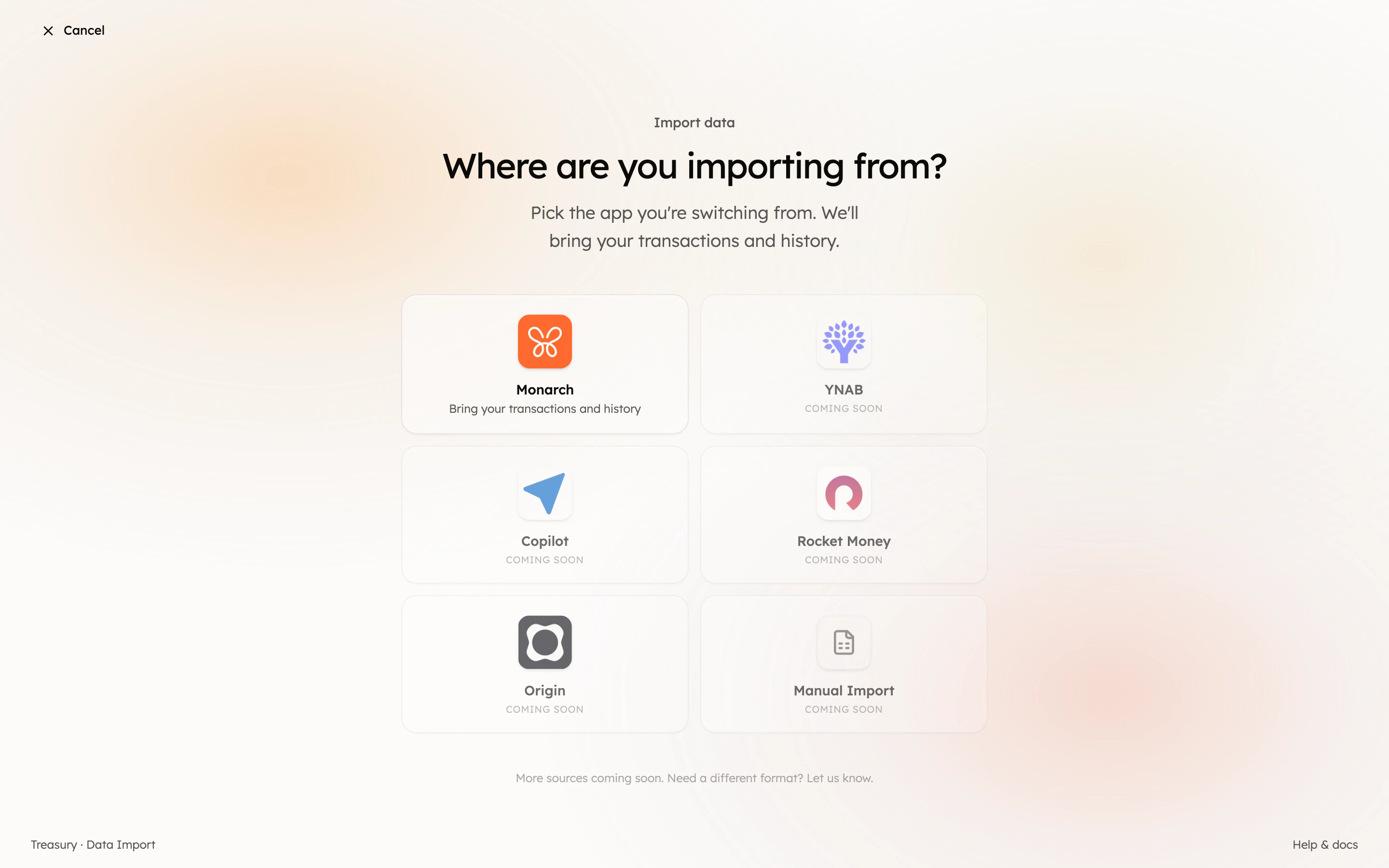
3. Walk the import
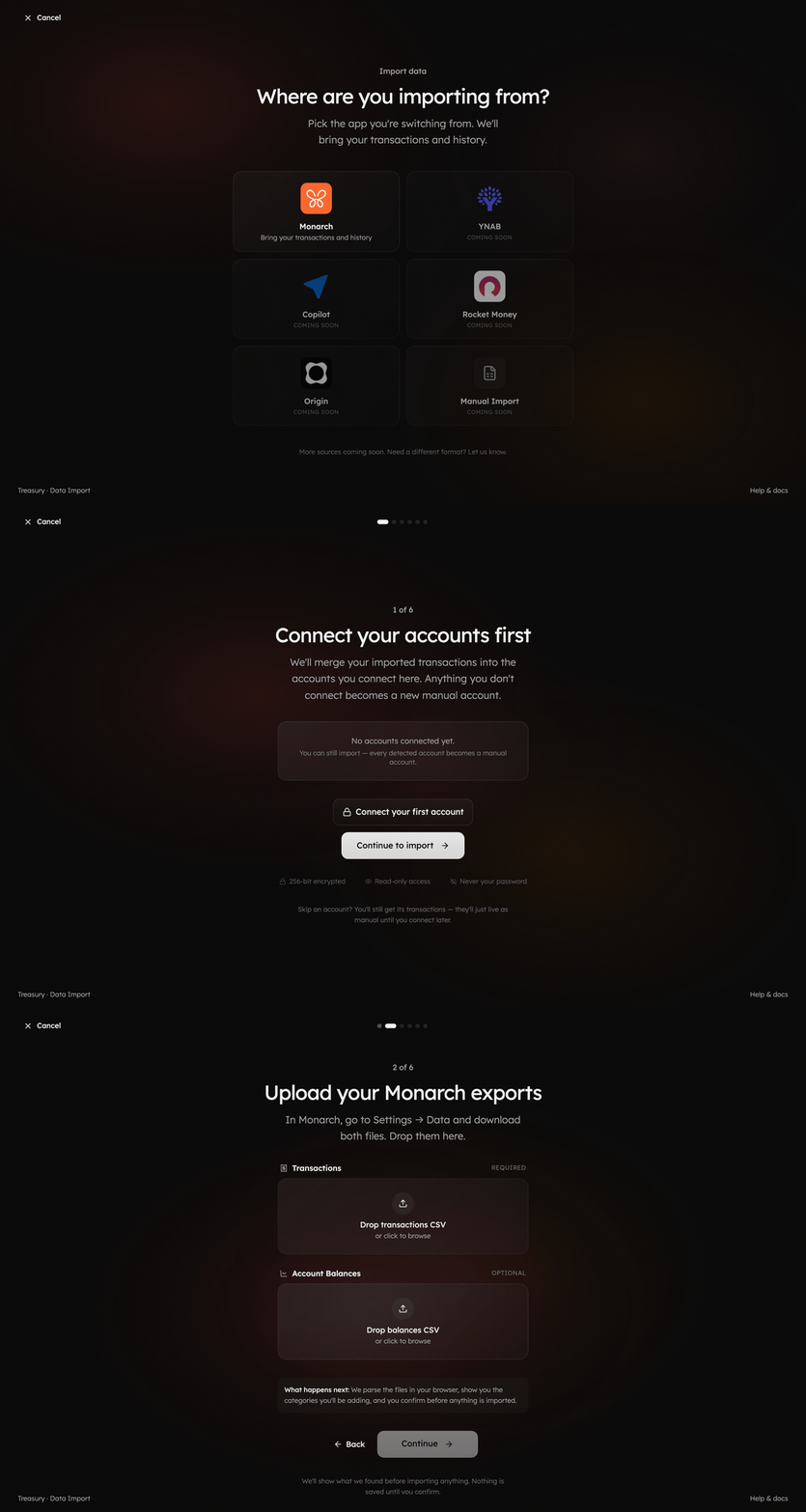
Treasury guides you through the rest: connect your accounts, upload your export, map your accounts and categories, then review and import.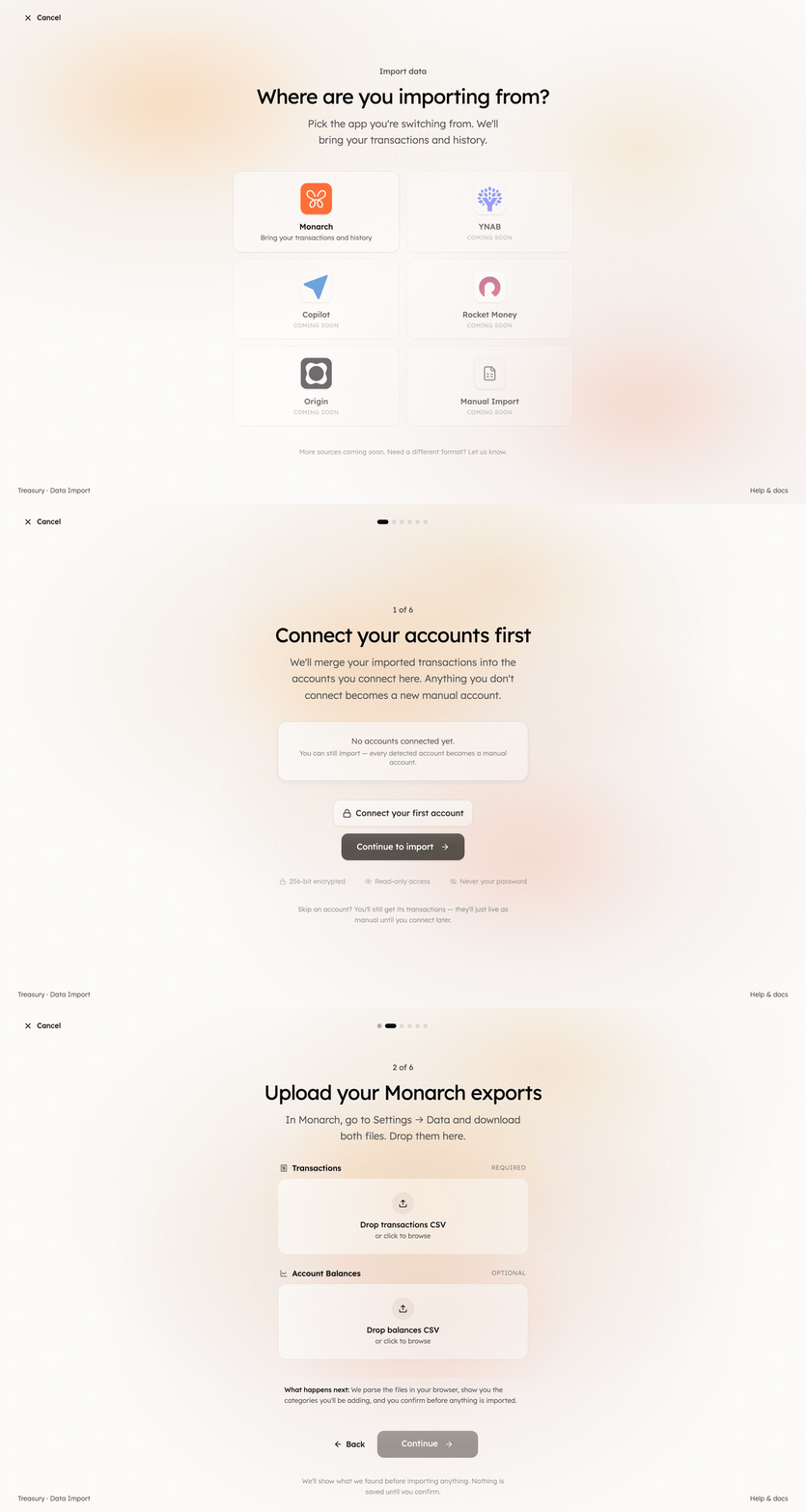
4. Verify the move
After the import finishes you’ll get a summary of everything that came in. Spend a few minutes confirming it landed right:- Accounts — each maps to the right Treasury account (or a new manual one).
- Categories — your old categories matched to Treasury’s; tidy any leftovers in Categories.
- Transactions — your history is on the Transactions page; clear any stragglers with Turbo Review.
- Net worth — your Net Worth history reflects the imported balances.
What good looks like
Treasury feels lived-in from day one — years of history, familiar categories, an established net-worth trend — with live accounts syncing forward. You picked up exactly where you left off.Take it further
Importing Data
The full import reference.
Connections
Link accounts so history merges with live data.
Get every transaction categorized
Tidy up imported categories fast.
Quickstart
The rest of your setup, in one short sitting.