

Overview
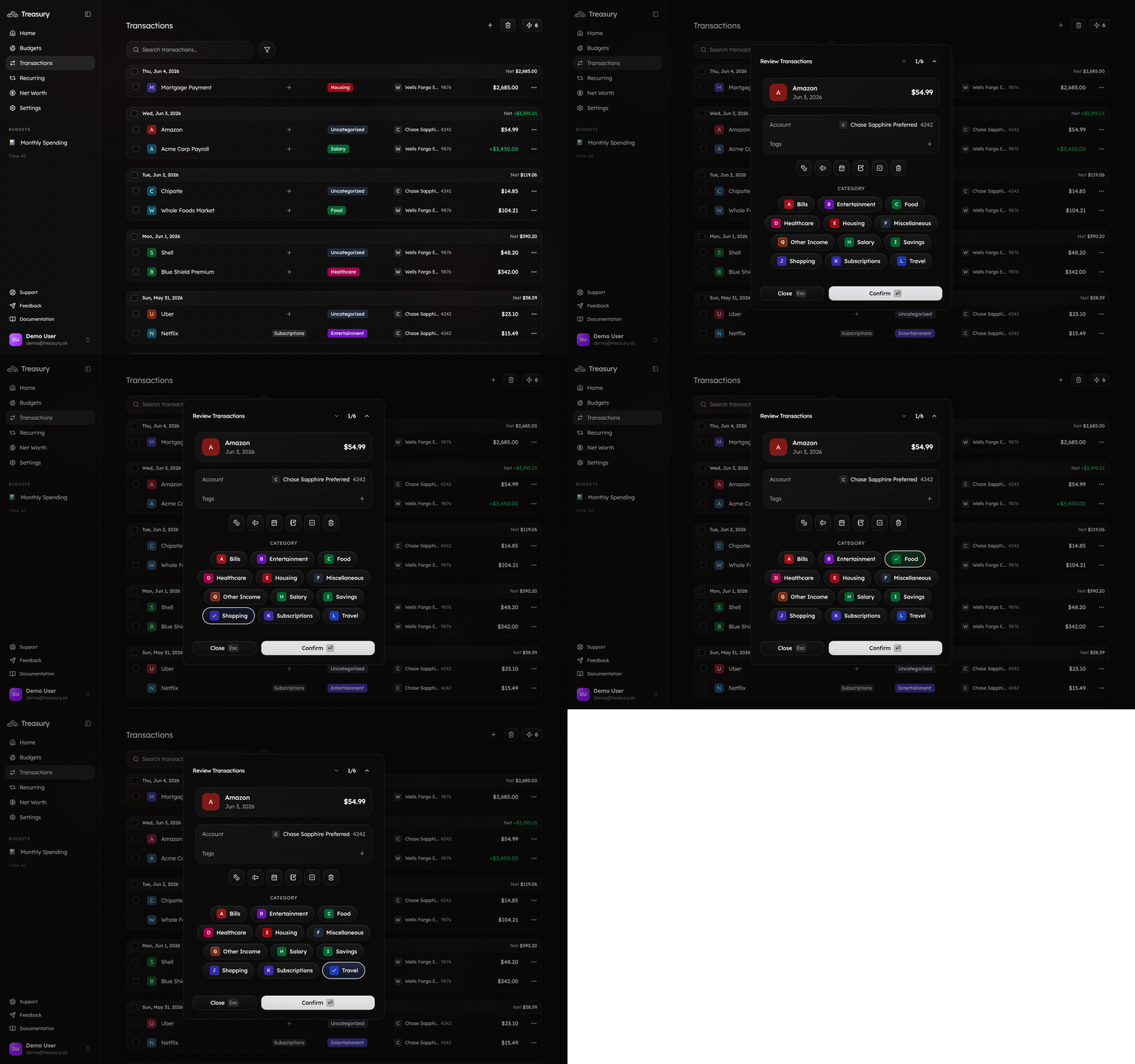
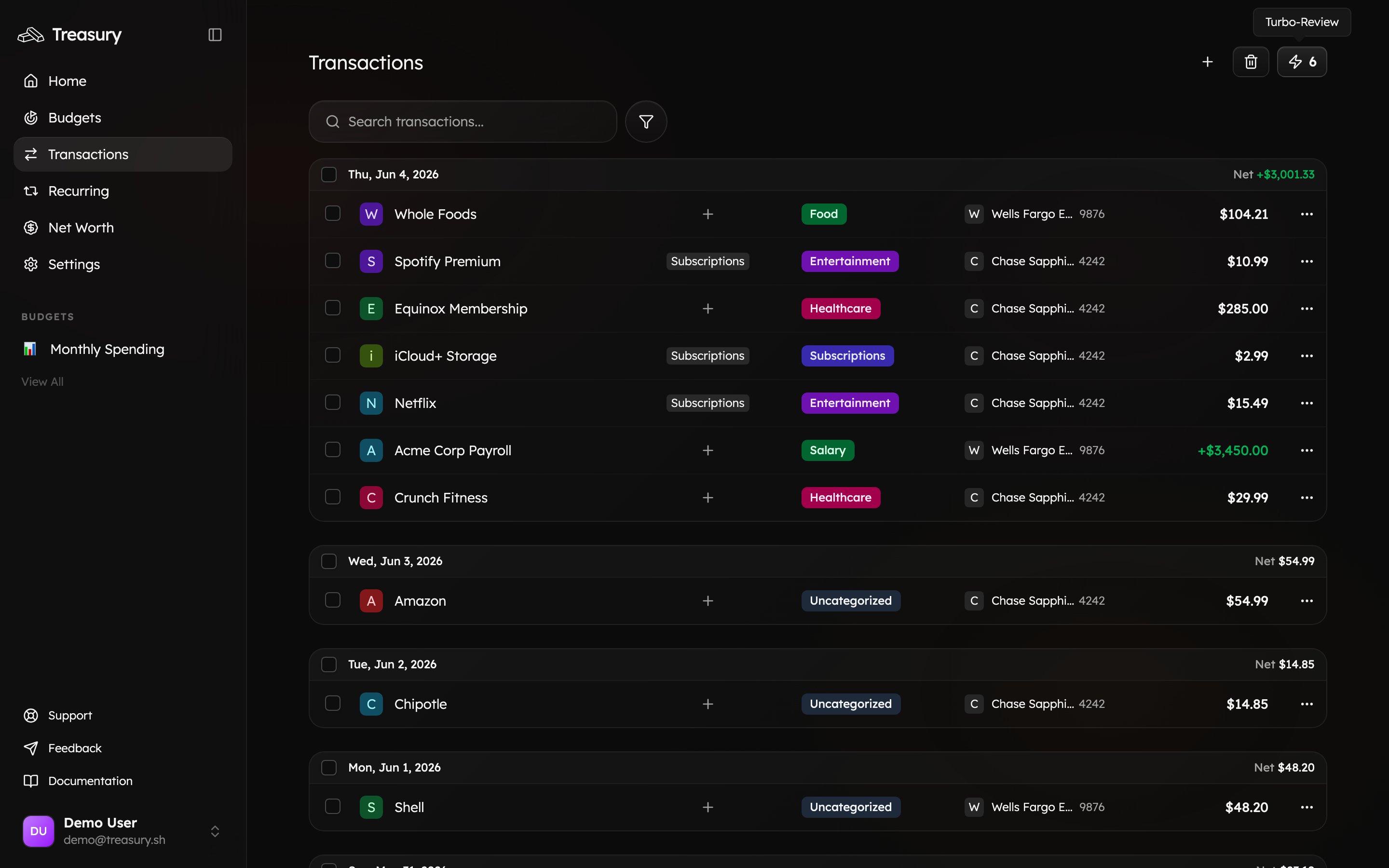
Turbo Review is the fastest way to categorize. Instead of editing transactions one at a time in a list, it shows you a single transaction with every category one tap — or one keystroke — away, then jumps straight to the next. A month of uncategorized spending becomes a minute of tapping. Open it from the ⚡ icon in the top-right of the Transactions page. The badge tells you how many transactions are waiting.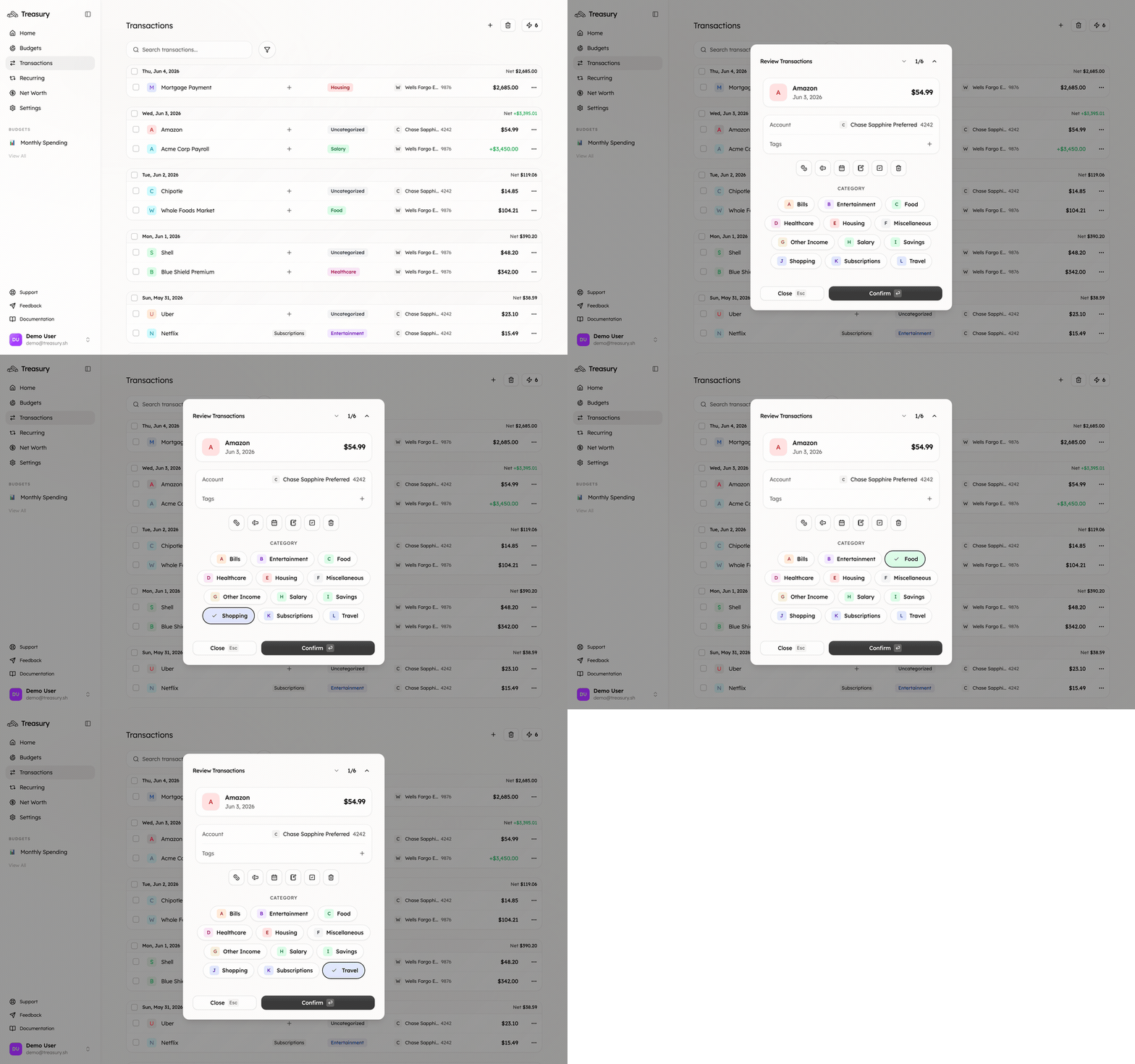
What you can do here
- Categorize a backlog one transaction at a time, fast.
- Assign categories by tap or keyboard — no scrolling a giant list.
- Adjust a transaction inline as you go — rename, re-date, add a note or tags, split, or exclude.
- Watch the queue empty to zero.
How it works
Turbo Review steps through your uncategorized transactions in order:1
See the transaction
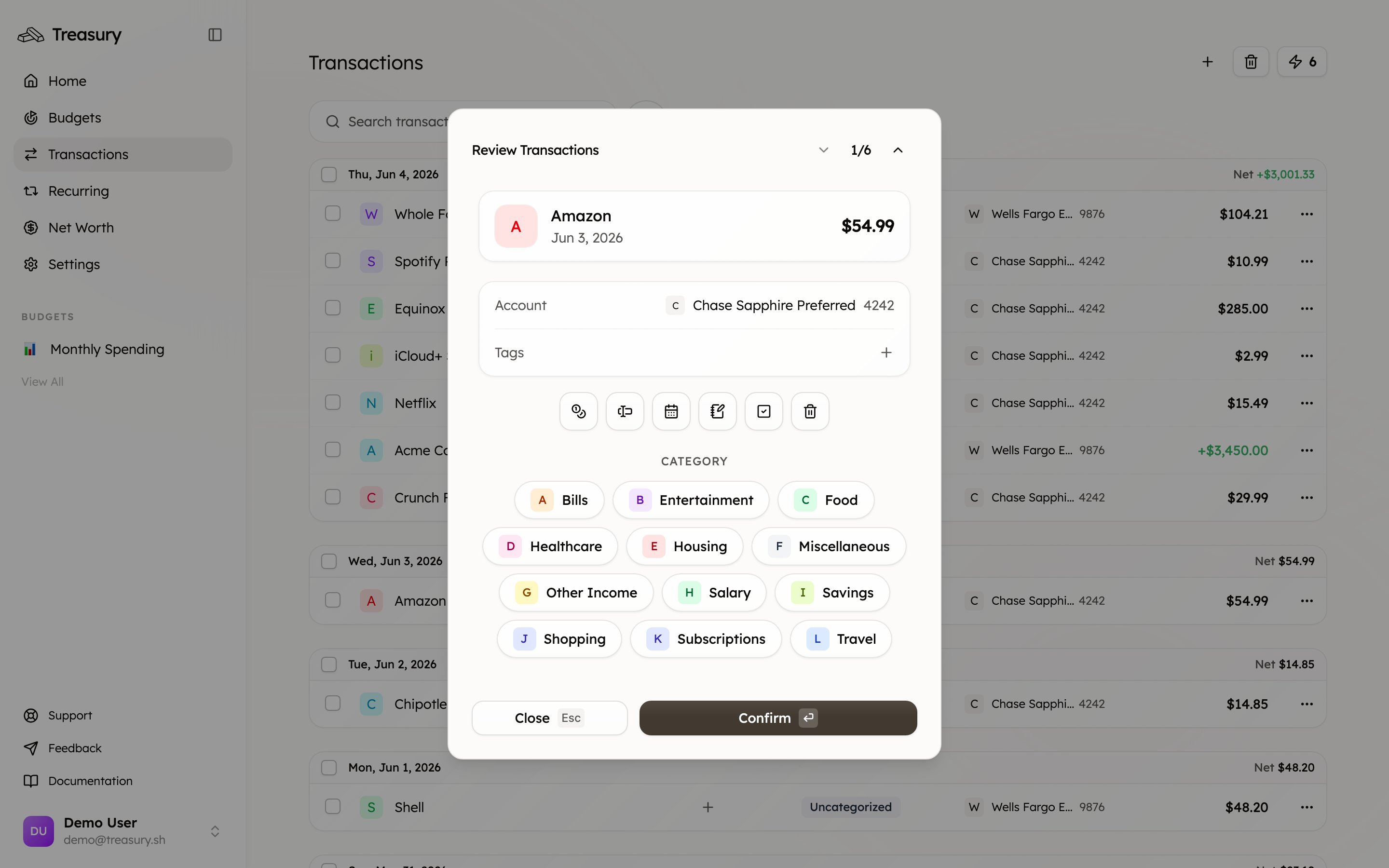
The current transaction is front and center — name, amount, account, and date — with a progress counter (e.g. 1 / 6) so you always know how many are left.
2
Pick a category
Choose the right category from the grid, or use a keyboard shortcut. Treasury saves it instantly.
3
Advance automatically
The next uncategorized transaction loads on its own — keep going until you’re done.
4
Reach zero
When the queue is empty you’ll see “No transactions left to review.” That’s the goal.
When to use it
- After connecting a new account, when Treasury imports weeks of history at once.
- Weekly cleanup — knock out the few transactions auto-categorization wasn’t sure about.
- Before checking a budget or report, so every transaction counts toward the right category.
FAQ
Turbo Review says I'm all caught up — where did everything go?
Turbo Review says I'm all caught up — where did everything go?
It only surfaces transactions that still need a category. If you’ve turned on auto-categorization, most transactions are handled for you and only the uncertain ones land here. An empty queue means your data is clean.
Can I change other details, not just the category?
Can I change other details, not just the category?
Yes. The action icons above the category grid let you rename, change the date, add a note or tags, split, or exclude the transaction — all without leaving Turbo Review.
What if I pick the wrong category?
What if I pick the wrong category?
No harm done — reopen the transaction from the Transactions list any time and change it. Categories aren’t permanent.
Related
Transactions
The full ledger Turbo Review draws from.
Categories
The categories you assign while reviewing.
Find & cancel subscriptions
Put clean data to work — surface and cut wasted subscriptions.
Budgets
Accurate categories make accurate budgets.