> ## Documentation Index
> Fetch the complete documentation index at: https://docs.treasury.sh/llms.txt
> Use this file to discover all available pages before exploring further.
# Switch from Monarch (or another app)
> Bring your transactions, accounts, and history into Treasury so you pick up right where you left off.
Switching budgeting apps shouldn't mean losing years of history. Treasury imports your transactions, accounts, and balances from your old app so your categories, net-worth trend, and spending history all come along. This guide walks the move end to end.
**What you'll achieve:** your full financial history in Treasury, merged with live accounts going forward — nothing left behind.
## 1. Export from your current app
Export your data from your existing app (for Monarch, download your transactions and account history). You'll upload this file to Treasury in a moment.
## 2. Start the import
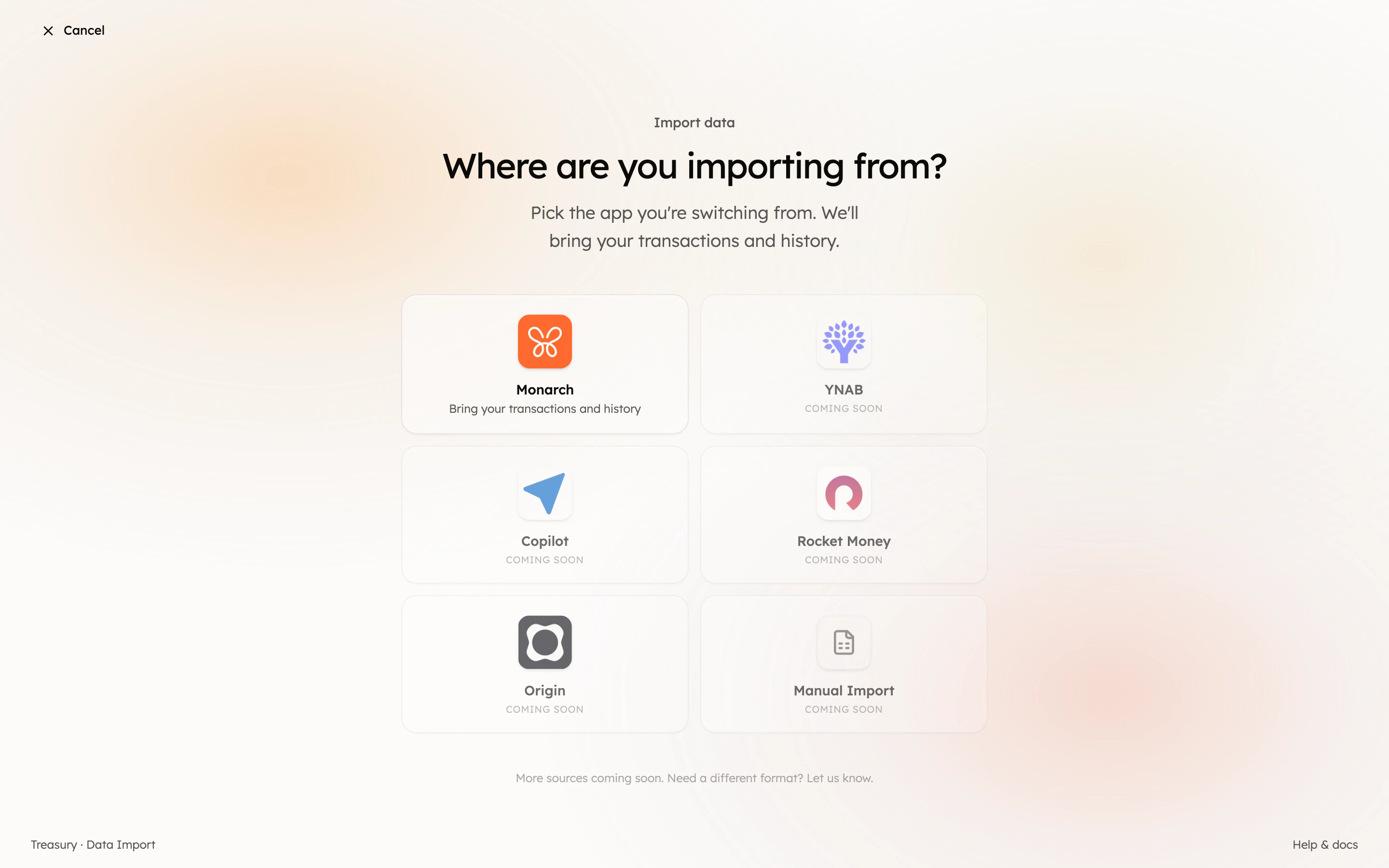
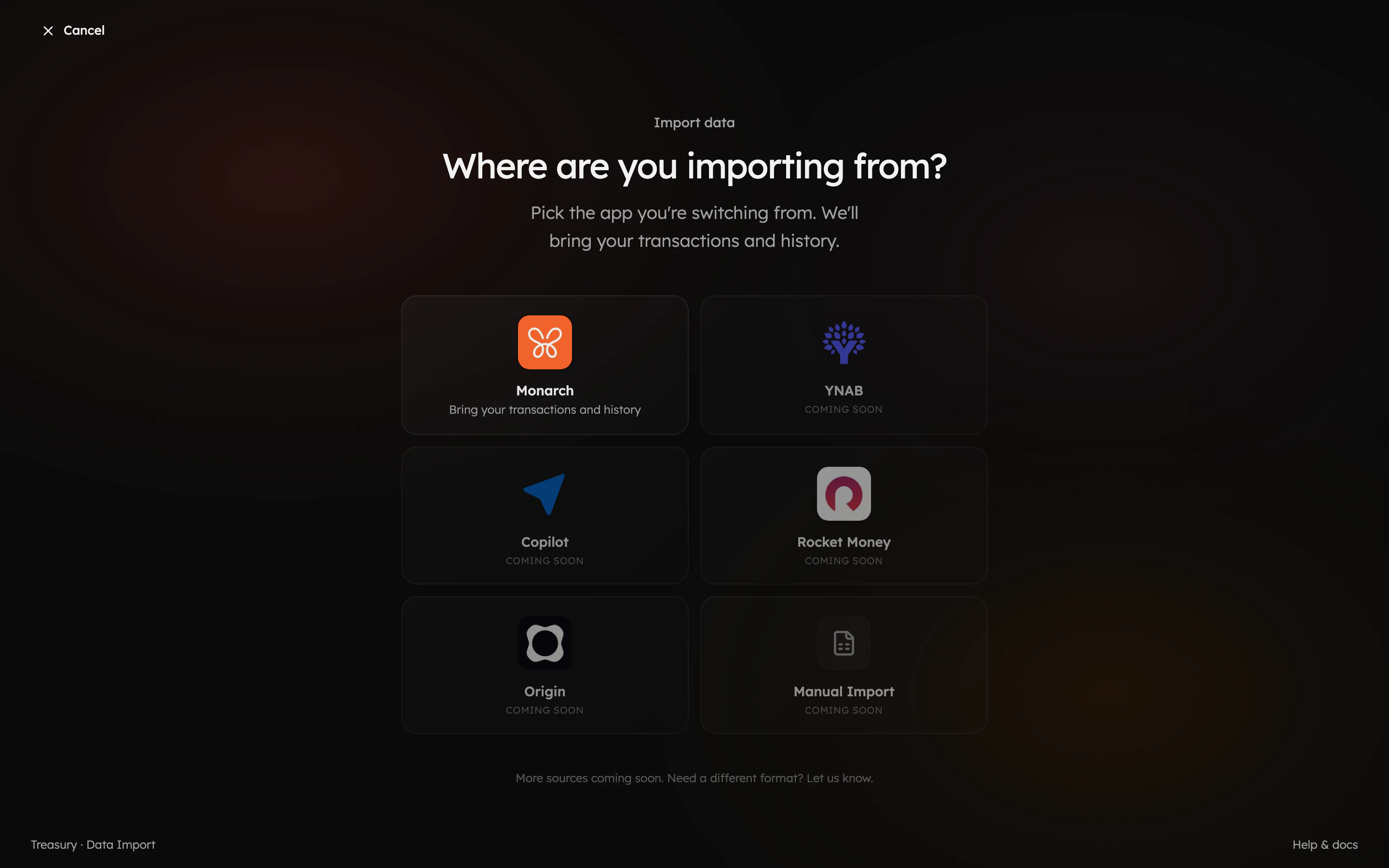
Open the importer from **Settings → Data Import** (or the **Import data** prompt on your dashboard) and choose where you're coming from. **Monarch** is supported today, with more apps on the way.
 ## 3. Walk the import
Treasury guides you through the rest: connect your accounts, upload your export, map your accounts and categories, then review and import.
## 3. Walk the import
Treasury guides you through the rest: connect your accounts, upload your export, map your accounts and categories, then review and import.
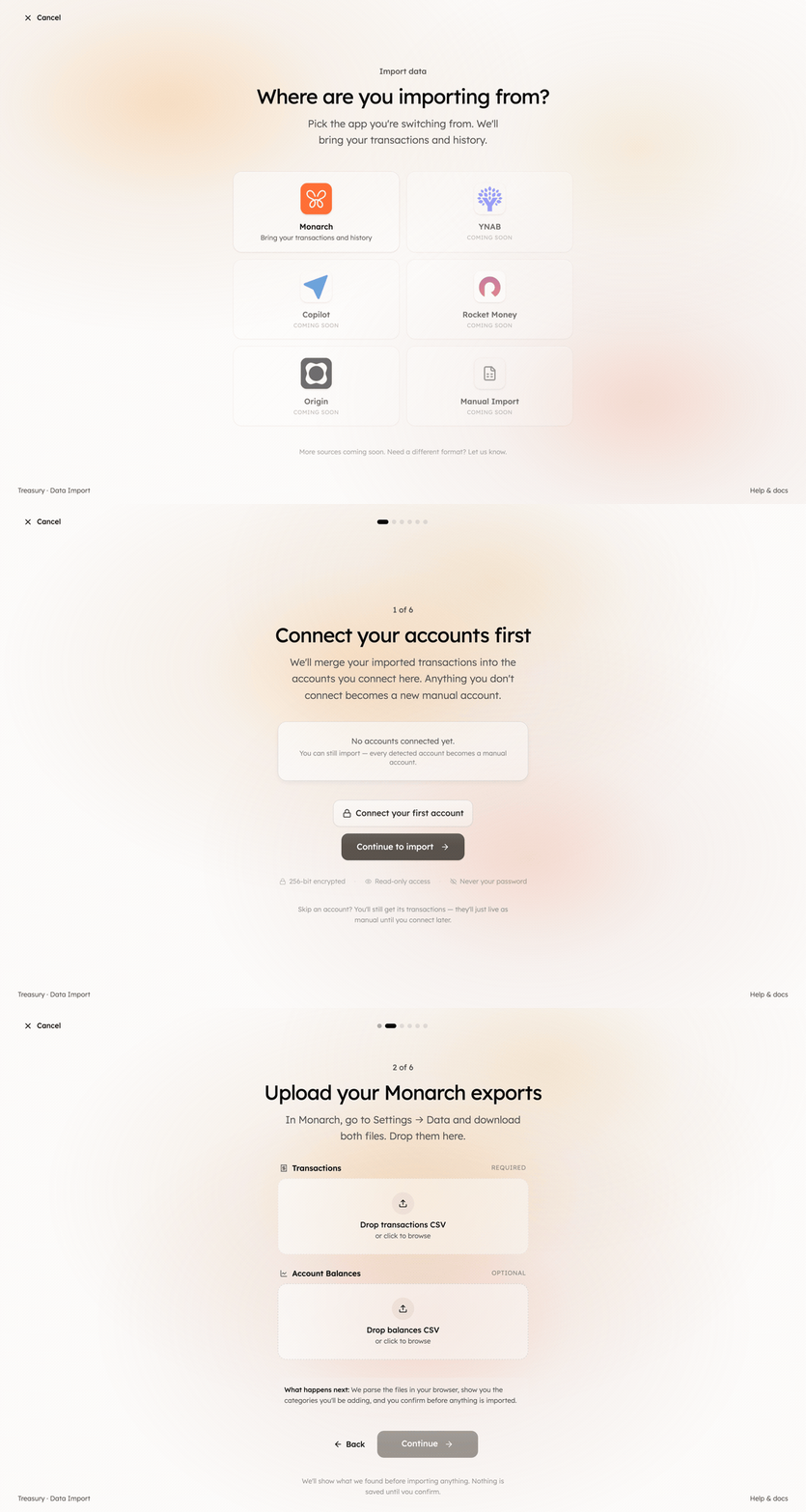
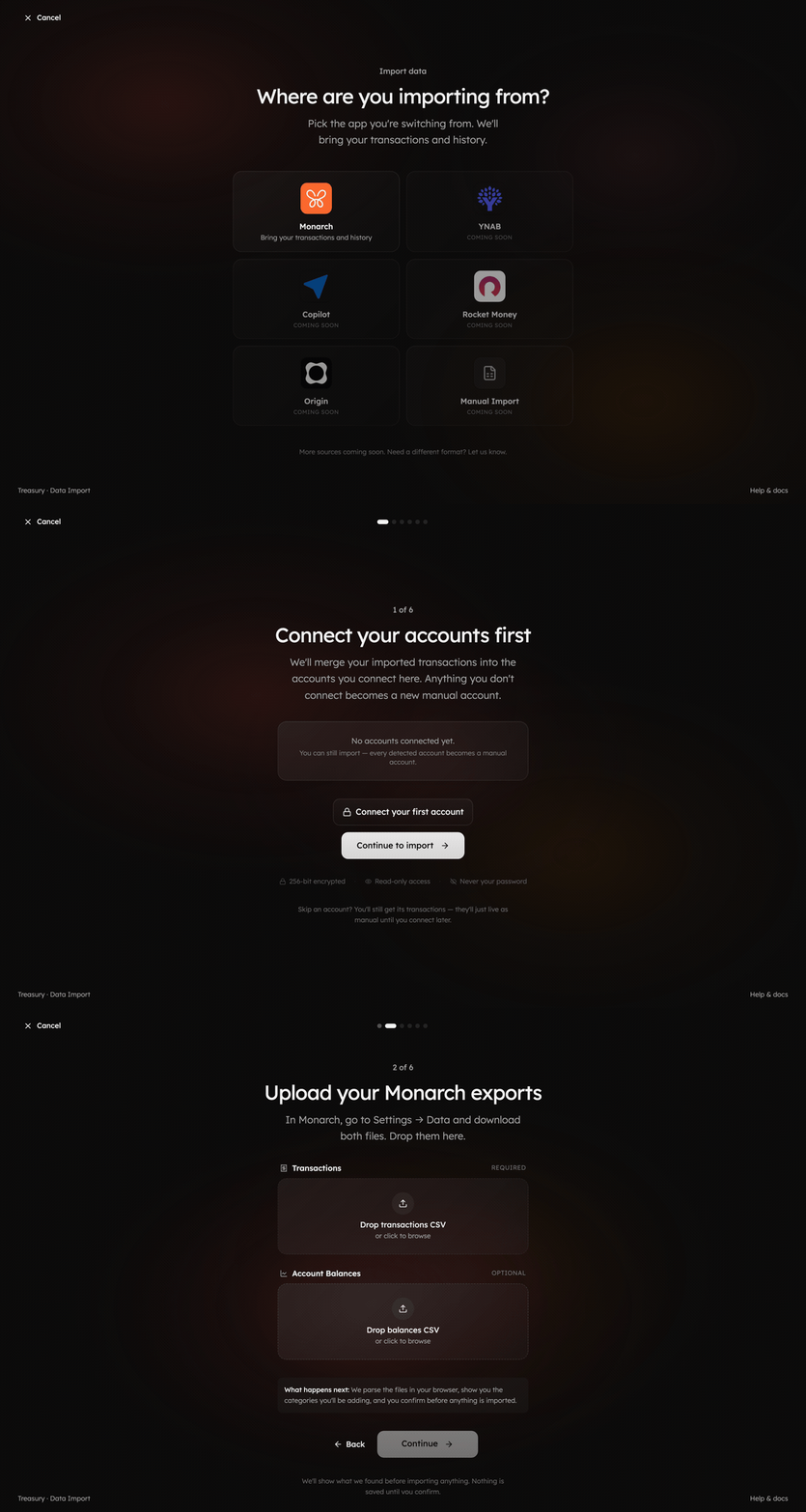 **Connect the matching bank first.** When you connect an account in step one, Treasury merges your imported history into it — so your old transactions and your new live ones form one continuous timeline instead of living in a separate manual account.
## 4. Verify the move
After the import finishes you'll get a summary of everything that came in. Spend a few minutes confirming it landed right:
* **Accounts** — each maps to the right Treasury account (or a new manual one).
* **Categories** — your old categories matched to Treasury's; tidy any leftovers in [Categories](/core/categories).
* **Transactions** — your history is on the [Transactions](/core/transactions) page; clear any stragglers with [Turbo Review](/core/turbo-review).
* **Net worth** — your [Net Worth](/core/net-worth) history reflects the imported balances.
## What good looks like
Treasury feels lived-in from day one — years of history, familiar categories, an established net-worth trend — with live accounts syncing forward. You picked up exactly where you left off.
## Take it further
The full import reference.
Link accounts so history merges with live data.
Tidy up imported categories fast.
The rest of your setup, in one short sitting.
**Connect the matching bank first.** When you connect an account in step one, Treasury merges your imported history into it — so your old transactions and your new live ones form one continuous timeline instead of living in a separate manual account.
## 4. Verify the move
After the import finishes you'll get a summary of everything that came in. Spend a few minutes confirming it landed right:
* **Accounts** — each maps to the right Treasury account (or a new manual one).
* **Categories** — your old categories matched to Treasury's; tidy any leftovers in [Categories](/core/categories).
* **Transactions** — your history is on the [Transactions](/core/transactions) page; clear any stragglers with [Turbo Review](/core/turbo-review).
* **Net worth** — your [Net Worth](/core/net-worth) history reflects the imported balances.
## What good looks like
Treasury feels lived-in from day one — years of history, familiar categories, an established net-worth trend — with live accounts syncing forward. You picked up exactly where you left off.
## Take it further
The full import reference.
Link accounts so history merges with live data.
Tidy up imported categories fast.
The rest of your setup, in one short sitting.