> ## Documentation Index
> Fetch the complete documentation index at: https://docs.treasury.sh/llms.txt
> Use this file to discover all available pages before exploring further.
# Transactions
> View, categorize, edit, and manage every transaction across your connected and manual accounts.
## Overview
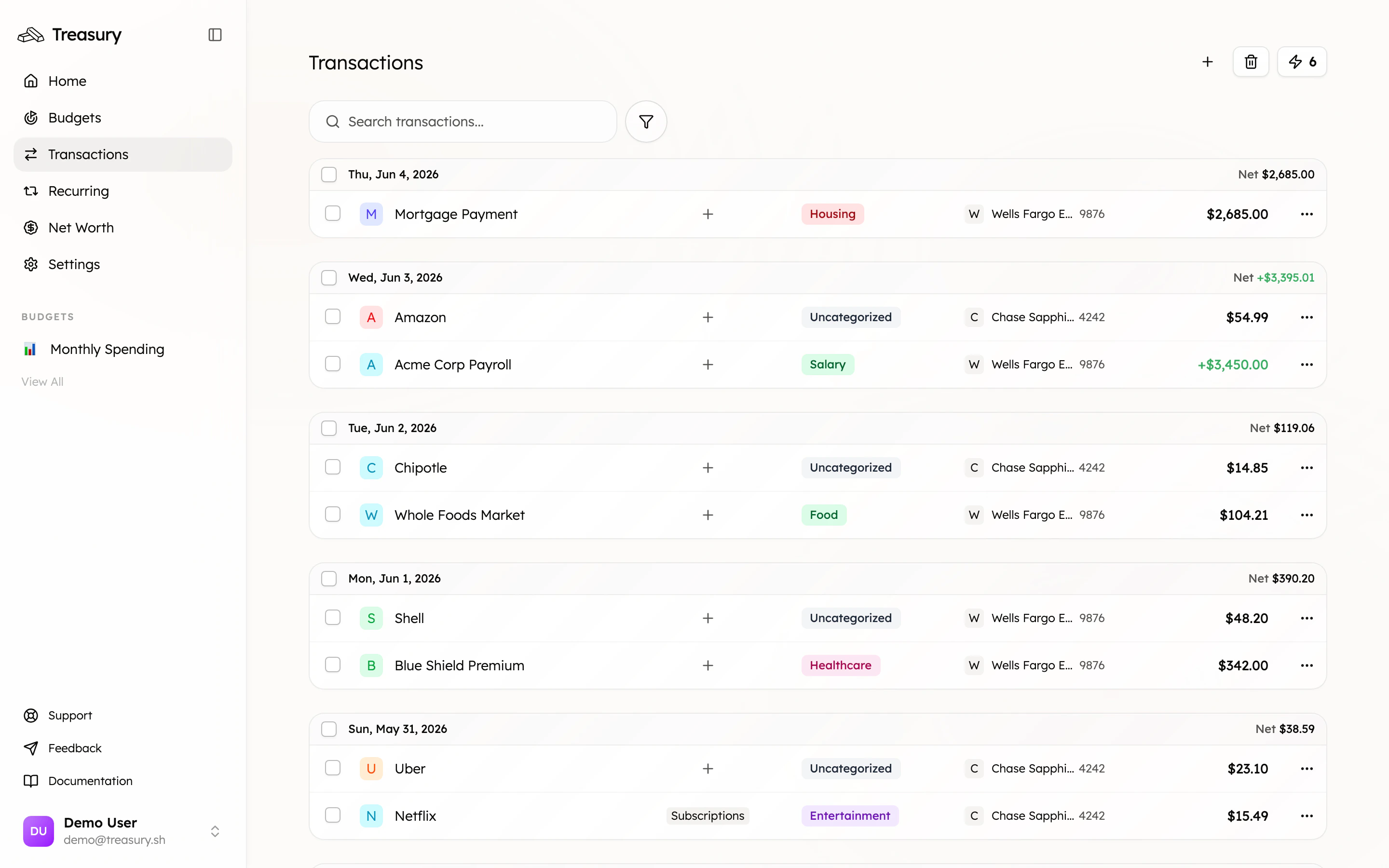
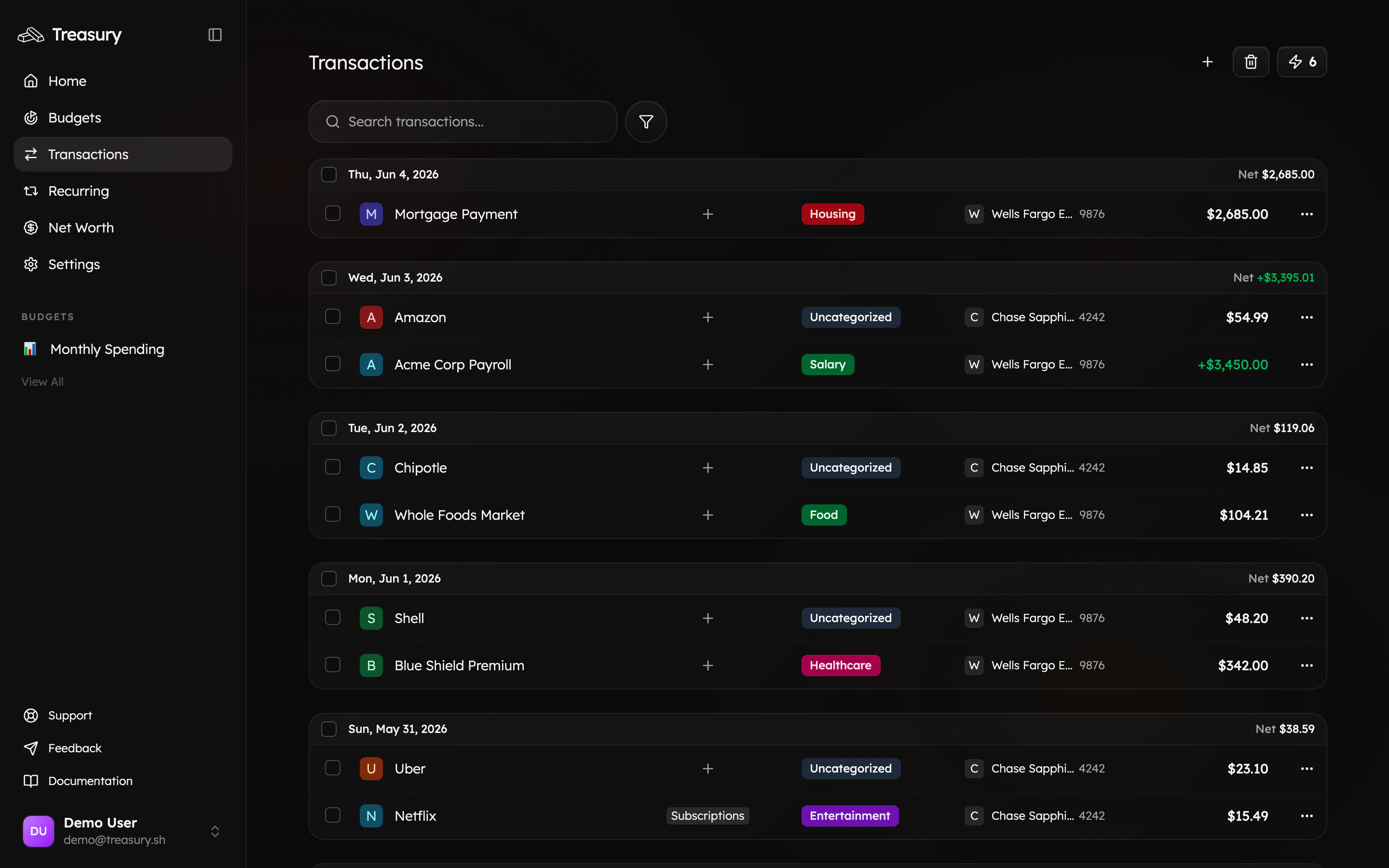
Your [transactions](https://app.treasury.sh/transactions) are found on the navigation bar. This is where you can view, manage, and categorize all your financial activity across connected and manual accounts.
 ## What you can do here
* See every **inflow and outflow** across all accounts, grouped by day.
* **Categorize** transactions individually or in bulk.
* **Filter** by category, account, or tag to find anything fast.
* **Edit** details — rename, re-date, note, split, or exclude.
* **Add** manual transactions and recover deleted ones from Trash.
## What are Transactions?
The **Transactions** page is where all your financial activity lives. It shows every inflow and outflow across your connected and manual accounts — including purchases, transfers, deposits, and savings contributions.
Each transaction is automatically synced from your bank connections (via Plaid) or added manually, and can be categorized based on your **Categories** and **Tags**. This helps you understand where your money is going and how it aligns with your budgets.
Transactions are grouped by day, with a running **Net** total for each day so you can see at a glance whether a given day was net positive or negative.
From the Transactions page, you can:
* View all your income, expenses, and savings in one place.
* Filter by **account**, **category**, or **tag**.
* Add or edit details like descriptions, notes, or categories.
* Split, merge, or delete transactions when needed.
Treasury keeps Transactions in sync automatically — new activity flows in from your connected accounts and feeds straight into your [Budgets](/core/budgets) and [Net Worth](/core/net-worth). The more consistently your transactions are categorized, the more accurate those views become.
## Categorize a Transaction
You can categorize transactions in two ways — directly from the transaction list or through the edit menu.
If a transaction already has a category assigned (or says “Uncategorized”), you can click directly on the **category label** to update it. A dropdown menu will appear where you can **search** or **select** the correct category.
For example, if you previously marked your "shopping" category incorrectly, you can click the **shopping** label and reassign it to a different category.
Alternatively, click the **three dots** next to a transaction and select **Edit**.
This opens the transaction details window, where you can change the category by clicking the correct category. You can also utilize keyboard shortcuts to reassign the category.
Once you’ve made your changes, click **Confirm** to save.
Categories are required before you can build budgets. If your list is full of **Uncategorized** items, set up your categories first — see [Categories](/core/categories) — or let Treasury do it for you with [Turbo Review](/core/turbo-review) and auto-categorization.
## Edit a Transaction
To edit a transaction, click the **three dots** next to a transaction and select **Edit**. This opens the transaction details window, where you can make a variety of changes.
### Available Actions
At the top of the edit screen, you’ll see several icons. Each one lets you quickly adjust different details of the transaction:
| Icon | Action | Description |
| :-------------------------------- | :-------------------- | :------------------------------------------------------------------------------------------------------------------- |
| | **Split** | Split/divide a transaction (for example, splitting a transaction 50/50 with a friend). |
| | **Edit Name** | Rename the transaction for clarity — helpful if the bank provided name is unclear. |
| | **Edit Date** | Change the transaction date if it was recorded incorrectly. |
| | **Add Note** | Add or edit a note or description for extra context. |
| | **Exclude / Include** | Toggle whether the transaction is counted in reports or budgets. Useful for removing one-off or reimbursement items. |
| | **Delete** | Deletes the transaction. |
You can also:
* **Add or remove tags** to transactions by clicking on **+Tags**.
* **Recategorize transactions using keyboard shortcuts** for quick updates.
After making your changes, click **Confirm** to save.
Use **Exclude** for reimbursements, one-off anomalies, or internal transfers you don't want skewing your budgets — the transaction stays on your ledger for the record but is left out of budget and report totals.
### Deleting Transactions
You can delete a transaction by clicking the **three dots** next to it and selecting **Delete**. A confirmation window will appear — click **Delete** again to permanently remove the transaction from your main Transactions page.
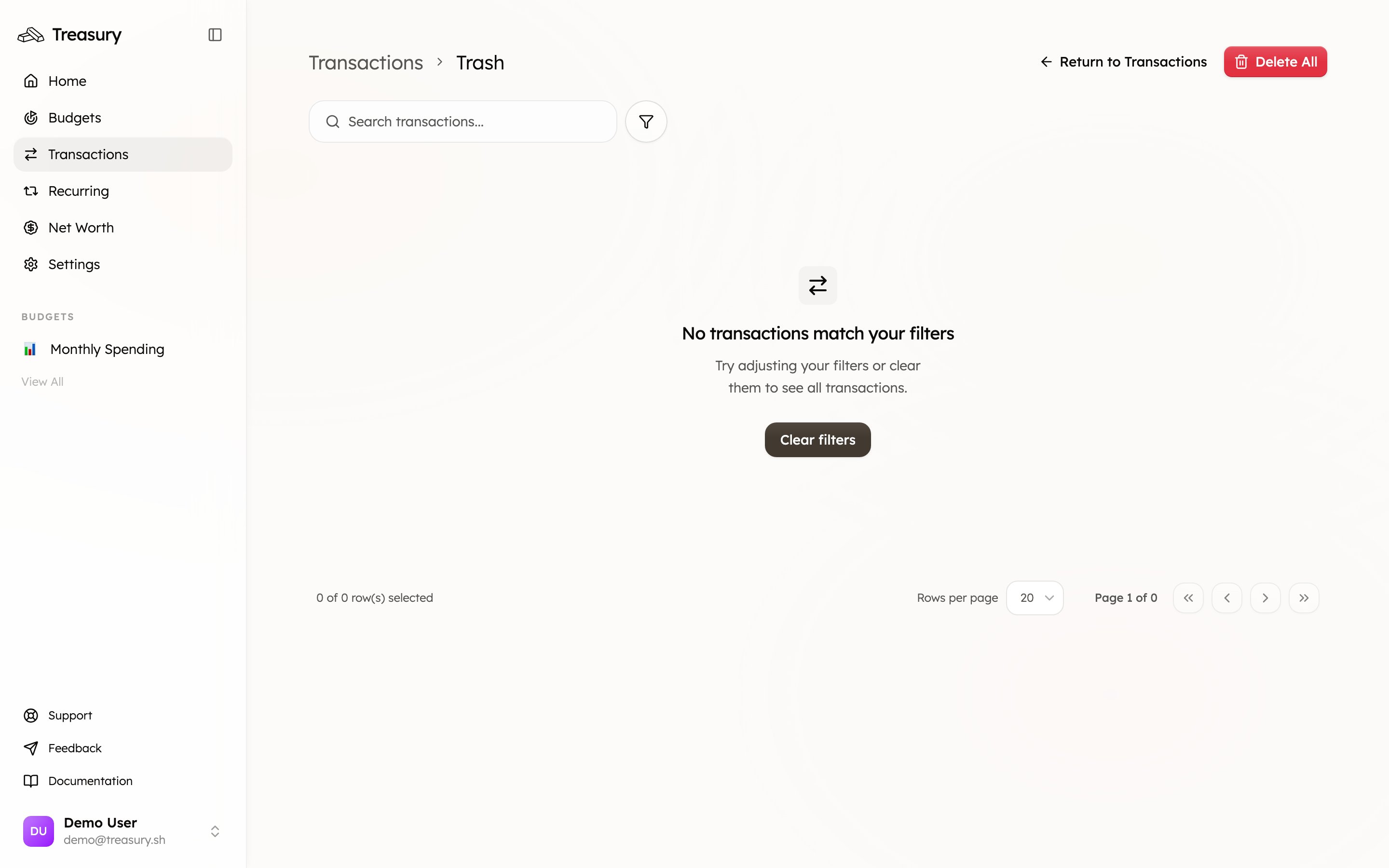
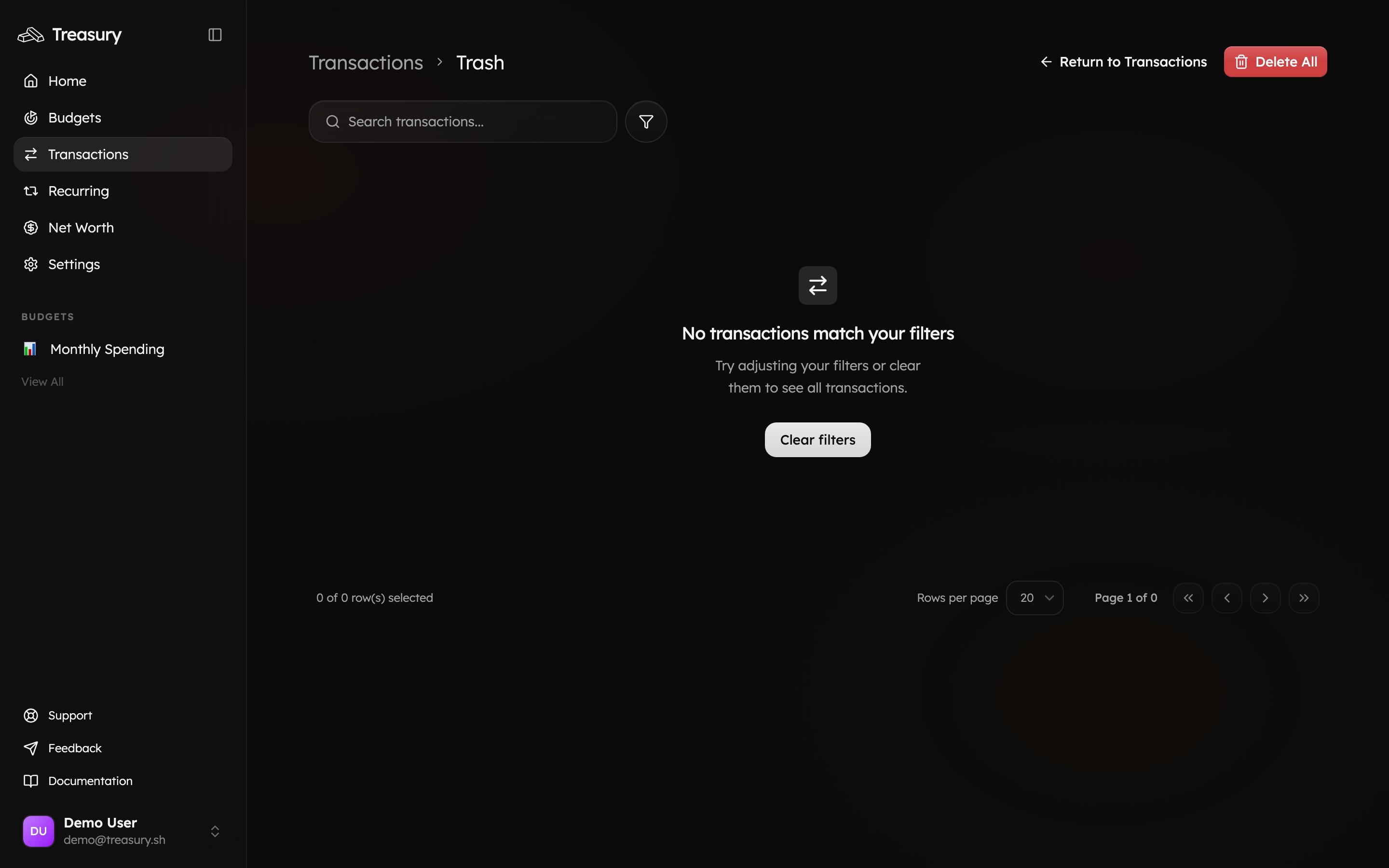
If you accidentally delete a transaction, you can recover it from the **Trash**:
1. Click the **trash can icon** in the top right corner of the Transactions page.
2. You’ll be redirected to the **Trash** view, where all deleted transactions appear.
3. Click the **three dots** next to a transaction to:
* **Restore** – return the transaction to your Transactions page.
* **Delete Forever** – permanently remove the transaction from Treasury.
## What you can do here
* See every **inflow and outflow** across all accounts, grouped by day.
* **Categorize** transactions individually or in bulk.
* **Filter** by category, account, or tag to find anything fast.
* **Edit** details — rename, re-date, note, split, or exclude.
* **Add** manual transactions and recover deleted ones from Trash.
## What are Transactions?
The **Transactions** page is where all your financial activity lives. It shows every inflow and outflow across your connected and manual accounts — including purchases, transfers, deposits, and savings contributions.
Each transaction is automatically synced from your bank connections (via Plaid) or added manually, and can be categorized based on your **Categories** and **Tags**. This helps you understand where your money is going and how it aligns with your budgets.
Transactions are grouped by day, with a running **Net** total for each day so you can see at a glance whether a given day was net positive or negative.
From the Transactions page, you can:
* View all your income, expenses, and savings in one place.
* Filter by **account**, **category**, or **tag**.
* Add or edit details like descriptions, notes, or categories.
* Split, merge, or delete transactions when needed.
Treasury keeps Transactions in sync automatically — new activity flows in from your connected accounts and feeds straight into your [Budgets](/core/budgets) and [Net Worth](/core/net-worth). The more consistently your transactions are categorized, the more accurate those views become.
## Categorize a Transaction
You can categorize transactions in two ways — directly from the transaction list or through the edit menu.
If a transaction already has a category assigned (or says “Uncategorized”), you can click directly on the **category label** to update it. A dropdown menu will appear where you can **search** or **select** the correct category.
For example, if you previously marked your "shopping" category incorrectly, you can click the **shopping** label and reassign it to a different category.
Alternatively, click the **three dots** next to a transaction and select **Edit**.
This opens the transaction details window, where you can change the category by clicking the correct category. You can also utilize keyboard shortcuts to reassign the category.
Once you’ve made your changes, click **Confirm** to save.
Categories are required before you can build budgets. If your list is full of **Uncategorized** items, set up your categories first — see [Categories](/core/categories) — or let Treasury do it for you with [Turbo Review](/core/turbo-review) and auto-categorization.
## Edit a Transaction
To edit a transaction, click the **three dots** next to a transaction and select **Edit**. This opens the transaction details window, where you can make a variety of changes.
### Available Actions
At the top of the edit screen, you’ll see several icons. Each one lets you quickly adjust different details of the transaction:
| Icon | Action | Description |
| :-------------------------------- | :-------------------- | :------------------------------------------------------------------------------------------------------------------- |
| | **Split** | Split/divide a transaction (for example, splitting a transaction 50/50 with a friend). |
| | **Edit Name** | Rename the transaction for clarity — helpful if the bank provided name is unclear. |
| | **Edit Date** | Change the transaction date if it was recorded incorrectly. |
| | **Add Note** | Add or edit a note or description for extra context. |
| | **Exclude / Include** | Toggle whether the transaction is counted in reports or budgets. Useful for removing one-off or reimbursement items. |
| | **Delete** | Deletes the transaction. |
You can also:
* **Add or remove tags** to transactions by clicking on **+Tags**.
* **Recategorize transactions using keyboard shortcuts** for quick updates.
After making your changes, click **Confirm** to save.
Use **Exclude** for reimbursements, one-off anomalies, or internal transfers you don't want skewing your budgets — the transaction stays on your ledger for the record but is left out of budget and report totals.
### Deleting Transactions
You can delete a transaction by clicking the **three dots** next to it and selecting **Delete**. A confirmation window will appear — click **Delete** again to permanently remove the transaction from your main Transactions page.
If you accidentally delete a transaction, you can recover it from the **Trash**:
1. Click the **trash can icon** in the top right corner of the Transactions page.
2. You’ll be redirected to the **Trash** view, where all deleted transactions appear.
3. Click the **three dots** next to a transaction to:
* **Restore** – return the transaction to your Transactions page.
* **Delete Forever** – permanently remove the transaction from Treasury.
 **Delete Forever** is permanent. Choosing it prompts a confirmation screen — once confirmed, the transaction is gone for good and **cannot be undone**. If a transaction came from a connected account, deleting it here removes it from Treasury but does not affect your bank.
### Filtering Transactions
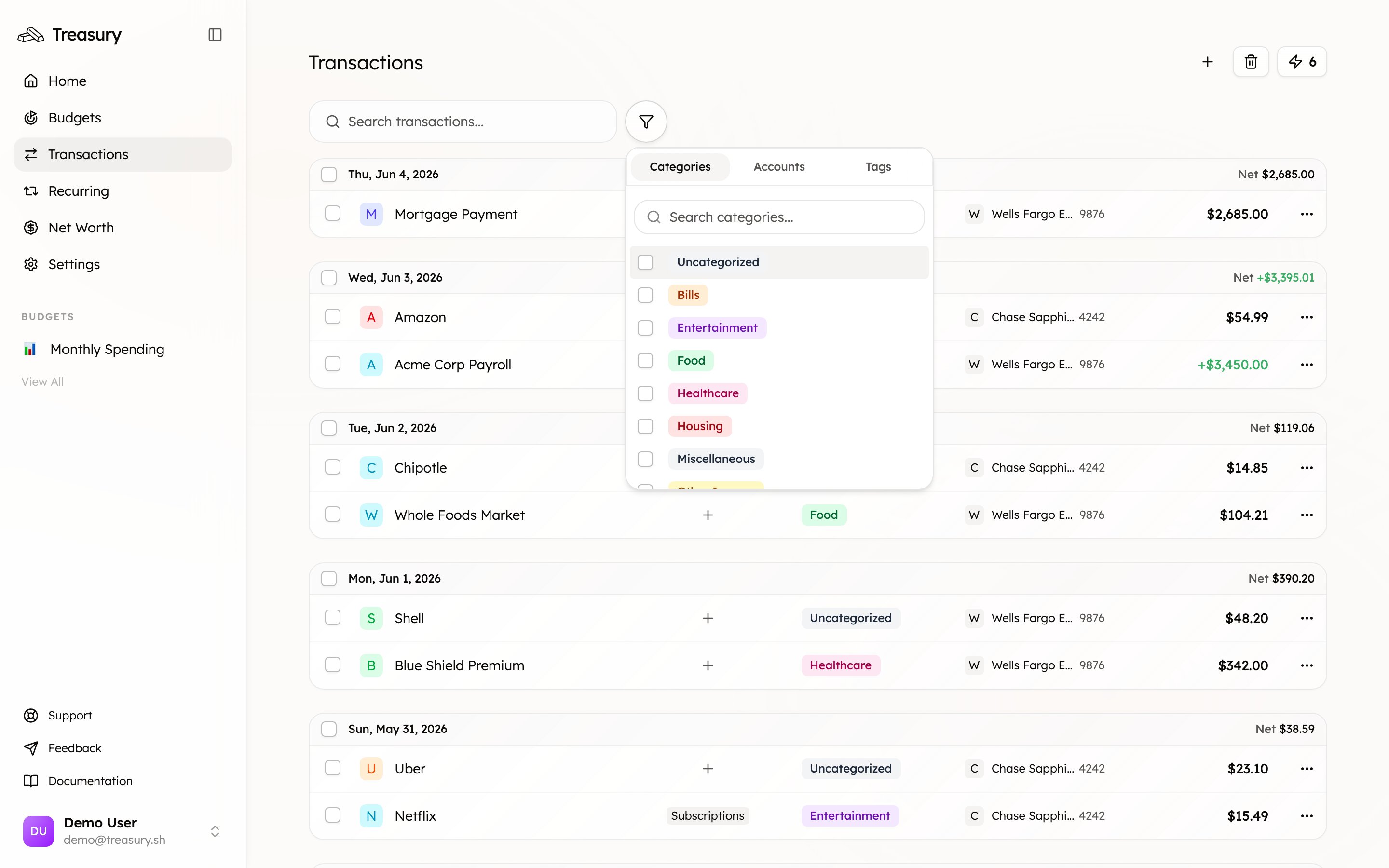
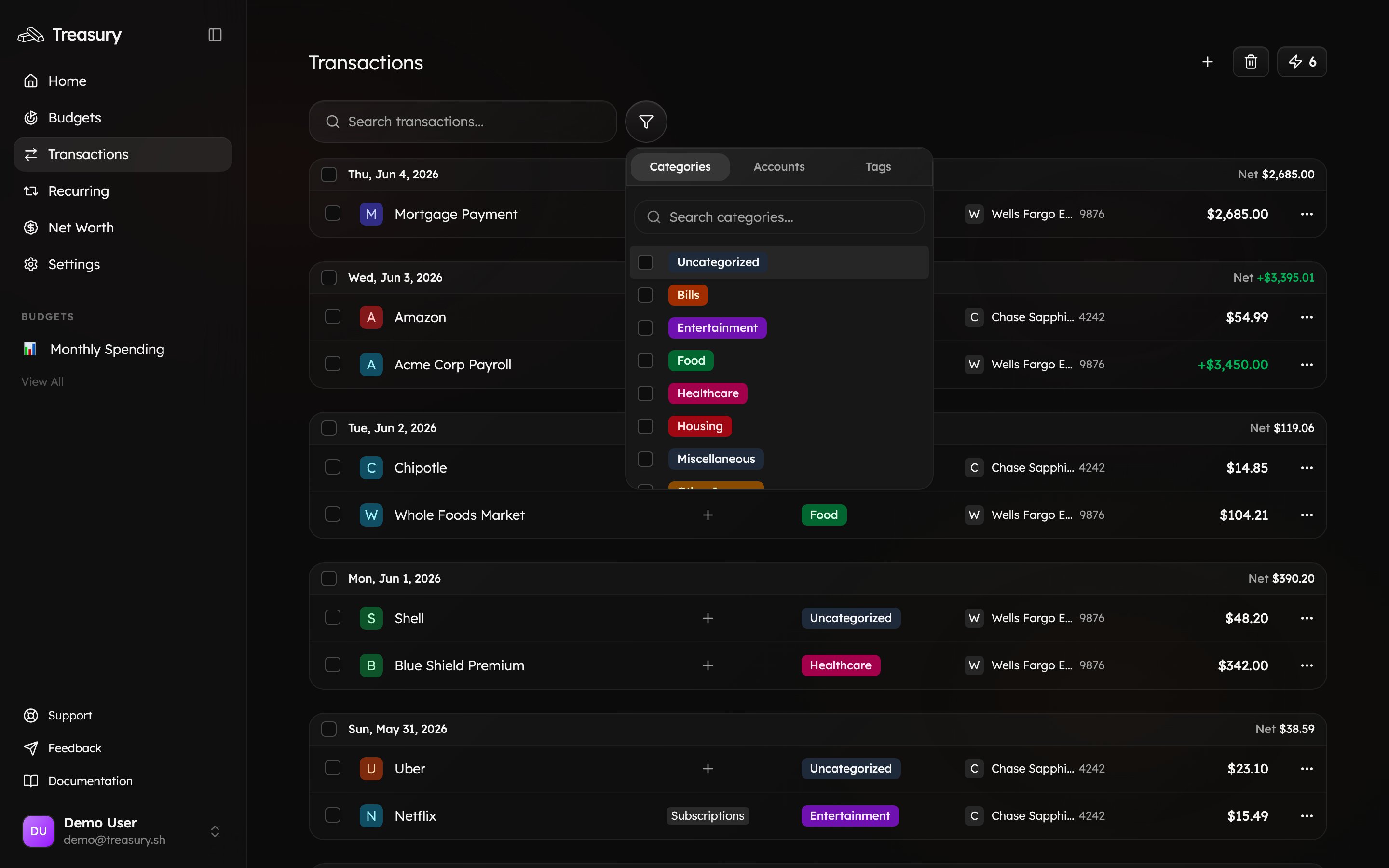
The **Filter** button on the Transactions page lets you quickly narrow down your view to find specific transactions.
You can filter your transactions by:
* **Categories** – show only transactions in certain categories (e.g., *Food*, *Rent*, *Travel*).
* **Accounts** – display transactions linked to specific accounts.
* **Tags** – view transactions associated with a particular tag (e.g., *Lapland 2025*).
Once you make a selection, the page will automatically update to show only the matching transactions. To remove filters and return to the full transaction list, click **Reset**.
**Delete Forever** is permanent. Choosing it prompts a confirmation screen — once confirmed, the transaction is gone for good and **cannot be undone**. If a transaction came from a connected account, deleting it here removes it from Treasury but does not affect your bank.
### Filtering Transactions
The **Filter** button on the Transactions page lets you quickly narrow down your view to find specific transactions.
You can filter your transactions by:
* **Categories** – show only transactions in certain categories (e.g., *Food*, *Rent*, *Travel*).
* **Accounts** – display transactions linked to specific accounts.
* **Tags** – view transactions associated with a particular tag (e.g., *Lapland 2025*).
Once you make a selection, the page will automatically update to show only the matching transactions. To remove filters and return to the full transaction list, click **Reset**.
 ### Adding a Manual Transaction
Manual transactions are useful for recording purchases made with **cash** or for tracking activity that isn’t automatically captured by your synced bank accounts.
To add a manual transaction:
1. Click **Add Transaction** in the top right corner of the Transactions page.
2. Fill in the details:
* **Name** – what the transaction is for (e.g., “Coffee at Local Café”).
* **Account** – choose the account to associate the transaction with.
* **Date** – select when the transaction occurred.
* **Category** – assign the appropriate category (e.g., *Food*, *Travel*, *Miscellaneous*).
* **Tag** *(optional)* – apply a tag if you’d like to group this transaction (e.g., *Vacation 2025*).
* **Note** *(optional)* – add any extra details or context.
3. Click **Submit**, and the transaction will be added to your Transactions page.
### Adding a Manual Transaction
Manual transactions are useful for recording purchases made with **cash** or for tracking activity that isn’t automatically captured by your synced bank accounts.
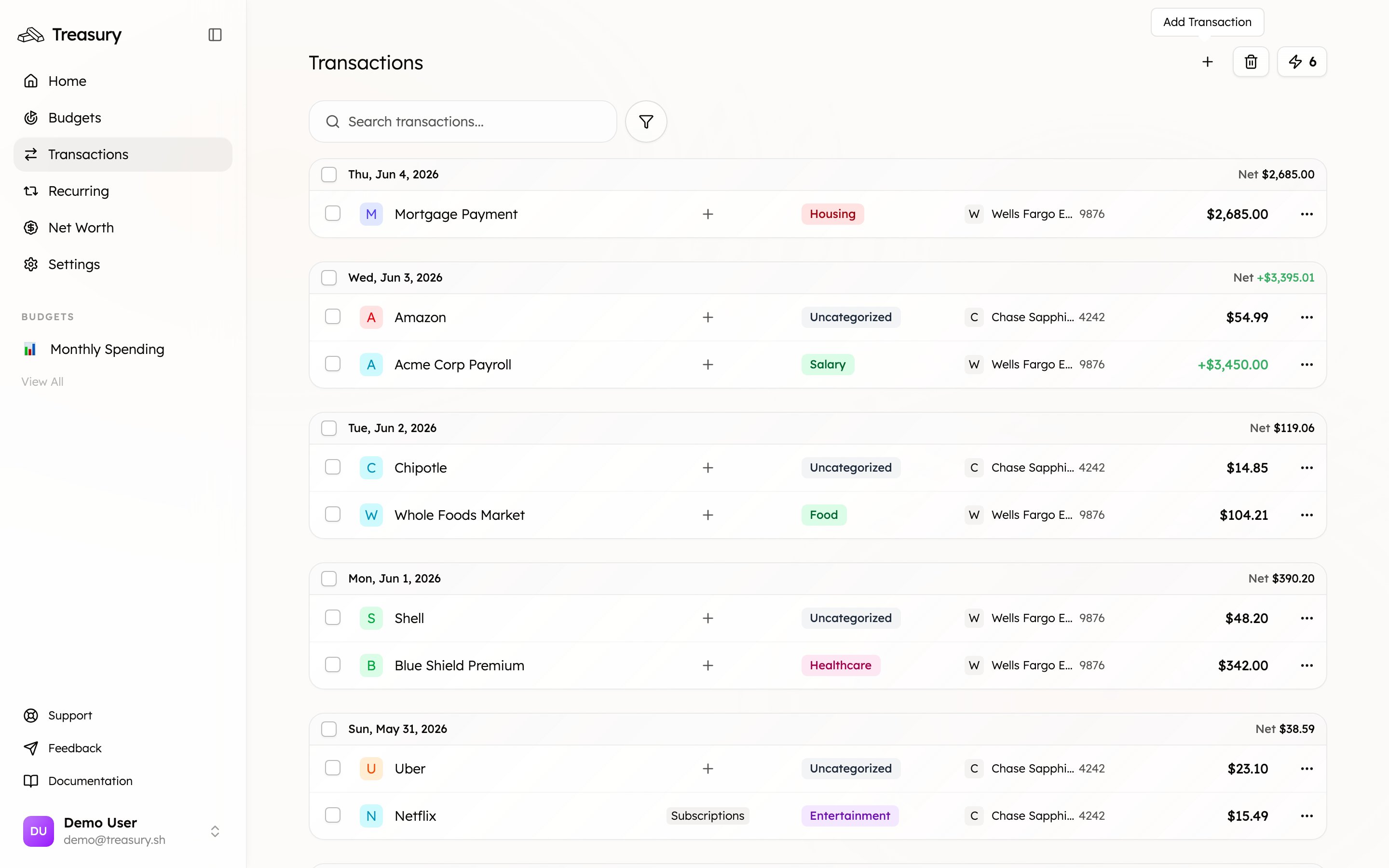
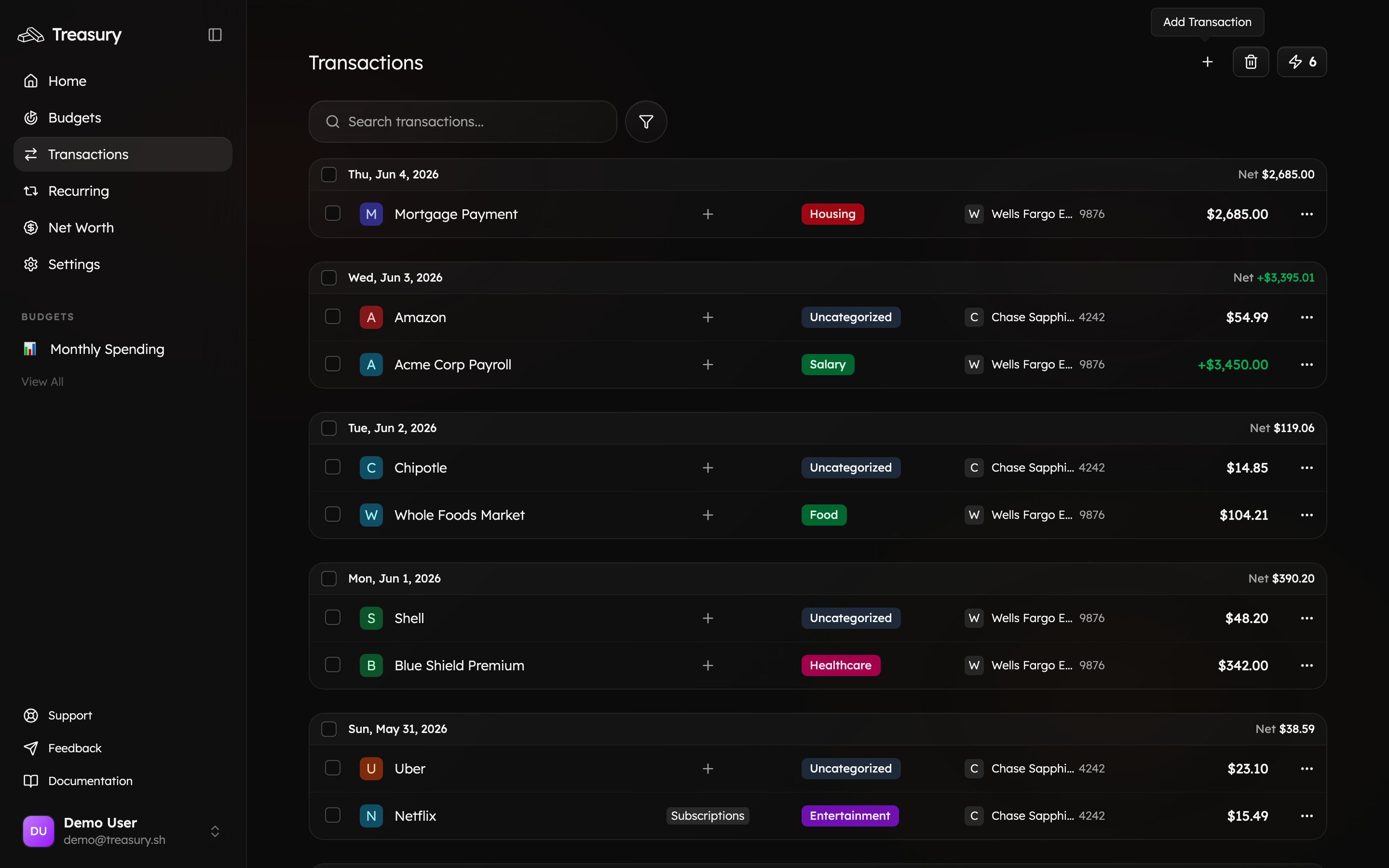
To add a manual transaction:
1. Click **Add Transaction** in the top right corner of the Transactions page.
2. Fill in the details:
* **Name** – what the transaction is for (e.g., “Coffee at Local Café”).
* **Account** – choose the account to associate the transaction with.
* **Date** – select when the transaction occurred.
* **Category** – assign the appropriate category (e.g., *Food*, *Travel*, *Miscellaneous*).
* **Tag** *(optional)* – apply a tag if you’d like to group this transaction (e.g., *Vacation 2025*).
* **Note** *(optional)* – add any extra details or context.
3. Click **Submit**, and the transaction will be added to your Transactions page.
 Manual transactions behave just like synced transactions — they can be categorized, edited, filtered, and included in budgets or reports.
## On the go
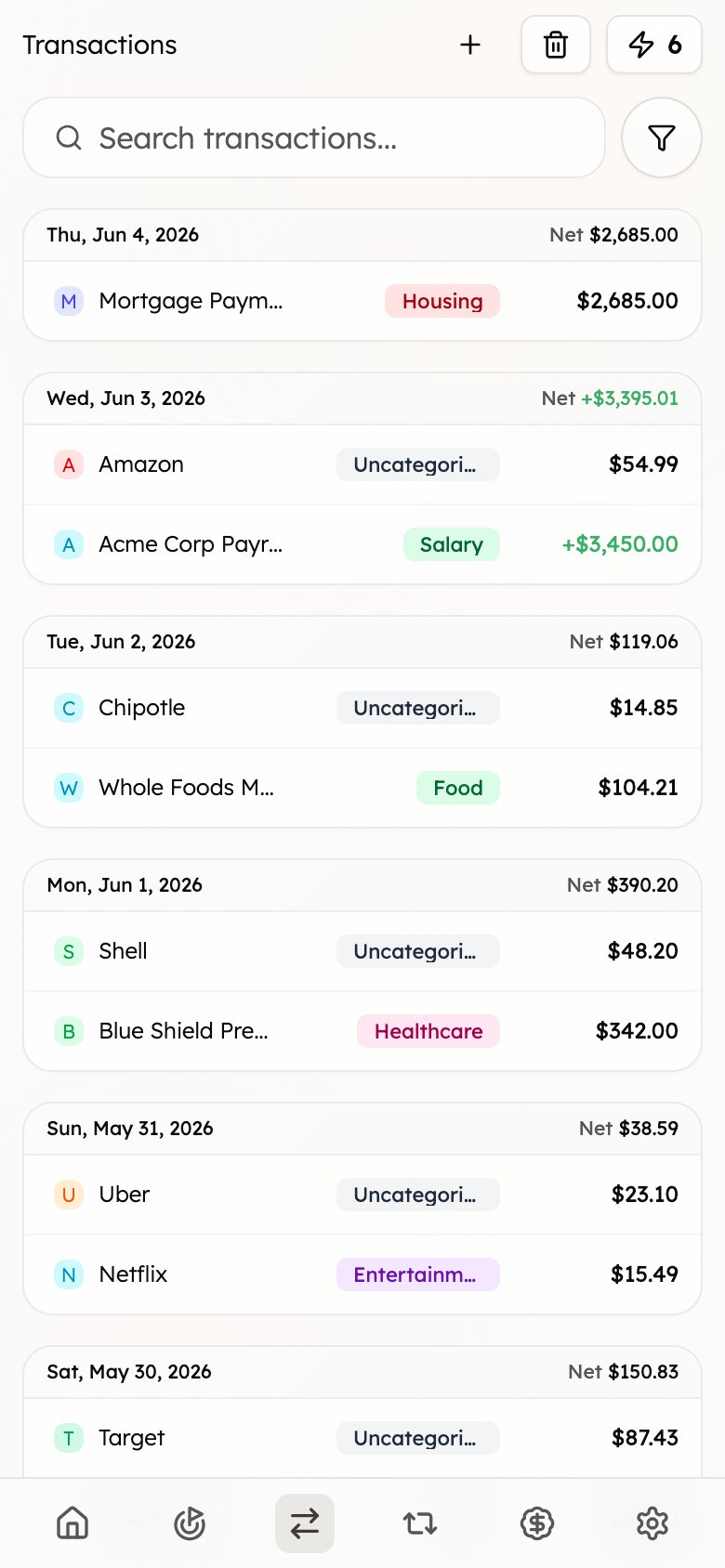
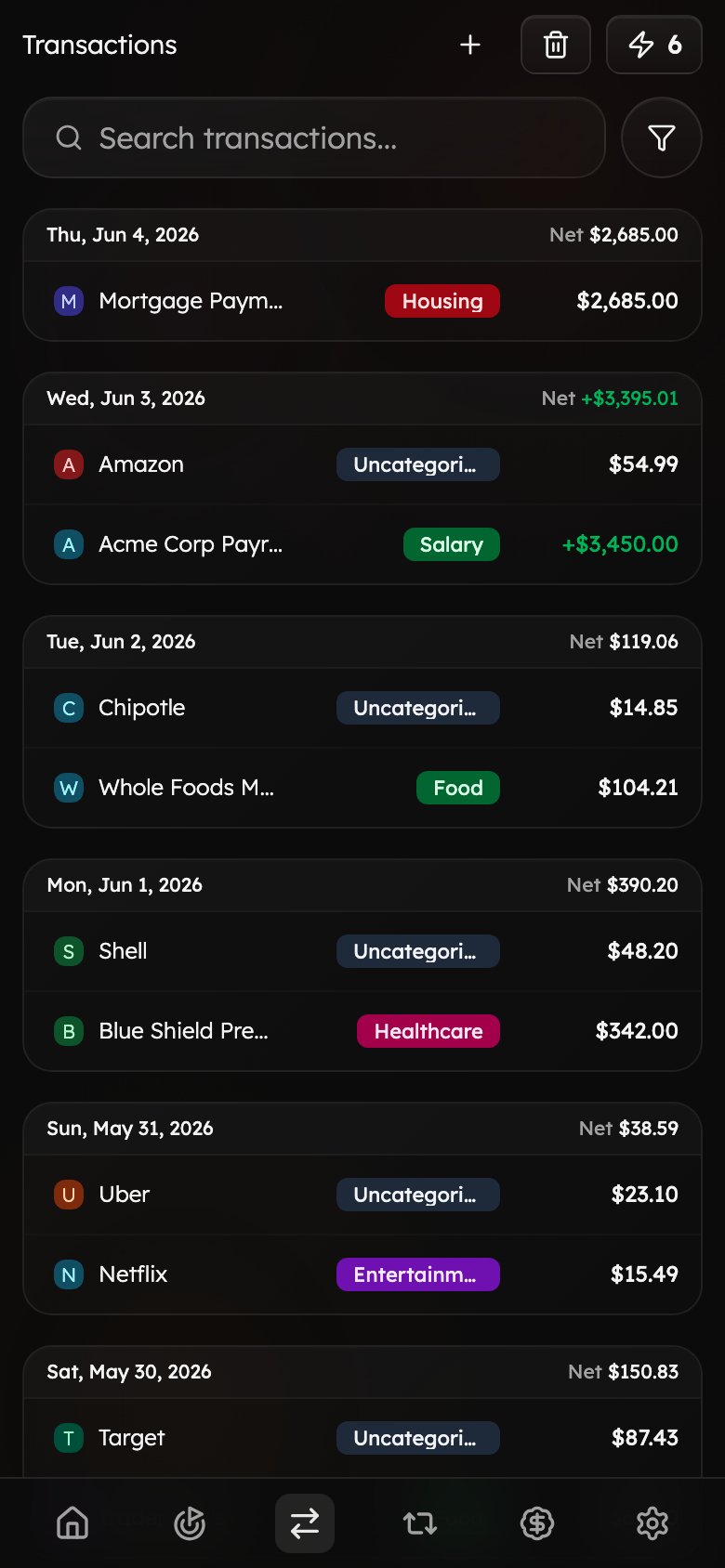
Everything on the Transactions page is available on mobile. Transactions are grouped by day as cards, with search and filter at the top and your daily **Net** on the right — so you can review and recategorize spending wherever you are.
Manual transactions behave just like synced transactions — they can be categorized, edited, filtered, and included in budgets or reports.
## On the go
Everything on the Transactions page is available on mobile. Transactions are grouped by day as cards, with search and filter at the top and your daily **Net** on the right — so you can review and recategorize spending wherever you are.
 ## Tips & best practices
* **Categorize little and often.** A few minutes a week keeps your budgets and reports accurate — or turn on auto-categorization and use [Turbo Review](/core/turbo-review) to clear the backlog fast.
* **Tag by project, not just category.** Tags like *Lapland 2025* let you slice spending across categories for trips, events, or shared expenses, and can drive a dedicated [budget](/core/budgets).
* **Exclude noise.** Reimbursements and internal transfers can distort your numbers — exclude them so your budgets reflect real spending.
* **Rename unclear merchants.** Cryptic bank descriptors become searchable and reportable once you give them a clear name.
## FAQ
Treasury auto-categorizes most activity, but flags anything it isn't sure about. Clear those in seconds with [Turbo Review](/core/turbo-review), or click the category label on the transaction to set it.
Open the **Trash** (trash-can icon, top right) and choose **Restore**. Transactions stay in the trash until you delete them forever.
It keeps the transaction on your ledger for the record but leaves it out of budget and report totals — ideal for reimbursements, internal transfers, and one-off anomalies.
Yes — use **Add Transaction** to record cash purchases or anything your synced accounts don't capture. Manual transactions behave just like synced ones.
## Related
Organize transactions into the categories that power your budgets.
Rapidly categorize a backlog of uncategorized transactions.
Plan and track spending using your categorized transactions.
Connect a bank so transactions sync in automatically.
## Tips & best practices
* **Categorize little and often.** A few minutes a week keeps your budgets and reports accurate — or turn on auto-categorization and use [Turbo Review](/core/turbo-review) to clear the backlog fast.
* **Tag by project, not just category.** Tags like *Lapland 2025* let you slice spending across categories for trips, events, or shared expenses, and can drive a dedicated [budget](/core/budgets).
* **Exclude noise.** Reimbursements and internal transfers can distort your numbers — exclude them so your budgets reflect real spending.
* **Rename unclear merchants.** Cryptic bank descriptors become searchable and reportable once you give them a clear name.
## FAQ
Treasury auto-categorizes most activity, but flags anything it isn't sure about. Clear those in seconds with [Turbo Review](/core/turbo-review), or click the category label on the transaction to set it.
Open the **Trash** (trash-can icon, top right) and choose **Restore**. Transactions stay in the trash until you delete them forever.
It keeps the transaction on your ledger for the record but leaves it out of budget and report totals — ideal for reimbursements, internal transfers, and one-off anomalies.
Yes — use **Add Transaction** to record cash purchases or anything your synced accounts don't capture. Manual transactions behave just like synced ones.
## Related
Organize transactions into the categories that power your budgets.
Rapidly categorize a backlog of uncategorized transactions.
Plan and track spending using your categorized transactions.
Connect a bank so transactions sync in automatically.