> ## Documentation Index
> Fetch the complete documentation index at: https://docs.treasury.sh/llms.txt
> Use this file to discover all available pages before exploring further.
# Tags
> Label transactions across categories to track a trip, project, or event from start to finish.
## Overview
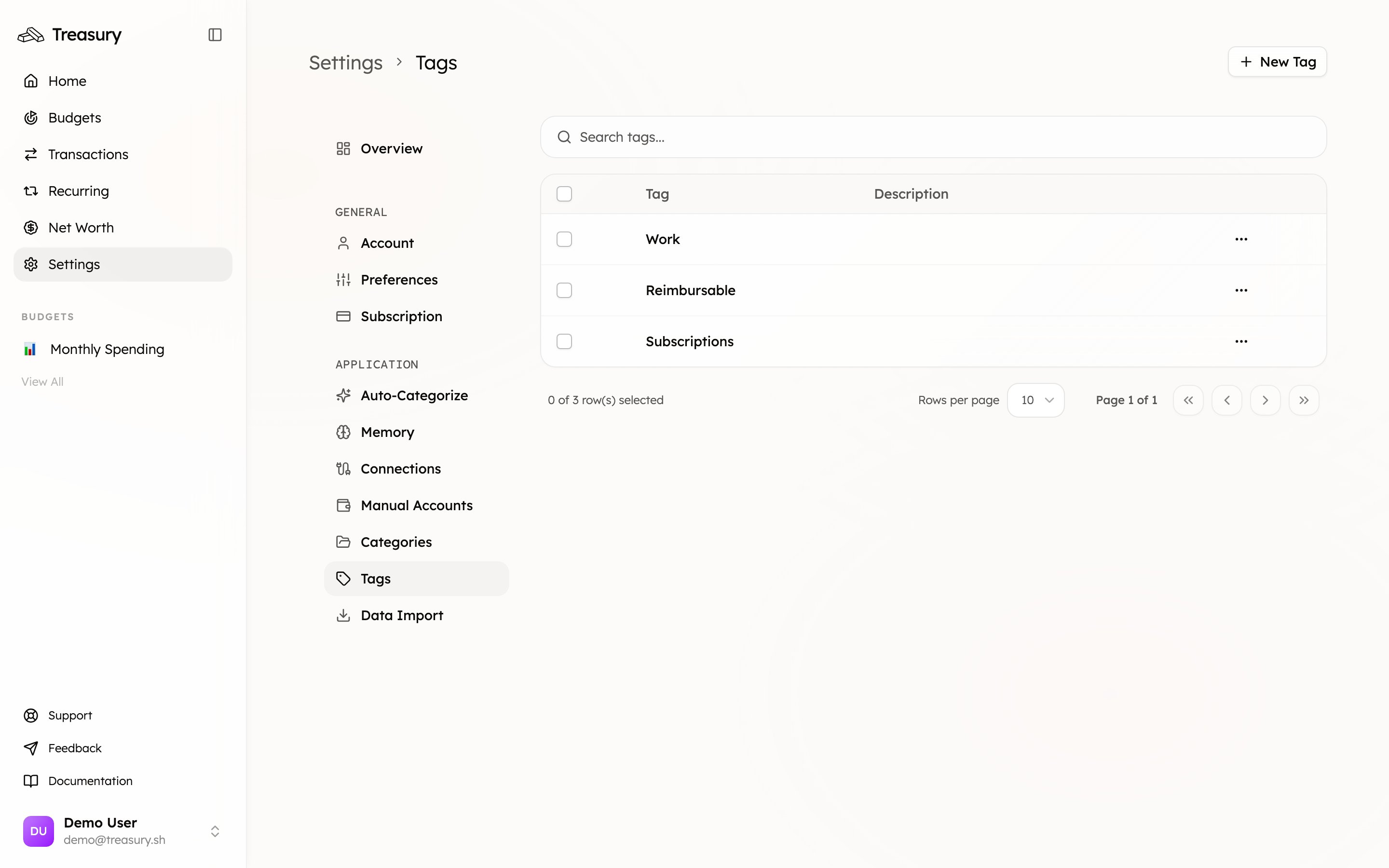
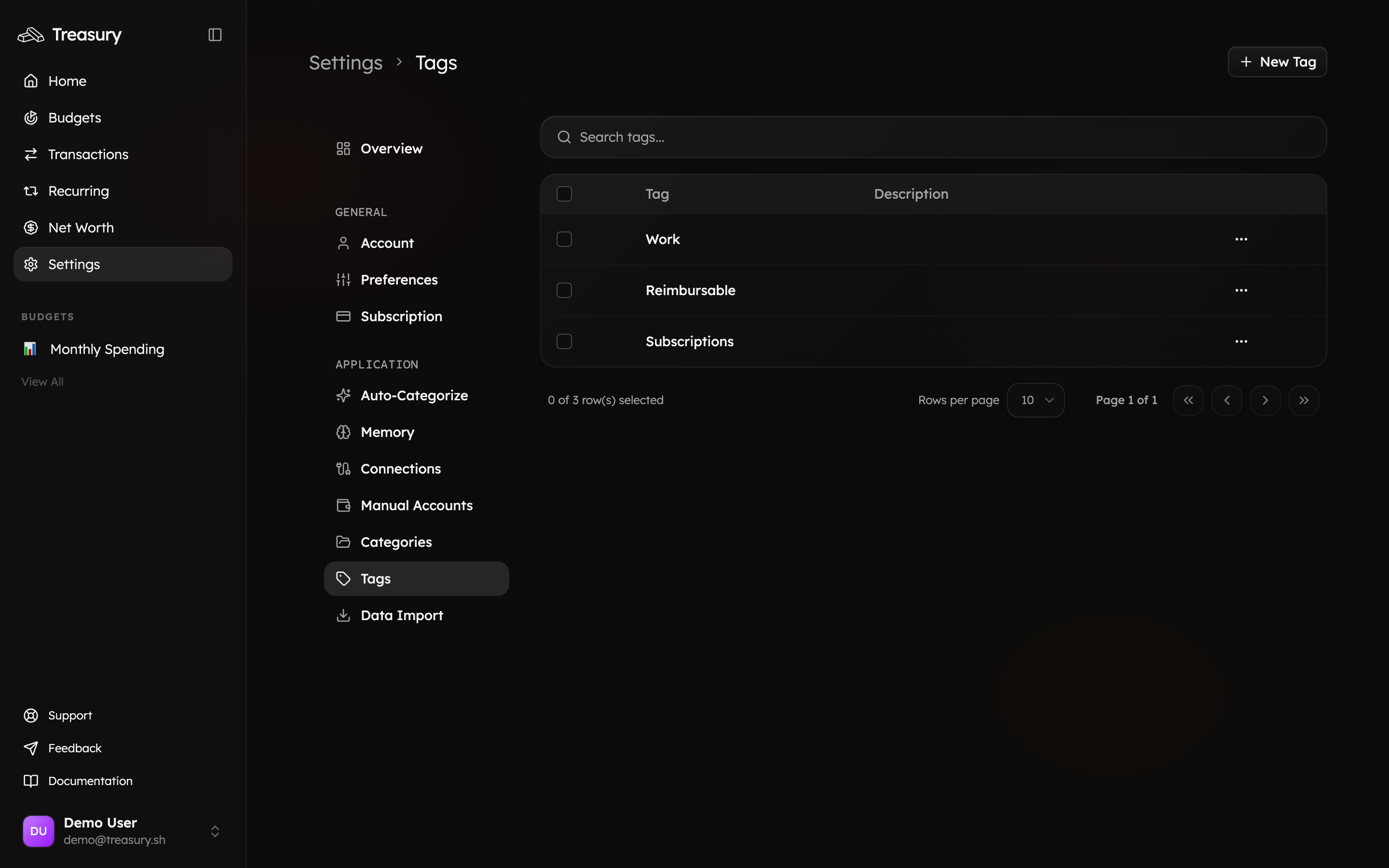
Your tags are found in [Settings > Tags](https://app.treasury.sh/settings/tags). This is where you create and manage tags — flexible labels that group transactions *across* categories, so you can see the full cost of a trip, project, or event in one place.
 ## What you can do here
* **Create** tags for trips, projects, events, or any theme.
* **Apply** a tag to transactions across any categories.
* **Filter** transactions — or build a [budget](/core/budgets) — by tag.
* **Edit** and **delete** tags, reassigning where needed.
## What are Tags?
Tags let you label and group transactions across different categories. They're perfect for tracking spending tied to a specific event, project, or goal.
For example, you could tag all your transactions related to your **Lapland 2025** trip — flights, hotels, and winter gear — as **Lapland 2025**. Later, you can filter your transactions by that tag to see the total cost of your trip, regardless of which categories those expenses were in.
## Create Tags
To create a new tag, navigate to **Settings → Tags** and click **New Tag**.\
A window will appear where you can enter a **name** and an optional **description**.
After filling in the details, click **Create**, and your new tag will be added to your list.
## What you can do here
* **Create** tags for trips, projects, events, or any theme.
* **Apply** a tag to transactions across any categories.
* **Filter** transactions — or build a [budget](/core/budgets) — by tag.
* **Edit** and **delete** tags, reassigning where needed.
## What are Tags?
Tags let you label and group transactions across different categories. They're perfect for tracking spending tied to a specific event, project, or goal.
For example, you could tag all your transactions related to your **Lapland 2025** trip — flights, hotels, and winter gear — as **Lapland 2025**. Later, you can filter your transactions by that tag to see the total cost of your trip, regardless of which categories those expenses were in.
## Create Tags
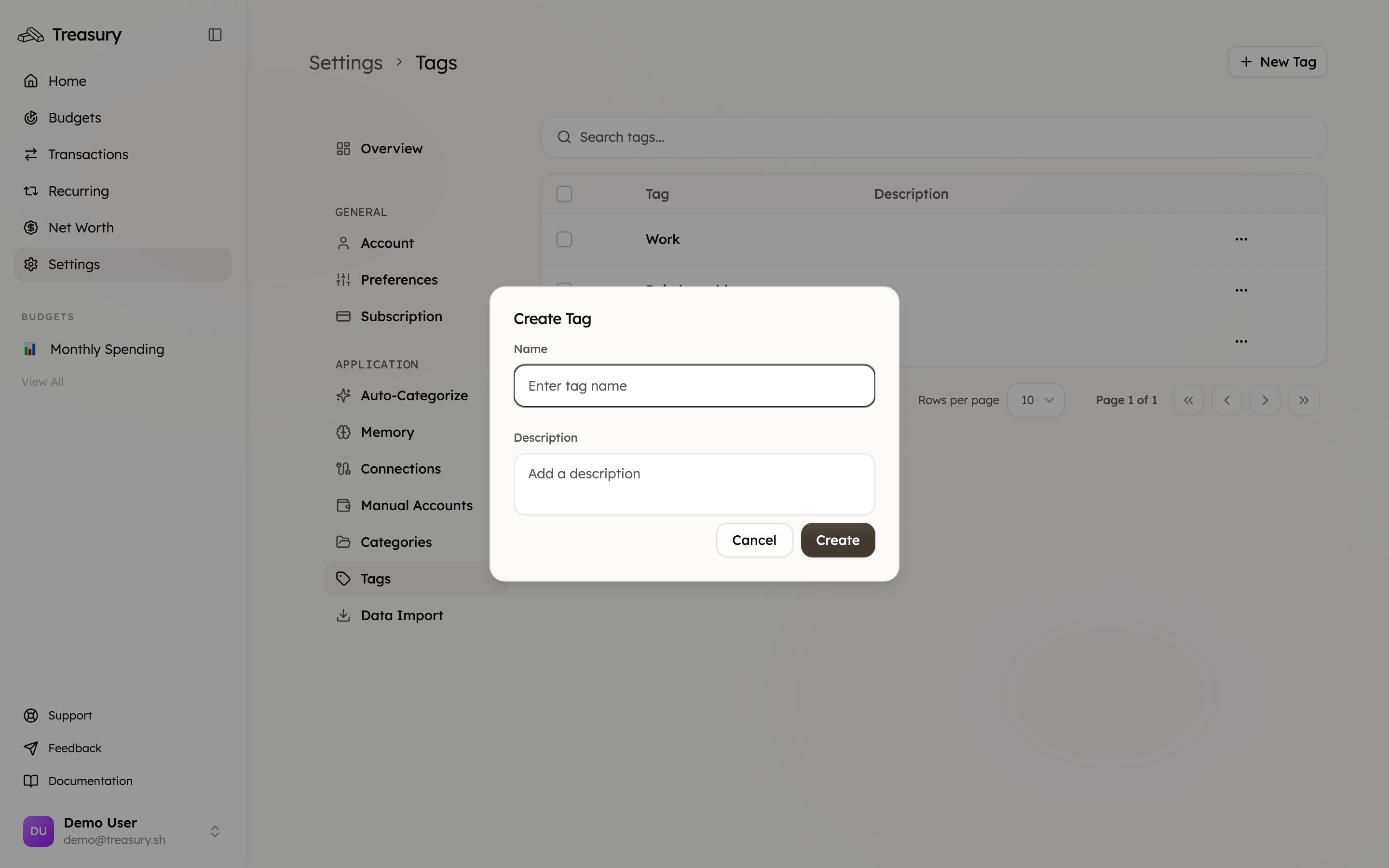
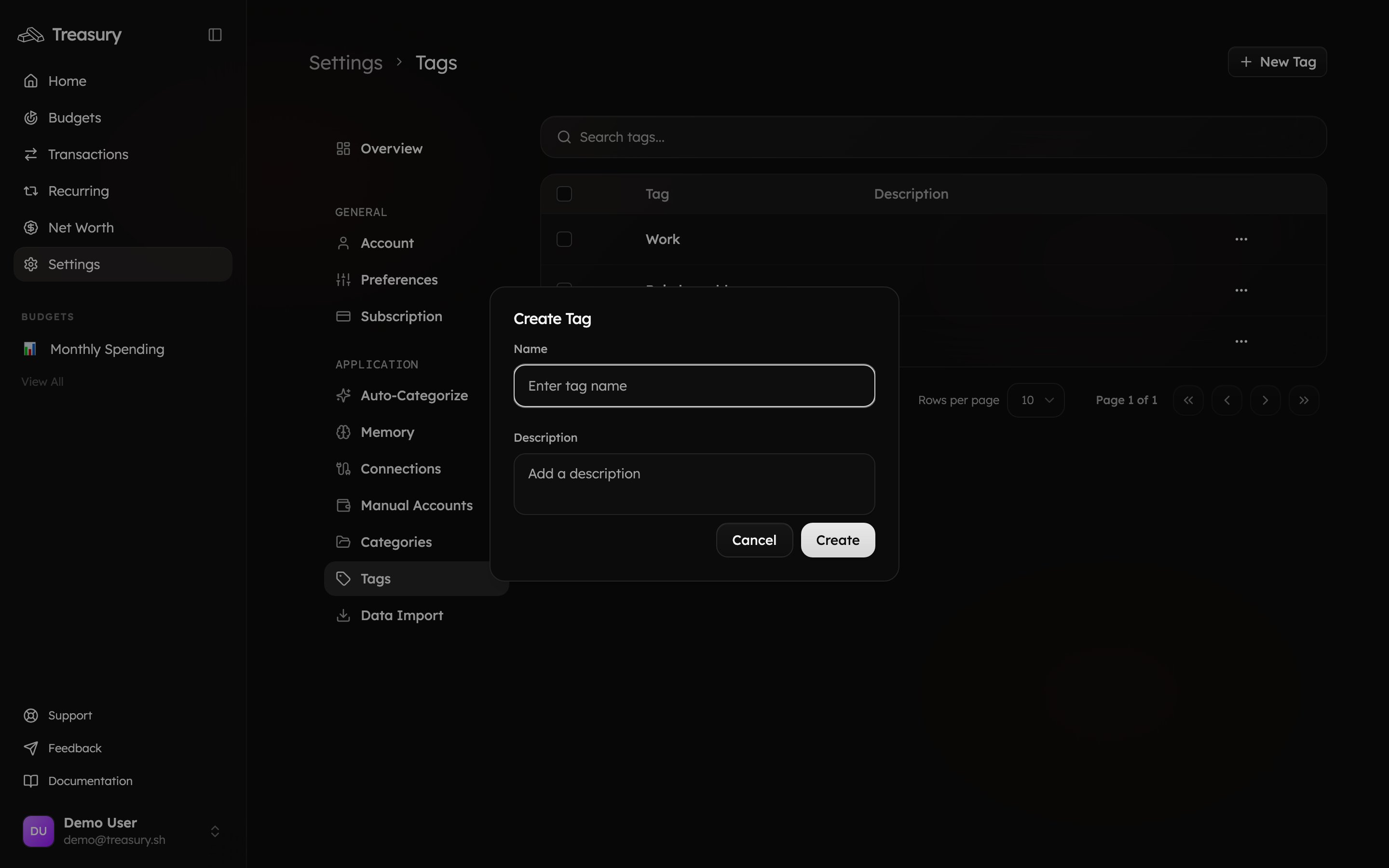
To create a new tag, navigate to **Settings → Tags** and click **New Tag**.\
A window will appear where you can enter a **name** and an optional **description**.
After filling in the details, click **Create**, and your new tag will be added to your list.
 ## Edit Tags
To edit an existing tag, go to **Settings → Tags**, find the tag you want to change, click the **⋯ (three dots)** next to it, and select **Edit Tag**.
You can update the **name** or **description**. After making your changes, click **Save Changes** to update the tag.
## Delete Tags
To delete a tag, go to **Settings → Tags**, click the **⋯ (three dots)** next to the tag, and select **Delete Tag**.
If the tag is attached to existing transactions, Treasury will ask how you’d like to handle them:
* **Remove the tag** — transactions will simply lose that tag.
* **Reassign to another tag** — choose a different tag to keep them grouped.
After selecting your preference, click **Delete Tag** to confirm.
Tags shine for anything that cuts **across** categories — a trip, a renovation, a side hustle, or shared expenses. Apply a tag to transactions, then [filter](/core/transactions) by it or build a [budget](/core/budgets) scoped to that tag to see the full picture.
## FAQ
Use a tag when you want to track something that spans categories — a trip's flights (Travel), hotels (Travel), and dinners (Food) all under one **Japan 2026** tag. Categories answer *what* you spent on; tags answer *why*.
Yes. A transaction has a single category but can carry multiple tags, so you can slice your spending in several ways at once.
[Filter your transactions](/core/transactions) by the tag to see the total, or create a [budget](/core/budgets) scoped to that tag to track it against a target.
You can simply remove the tag from them, or reassign them to a different tag — your transactions stay put either way.
## Related
Add tags to transactions and filter by them.
Categories group by *what* you spent on; tags group by *why*.
Scope a budget to a single tag for trips and projects.
## Edit Tags
To edit an existing tag, go to **Settings → Tags**, find the tag you want to change, click the **⋯ (three dots)** next to it, and select **Edit Tag**.
You can update the **name** or **description**. After making your changes, click **Save Changes** to update the tag.
## Delete Tags
To delete a tag, go to **Settings → Tags**, click the **⋯ (three dots)** next to the tag, and select **Delete Tag**.
If the tag is attached to existing transactions, Treasury will ask how you’d like to handle them:
* **Remove the tag** — transactions will simply lose that tag.
* **Reassign to another tag** — choose a different tag to keep them grouped.
After selecting your preference, click **Delete Tag** to confirm.
Tags shine for anything that cuts **across** categories — a trip, a renovation, a side hustle, or shared expenses. Apply a tag to transactions, then [filter](/core/transactions) by it or build a [budget](/core/budgets) scoped to that tag to see the full picture.
## FAQ
Use a tag when you want to track something that spans categories — a trip's flights (Travel), hotels (Travel), and dinners (Food) all under one **Japan 2026** tag. Categories answer *what* you spent on; tags answer *why*.
Yes. A transaction has a single category but can carry multiple tags, so you can slice your spending in several ways at once.
[Filter your transactions](/core/transactions) by the tag to see the total, or create a [budget](/core/budgets) scoped to that tag to track it against a target.
You can simply remove the tag from them, or reassign them to a different tag — your transactions stay put either way.
## Related
Add tags to transactions and filter by them.
Categories group by *what* you spent on; tags group by *why*.
Scope a budget to a single tag for trips and projects.