> ## Documentation Index
> Fetch the complete documentation index at: https://docs.treasury.sh/llms.txt
> Use this file to discover all available pages before exploring further.
# Recurring Transactions
> See every subscription, bill, and paycheck Treasury detects — and know exactly what is coming up.
## Overview
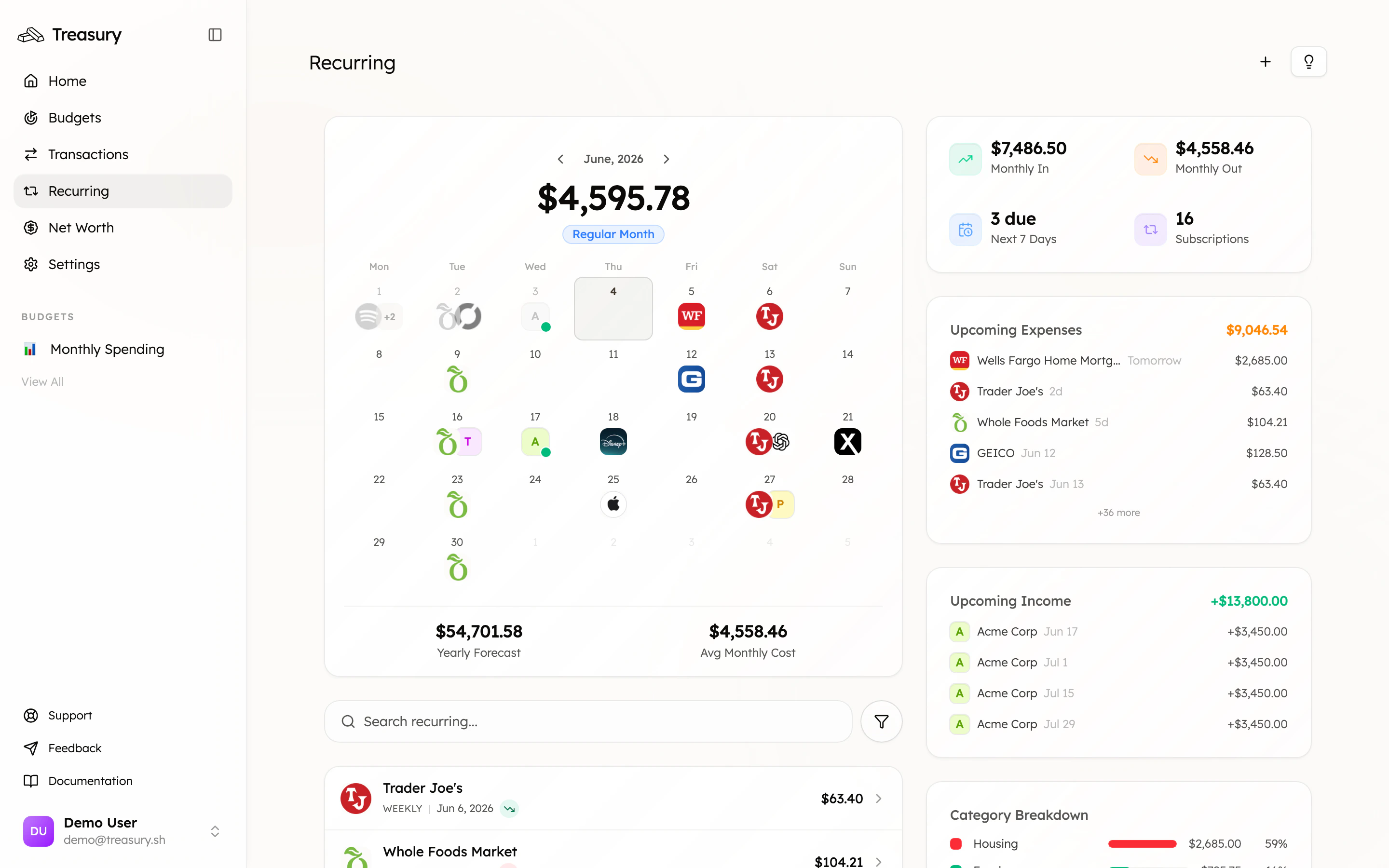
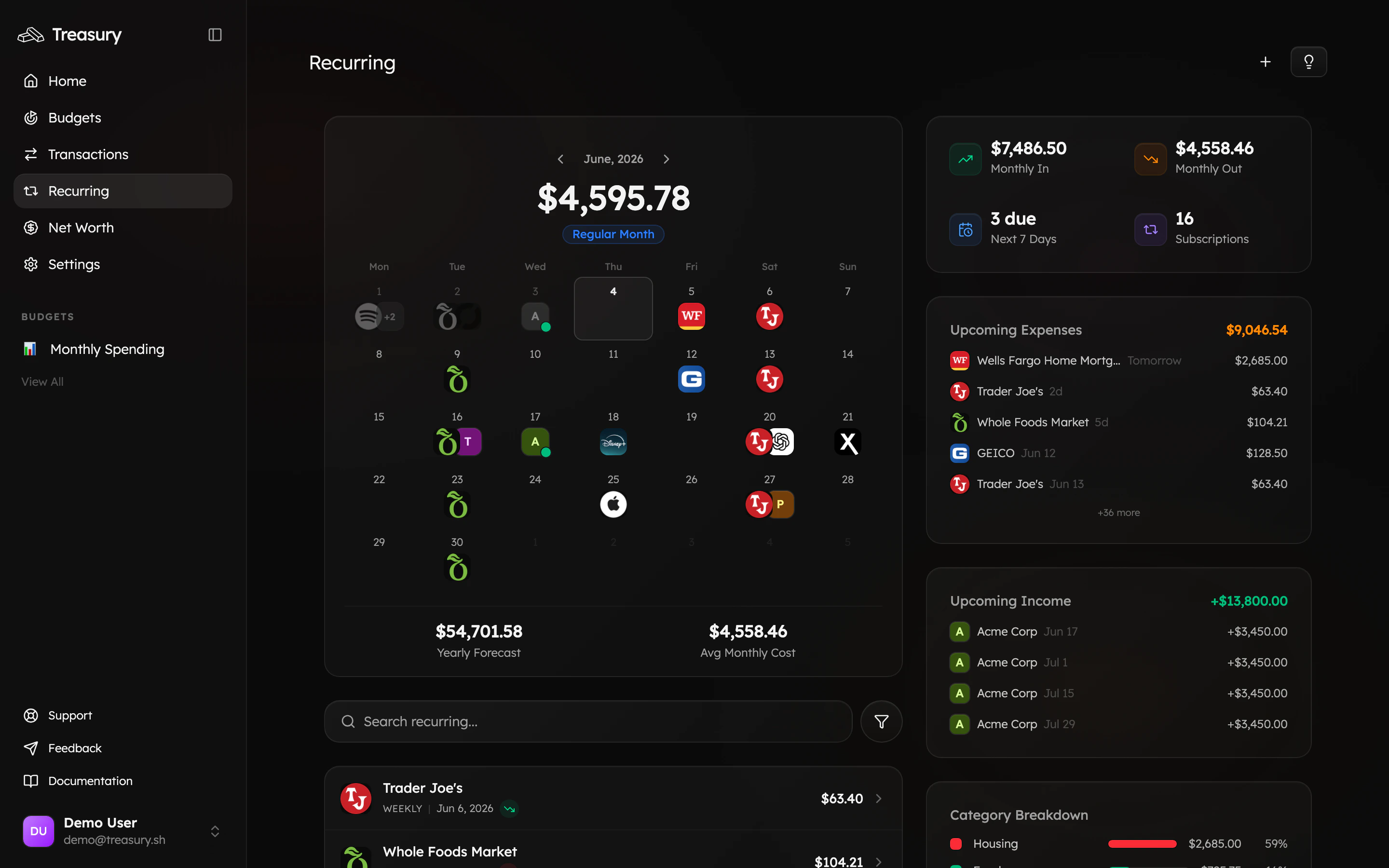
Your [recurring transactions](https://app.treasury.sh/recurring) are found on the navigation bar. Treasury automatically detects the payments that repeat — subscriptions, bills, memberships, paychecks — and lays out the month ahead so nothing catches you off guard.
 ## What you can do here
* See all recurring **income and expenses** on a calendar, with monthly totals.
* Know what's **due next** and what's coming this month.
* **Edit** an item's amount, frequency, category, or next date.
* **Pause**, **block**, or **delete** items you no longer want tracked.
* **Accept or reject** newly detected recurring payments.
## What are Recurring Transactions?
Recurring transactions are financial activities that occur on a regular basis, such as subscriptions, memberships, or scheduled payments. Treasury automatically identifies these transactions from your connected accounts and lists them in the Recurring Transactions page, allowing you to easily track and manage them.
From the Recurring Transactions page, you can:
* View all your recurring income and expenses in one place.
* Edit details like amounts, frequency, category, or next occurrence.
* Delete or block recurring transactions when needed.
* Add manual recurring transactions that may not be automatically detected.
## Review detected payments
Treasury automatically detects recurring payments from your connected accounts — but anything it spots and isn't yet sure about waits for your decision in the **review inbox**, opened from the review prompt on the [Recurring](https://app.treasury.sh/recurring) page.
## What you can do here
* See all recurring **income and expenses** on a calendar, with monthly totals.
* Know what's **due next** and what's coming this month.
* **Edit** an item's amount, frequency, category, or next date.
* **Pause**, **block**, or **delete** items you no longer want tracked.
* **Accept or reject** newly detected recurring payments.
## What are Recurring Transactions?
Recurring transactions are financial activities that occur on a regular basis, such as subscriptions, memberships, or scheduled payments. Treasury automatically identifies these transactions from your connected accounts and lists them in the Recurring Transactions page, allowing you to easily track and manage them.
From the Recurring Transactions page, you can:
* View all your recurring income and expenses in one place.
* Edit details like amounts, frequency, category, or next occurrence.
* Delete or block recurring transactions when needed.
* Add manual recurring transactions that may not be automatically detected.
## Review detected payments
Treasury automatically detects recurring payments from your connected accounts — but anything it spots and isn't yet sure about waits for your decision in the **review inbox**, opened from the review prompt on the [Recurring](https://app.treasury.sh/recurring) page.
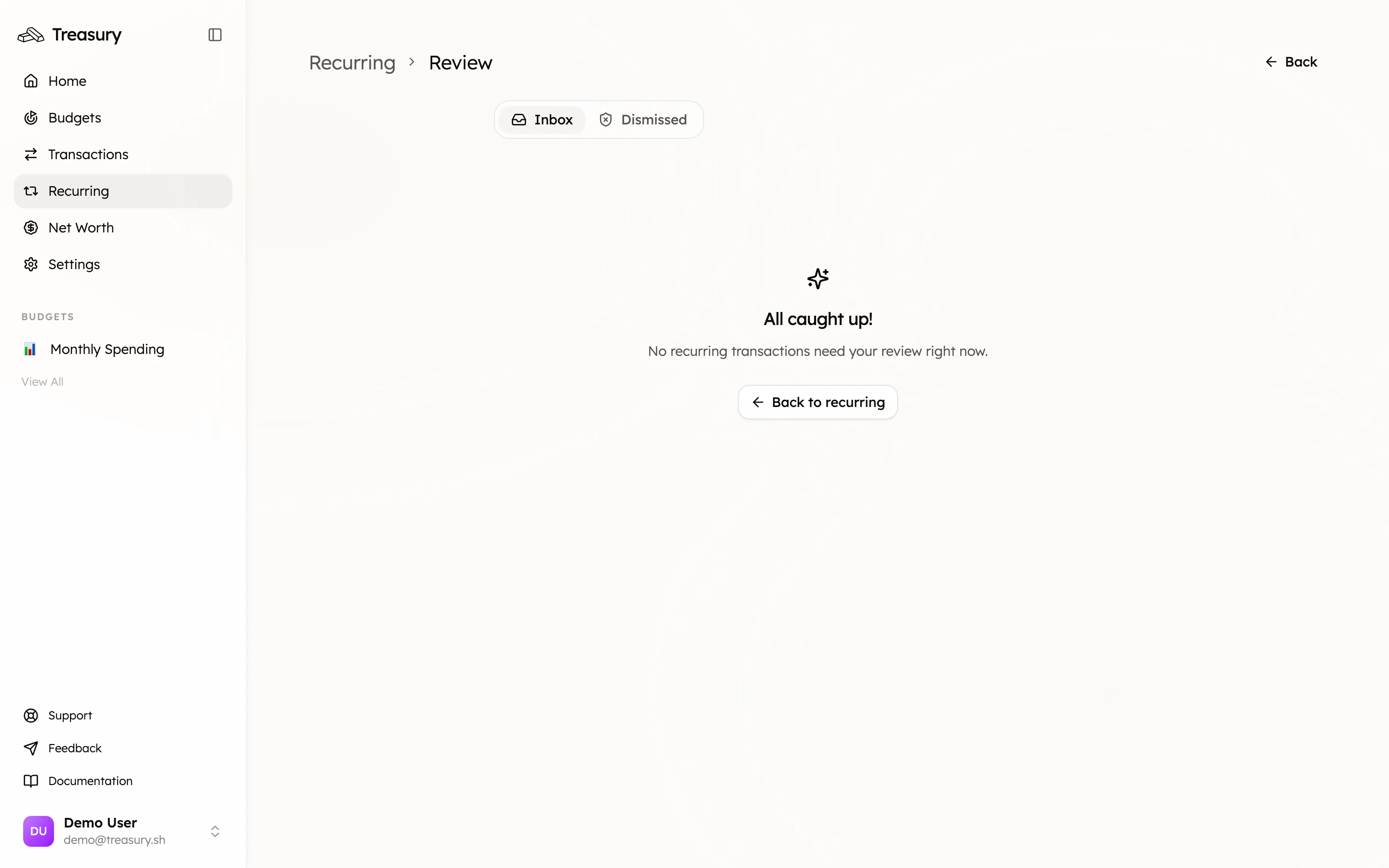
 The review screen has two tabs:
* **Inbox** — newly detected recurring payments waiting for your decision.
* **Dismissed** — detections you've rejected, kept so you can restore one if you change your mind.
To review a detected payment:
1. Click the item to open the **Review Recurring Transaction** window.
2. Review and edit the details if needed:
* **Description** — rename for clarity.
* **Account** — confirm which account it's tied to.
* **Average Amount / Last Amount** — adjust if the detected amounts are off.
* **Frequency** — how often it occurs (e.g., *Monthly*, *Weekly*, *Annually*).
* **Category** — assign a category for reporting.
* **Next Due Date** — set the upcoming date if applicable.
3. Choose an action:
* **Confirm** — adds it to your recurring list so it counts toward your monthly totals and upcoming bills.
* **Dismiss** — declines the detection (use this when a one-off is mistaken for a subscription); it moves to the **Dismissed** tab.
When there's nothing left to decide, you'll see **“All caught up!”** — a good sign your recurring list and upcoming-bills forecast are accurate.
Skim the inbox after connecting a new account or a big import — that's when Treasury surfaces the most detections. A few seconds of confirming and dismissing keeps your forecast clean.
If a subscription is on pause or you’re temporarily not being billed — for example, pausing your
gym membership for a few months — excluding keeps it in your recurring reports without deleting
it.
## Manage Recurring Transactions
To manage a recurring transaction, navigate to the [recurring transactions](https://app.treasury.sh/recurring) page.
Click on the table view in the top right corner to view your recurring transactions in a list format, allowing you to edit, block, or delete them.
### Editing a Recurring Transaction
To make changes to an existing recurring transaction:
1. Go to [**recurring transactions**](https://app.treasury.sh/recurring) and click the table view in the top right corner.
2. Find the recurring transaction you’d like to update and click the **three dots** (`⋯`).
3. Select **Edit**.
4. The **Edit Recurring Transaction** window will open, allowing you to update the following details:
* **Description** — rename the transaction for clarity.
* **Average Amount** — adjust the expected recurring amount.
* **Last Amount** — displays the most recent recorded amount.
* **Frequency** — choose how often the transaction occurs (*e.g.*, weekly, monthly, annually).
* **Category** — assign or change the category associated with the transaction.
* **Next Due Date** — select the upcoming date for when the transaction will occur.
* **Exclude from Summary** — enable this if you want to remove this transaction from your recurring transaction summary.
5. Once all updates are made, click **Save Changes**.
Editing a recurring transaction can help you keep your budget accurate if your bills or
subscriptions change over time.
### Deleting a Recurring Transaction
If you no longer need a recurring transaction, you can delete it at any time.
1. Go to [**recurring transactions**](https://app.treasury.sh/recurring) and click the table view in the top right corner.
2. Find the recurring transaction you want to remove.
3. Click the **three dots** (`⋯`) on the right-hand side.
4. Select **Delete**.
5. A confirmation window will appear displaying the transaction name and frequency.
6. Click **Delete** to permanently remove the recurring transaction.
This action cannot be undone. The recurring transaction will be deleted immediately and removed
from your recurring summary.
### Blocking a Recurring Transaction
If you want to stop a recurring transaction from being tracked **without deleting it**, you can block it.
1. Go to [**recurring transactions**](https://app.treasury.sh/recurring) and click the **table view** in the top right corner.
2. Find the recurring transaction you want to block.
3. Click the **three dots** (`⋯`) on the right-hand side.
4. Select **Block**.
5. A confirmation window will appear displaying the transaction name and details.
6. Click **Block** to confirm.
Once blocked, the transaction will be excluded from your recurring transaction analysis and will no longer receive updates from your connected accounts until it is unblocked or deleted.
You might block a transaction if Treasury mistakenly marks a one-time payment as recurring.
For example, if you spent \$500 at a merchant two months in a row but it was just a coincidence, blocking ensures future similar charges aren’t tracked as recurring.
### Unblock a Recurring Transaction
If you previously blocked a recurring transaction and want to start tracking it again, you can unblock it.
1. Go to [**recurring transactions**](https://app.treasury.sh/recurring) and click the [blocked icon](https://app.treasury.sh/recurring/blocked) in the top right corner.
2. Find the blocked recurring transaction you want to unblock.
3. Click the **three dots** (`⋯`) on the right-hand side.
4. Select **Unblock**.
5. A confirmation window will appear displaying the transaction name and details.
6. Click **Unblock** to confirm.
The transaction will now be tracked again and included in your recurring transaction analysis.
## On the go
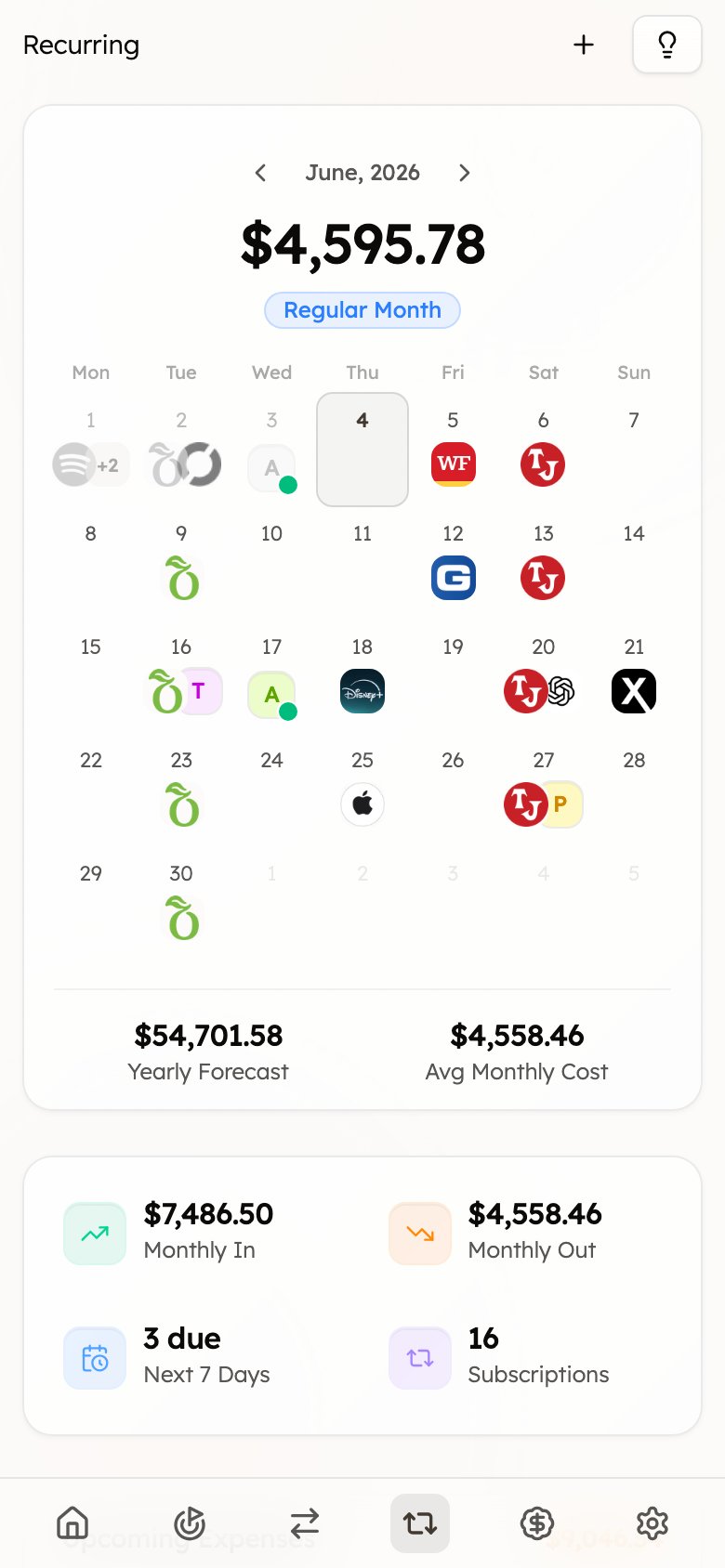
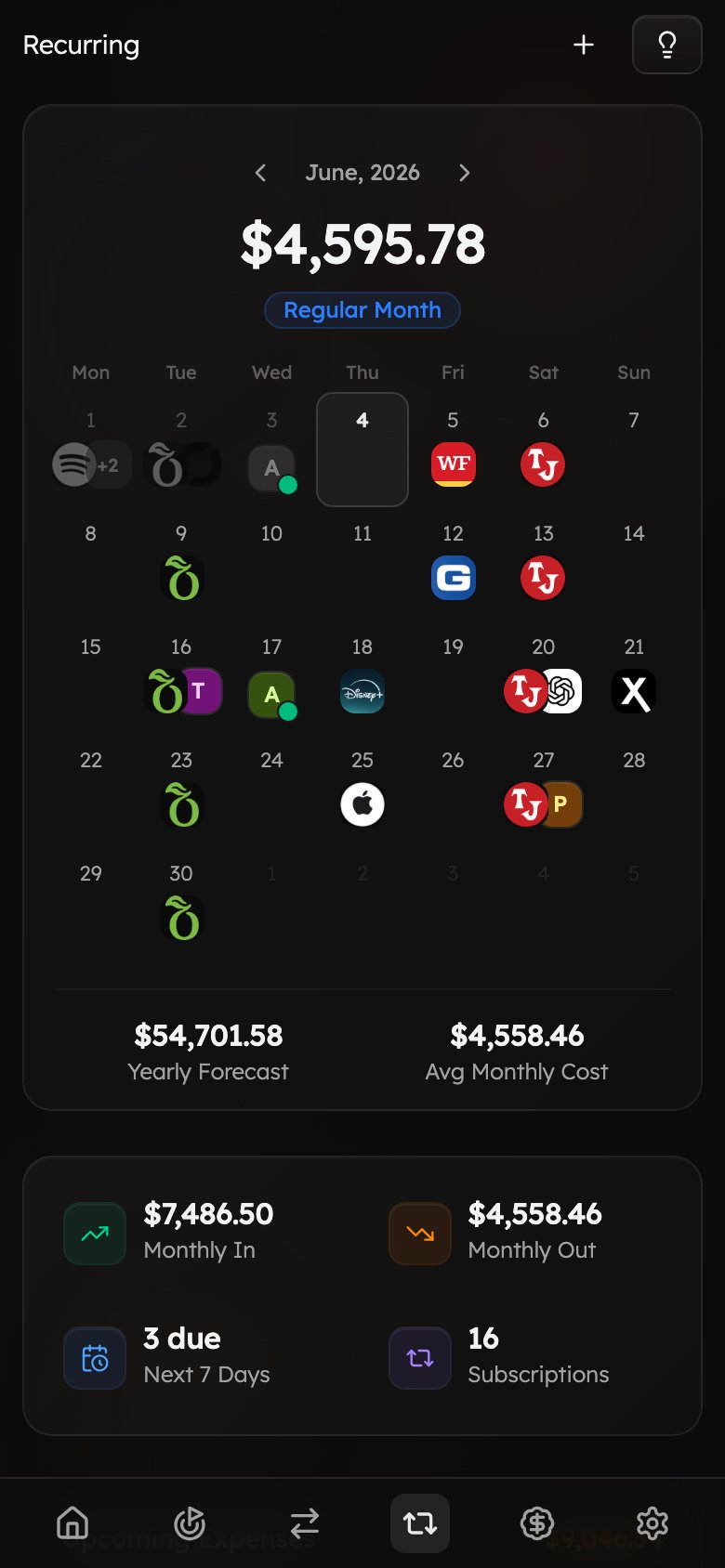
The recurring calendar, upcoming bills, and monthly totals are all available on mobile, so you can check what's due before it hits your account.
The review screen has two tabs:
* **Inbox** — newly detected recurring payments waiting for your decision.
* **Dismissed** — detections you've rejected, kept so you can restore one if you change your mind.
To review a detected payment:
1. Click the item to open the **Review Recurring Transaction** window.
2. Review and edit the details if needed:
* **Description** — rename for clarity.
* **Account** — confirm which account it's tied to.
* **Average Amount / Last Amount** — adjust if the detected amounts are off.
* **Frequency** — how often it occurs (e.g., *Monthly*, *Weekly*, *Annually*).
* **Category** — assign a category for reporting.
* **Next Due Date** — set the upcoming date if applicable.
3. Choose an action:
* **Confirm** — adds it to your recurring list so it counts toward your monthly totals and upcoming bills.
* **Dismiss** — declines the detection (use this when a one-off is mistaken for a subscription); it moves to the **Dismissed** tab.
When there's nothing left to decide, you'll see **“All caught up!”** — a good sign your recurring list and upcoming-bills forecast are accurate.
Skim the inbox after connecting a new account or a big import — that's when Treasury surfaces the most detections. A few seconds of confirming and dismissing keeps your forecast clean.
If a subscription is on pause or you’re temporarily not being billed — for example, pausing your
gym membership for a few months — excluding keeps it in your recurring reports without deleting
it.
## Manage Recurring Transactions
To manage a recurring transaction, navigate to the [recurring transactions](https://app.treasury.sh/recurring) page.
Click on the table view in the top right corner to view your recurring transactions in a list format, allowing you to edit, block, or delete them.
### Editing a Recurring Transaction
To make changes to an existing recurring transaction:
1. Go to [**recurring transactions**](https://app.treasury.sh/recurring) and click the table view in the top right corner.
2. Find the recurring transaction you’d like to update and click the **three dots** (`⋯`).
3. Select **Edit**.
4. The **Edit Recurring Transaction** window will open, allowing you to update the following details:
* **Description** — rename the transaction for clarity.
* **Average Amount** — adjust the expected recurring amount.
* **Last Amount** — displays the most recent recorded amount.
* **Frequency** — choose how often the transaction occurs (*e.g.*, weekly, monthly, annually).
* **Category** — assign or change the category associated with the transaction.
* **Next Due Date** — select the upcoming date for when the transaction will occur.
* **Exclude from Summary** — enable this if you want to remove this transaction from your recurring transaction summary.
5. Once all updates are made, click **Save Changes**.
Editing a recurring transaction can help you keep your budget accurate if your bills or
subscriptions change over time.
### Deleting a Recurring Transaction
If you no longer need a recurring transaction, you can delete it at any time.
1. Go to [**recurring transactions**](https://app.treasury.sh/recurring) and click the table view in the top right corner.
2. Find the recurring transaction you want to remove.
3. Click the **three dots** (`⋯`) on the right-hand side.
4. Select **Delete**.
5. A confirmation window will appear displaying the transaction name and frequency.
6. Click **Delete** to permanently remove the recurring transaction.
This action cannot be undone. The recurring transaction will be deleted immediately and removed
from your recurring summary.
### Blocking a Recurring Transaction
If you want to stop a recurring transaction from being tracked **without deleting it**, you can block it.
1. Go to [**recurring transactions**](https://app.treasury.sh/recurring) and click the **table view** in the top right corner.
2. Find the recurring transaction you want to block.
3. Click the **three dots** (`⋯`) on the right-hand side.
4. Select **Block**.
5. A confirmation window will appear displaying the transaction name and details.
6. Click **Block** to confirm.
Once blocked, the transaction will be excluded from your recurring transaction analysis and will no longer receive updates from your connected accounts until it is unblocked or deleted.
You might block a transaction if Treasury mistakenly marks a one-time payment as recurring.
For example, if you spent \$500 at a merchant two months in a row but it was just a coincidence, blocking ensures future similar charges aren’t tracked as recurring.
### Unblock a Recurring Transaction
If you previously blocked a recurring transaction and want to start tracking it again, you can unblock it.
1. Go to [**recurring transactions**](https://app.treasury.sh/recurring) and click the [blocked icon](https://app.treasury.sh/recurring/blocked) in the top right corner.
2. Find the blocked recurring transaction you want to unblock.
3. Click the **three dots** (`⋯`) on the right-hand side.
4. Select **Unblock**.
5. A confirmation window will appear displaying the transaction name and details.
6. Click **Unblock** to confirm.
The transaction will now be tracked again and included in your recurring transaction analysis.
## On the go
The recurring calendar, upcoming bills, and monthly totals are all available on mobile, so you can check what's due before it hits your account.
 ## FAQ
It detects patterns in your synced transactions — same merchant, similar amount, regular cadence — and surfaces them. New detections wait for your confirmation in the [review inbox](#review-detected-payments).
[Block it](/core/recurring-transactions). Blocking stops Treasury from tracking that pattern as recurring without deleting the underlying transaction.
**Pause/block** keeps the item but excludes it from your forecast (great for a seasonal membership or a false positive). **Delete** removes the recurring item entirely. Deleting can't be undone.
Treasury follows the latest amounts automatically, and you can [edit the recurring transaction](/core/recurring-transactions) to set the expected amount or frequency precisely.
## Related
The individual payments behind each recurring series.
Use the recurring calendar to stay ahead of what's due.
Connect accounts so Treasury can detect subscriptions.
Plan around your fixed recurring costs.
## FAQ
It detects patterns in your synced transactions — same merchant, similar amount, regular cadence — and surfaces them. New detections wait for your confirmation in the [review inbox](#review-detected-payments).
[Block it](/core/recurring-transactions). Blocking stops Treasury from tracking that pattern as recurring without deleting the underlying transaction.
**Pause/block** keeps the item but excludes it from your forecast (great for a seasonal membership or a false positive). **Delete** removes the recurring item entirely. Deleting can't be undone.
Treasury follows the latest amounts automatically, and you can [edit the recurring transaction](/core/recurring-transactions) to set the expected amount or frequency precisely.
## Related
The individual payments behind each recurring series.
Use the recurring calendar to stay ahead of what's due.
Connect accounts so Treasury can detect subscriptions.
Plan around your fixed recurring costs.