> ## Documentation Index
> Fetch the complete documentation index at: https://docs.treasury.sh/llms.txt
> Use this file to discover all available pages before exploring further.
# Importing Data
> Bring your transactions, accounts, and history into Treasury from another budgeting app.
## Overview
Switching from another budgeting app? Treasury can **import your transactions and history** so you don’t start from scratch. Open the importer from **Settings → Data Import**, or from the **Import data** prompt on your home dashboard.
 ## What you can do here
* **Import** transactions, accounts, and balance history from another app.
* **Merge** imported history into accounts you connect — one continuous timeline.
* **Map** your old accounts and categories to Treasury's.
* **Review** everything before it's imported, then confirm.
## Choose where you’re importing from
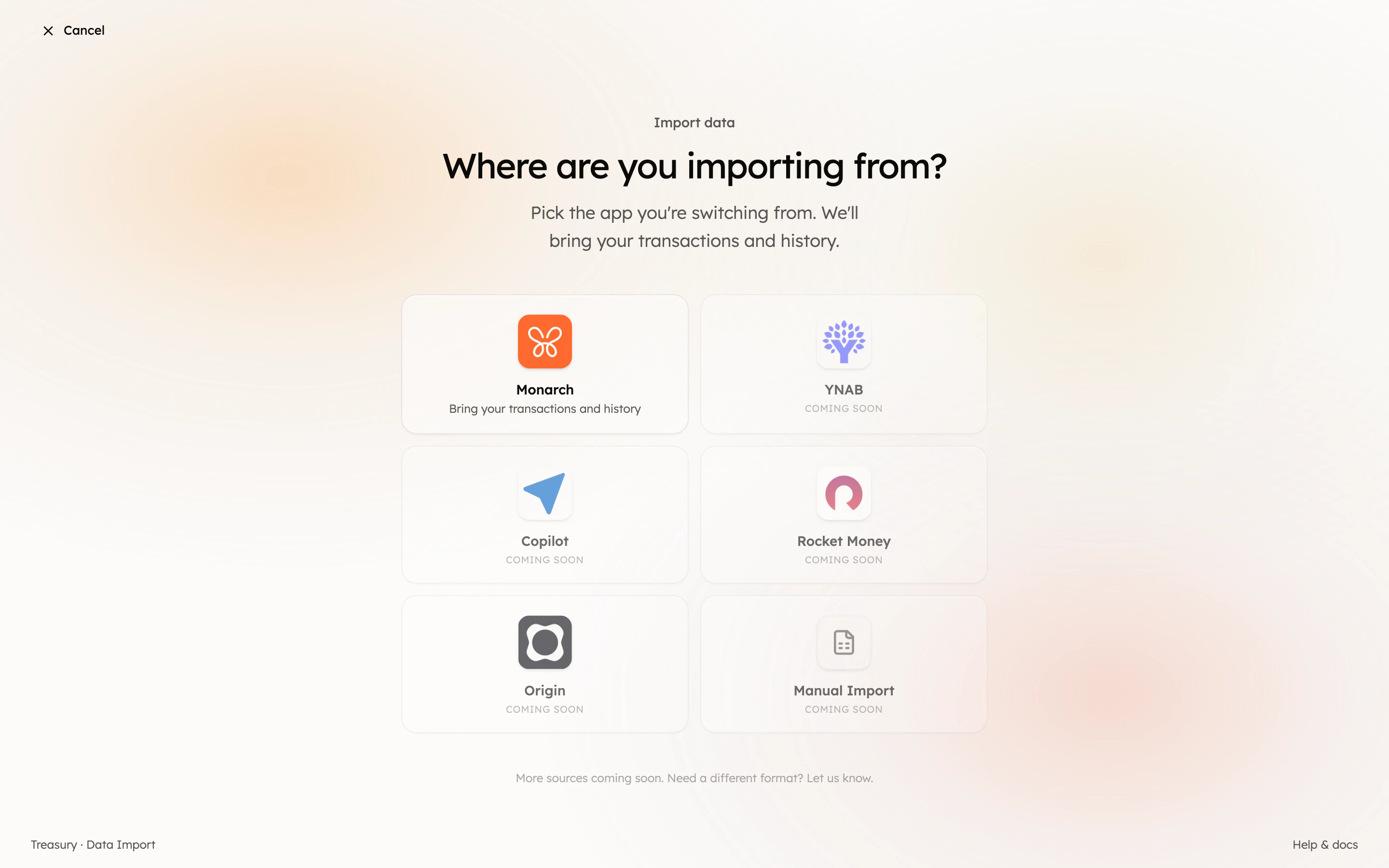
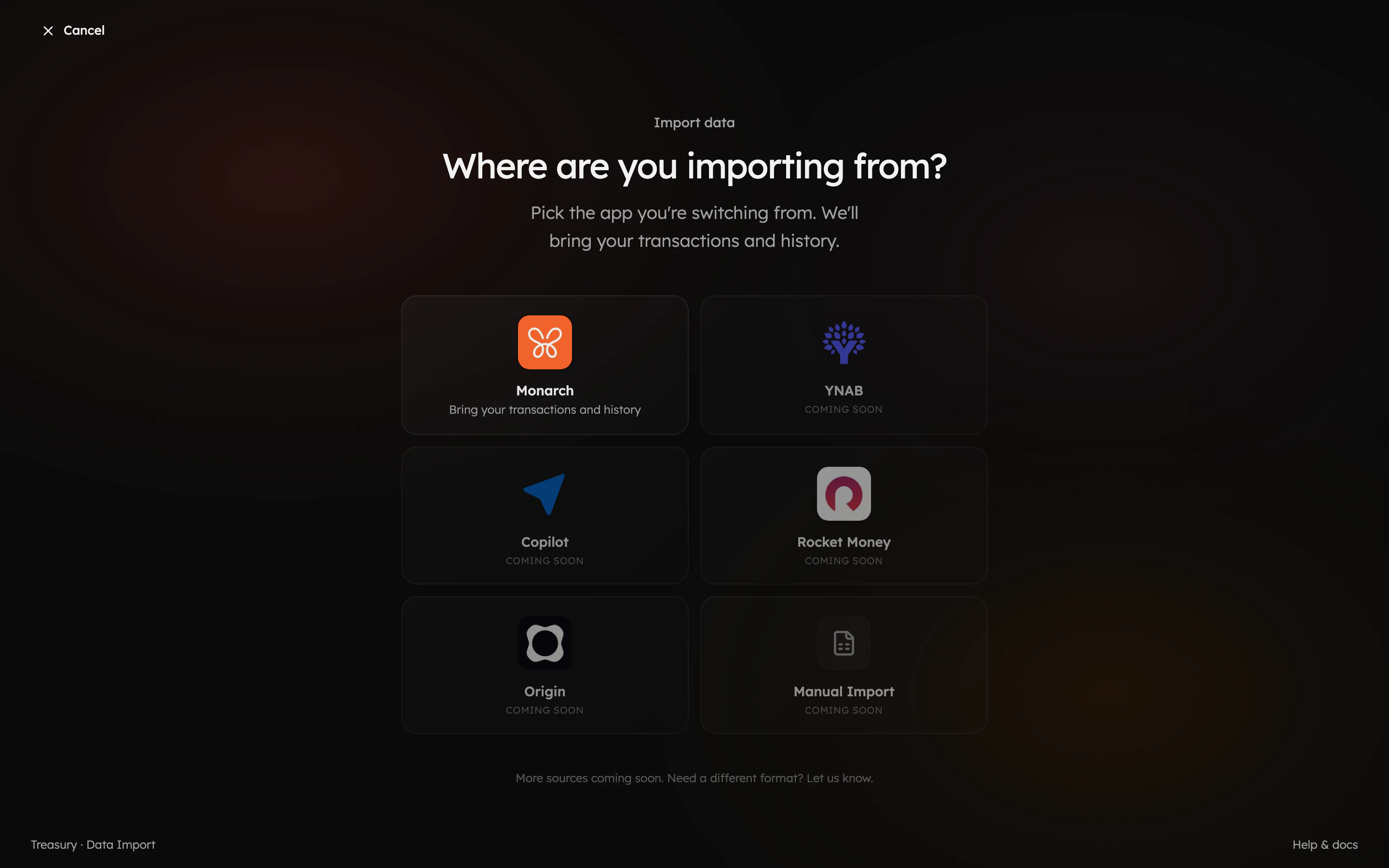
The importer starts by asking **“Where are you importing from?”** Pick the app you’re switching from. Treasury supports three sources today:
* **Monarch** — upload your transactions and balance-history exports.
* **Apple Card** — upload the CSV you export from Wallet on your iPhone or iPad.
* **CSV Import** — bring transactions in from *any* app using Treasury’s template.
**YNAB**, **Copilot**, **Rocket Money**, and **Origin** are marked *Coming soon*.
Monarch links your accounts in a connect step first. **Apple Card** and **CSV Import** come
straight from a file, so they skip connecting and take you right to the upload step.
## Walk through the import
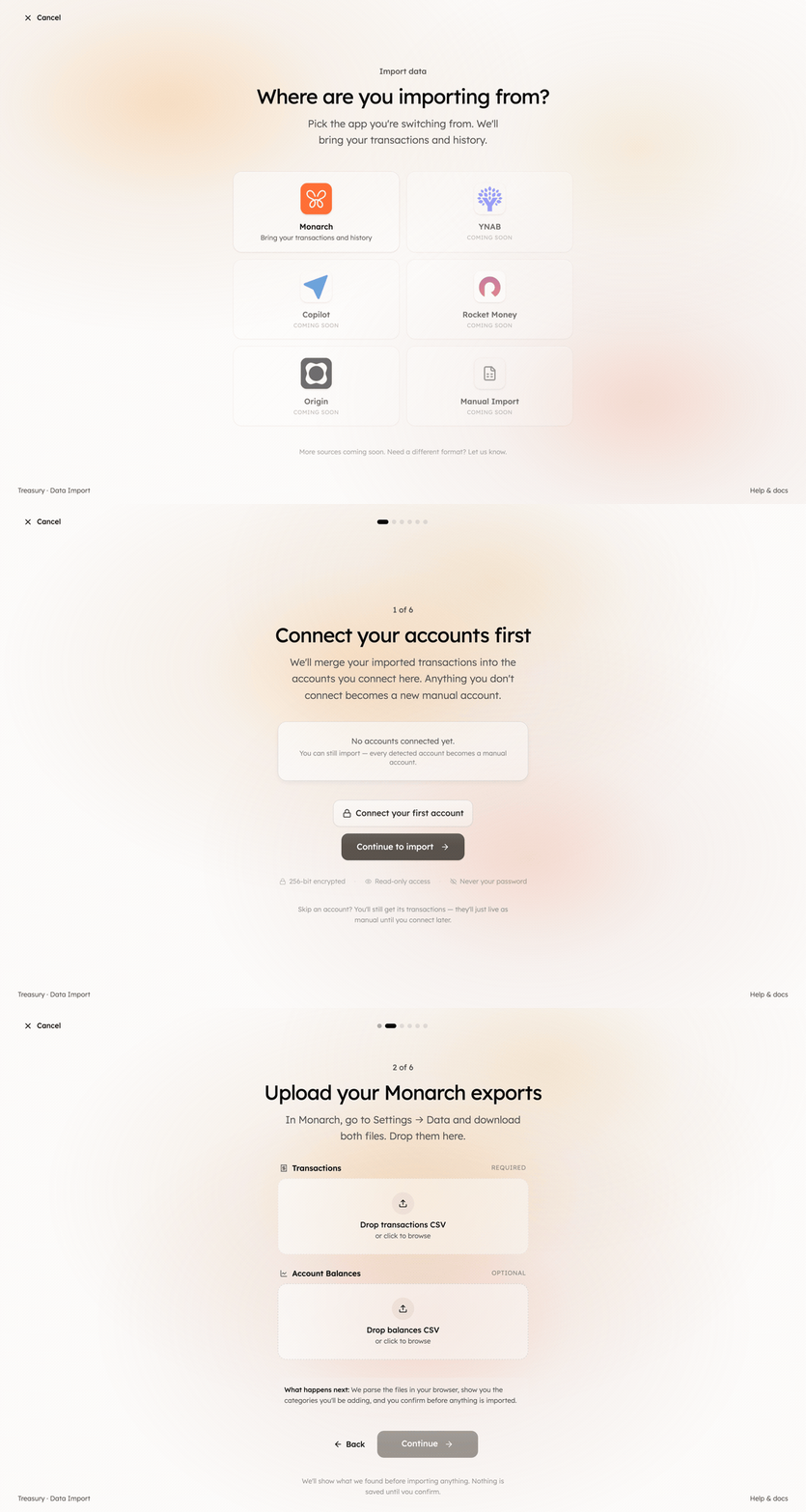
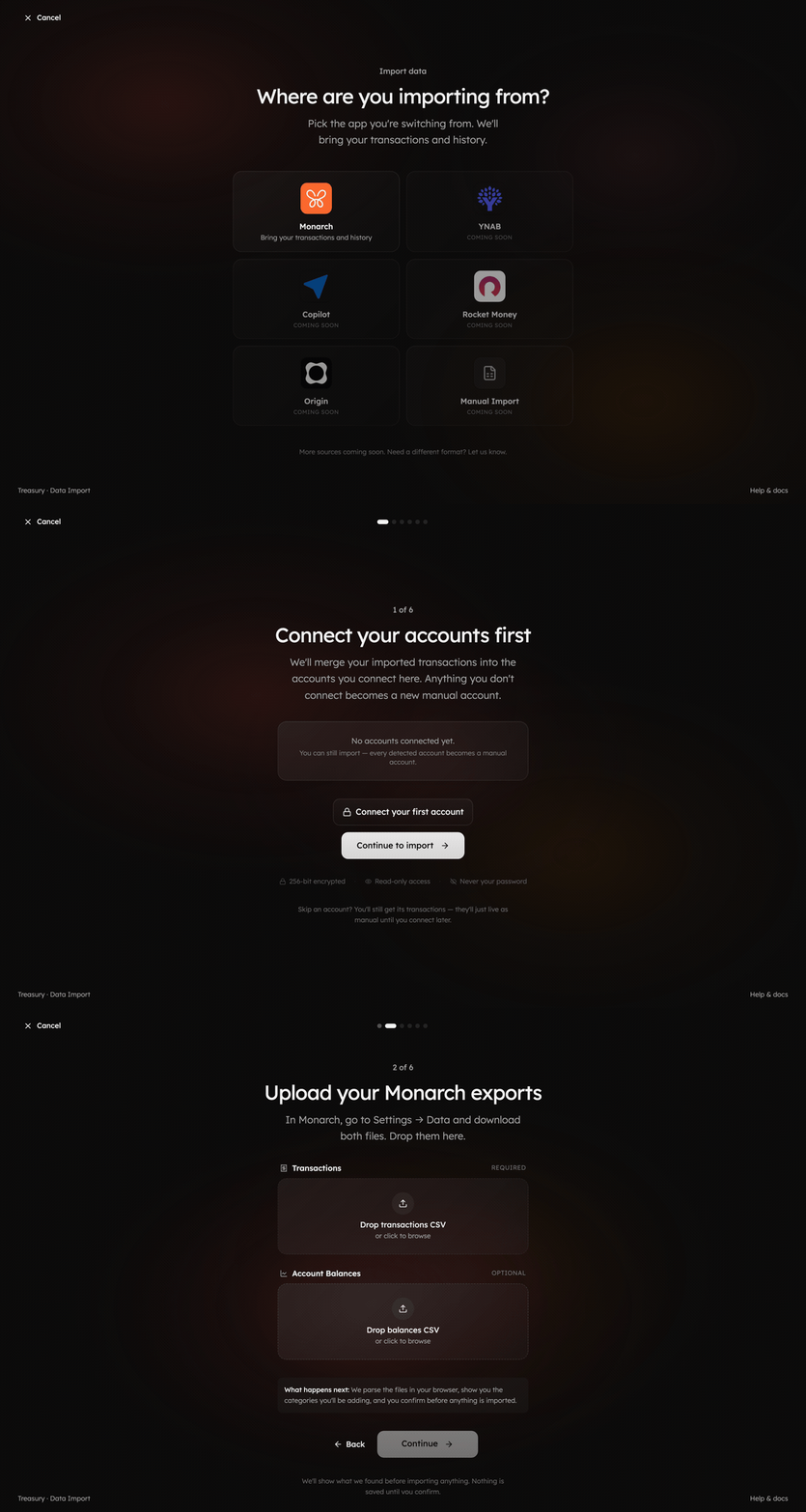
Once you pick a source, Treasury guides you through a short series of steps — connect your accounts, upload your export, map your accounts and categories, review, and import.
## What you can do here
* **Import** transactions, accounts, and balance history from another app.
* **Merge** imported history into accounts you connect — one continuous timeline.
* **Map** your old accounts and categories to Treasury's.
* **Review** everything before it's imported, then confirm.
## Choose where you’re importing from
The importer starts by asking **“Where are you importing from?”** Pick the app you’re switching from. Treasury supports three sources today:
* **Monarch** — upload your transactions and balance-history exports.
* **Apple Card** — upload the CSV you export from Wallet on your iPhone or iPad.
* **CSV Import** — bring transactions in from *any* app using Treasury’s template.
**YNAB**, **Copilot**, **Rocket Money**, and **Origin** are marked *Coming soon*.
Monarch links your accounts in a connect step first. **Apple Card** and **CSV Import** come
straight from a file, so they skip connecting and take you right to the upload step.
## Walk through the import
Once you pick a source, Treasury guides you through a short series of steps — connect your accounts, upload your export, map your accounts and categories, review, and import.
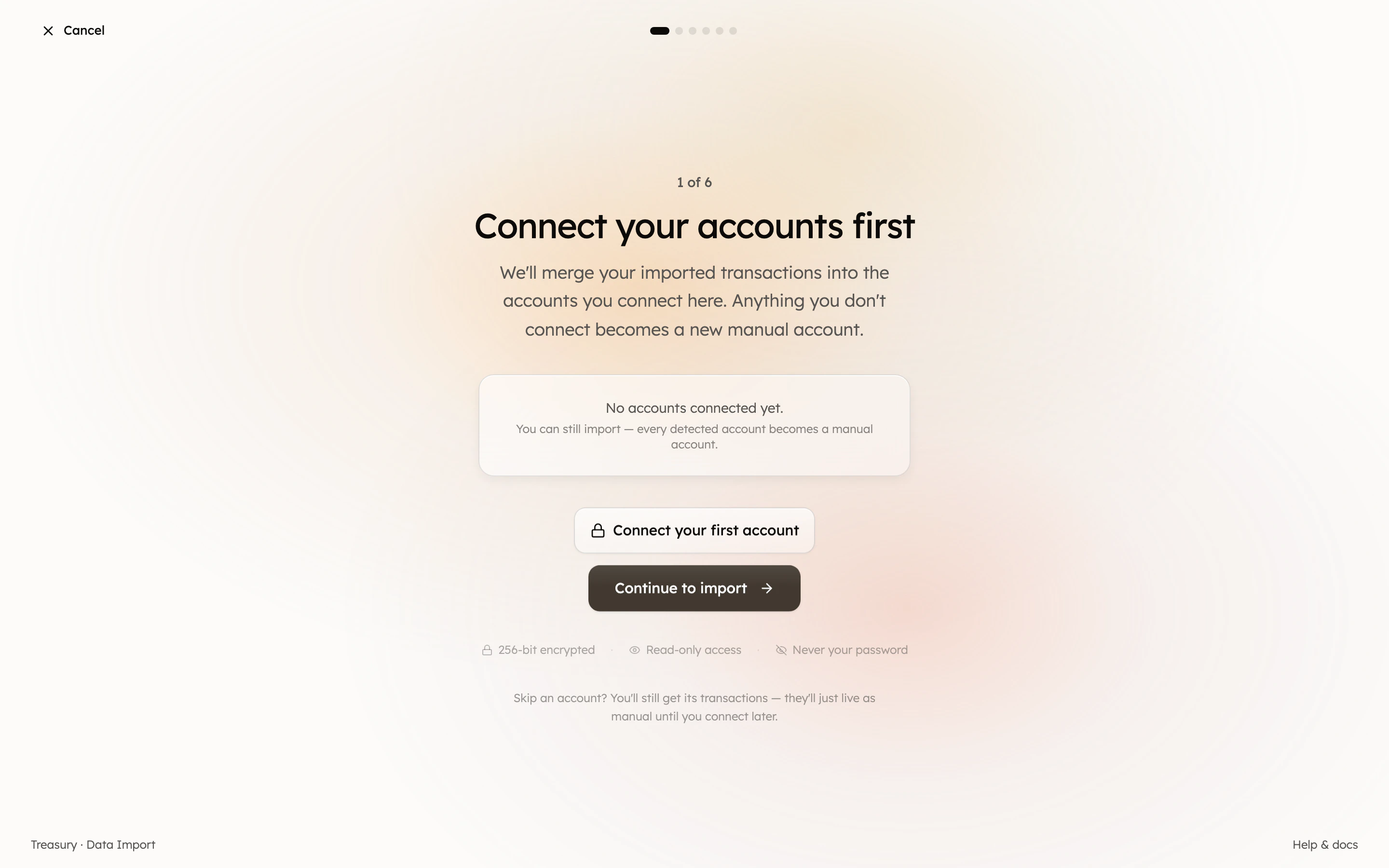
 ### 1. Connect your accounts first
This step applies to **Monarch**. **Apple Card** and **CSV Import** skip straight to upload — see
[Importing from a CSV file](#importing-from-a-csv-file) below.
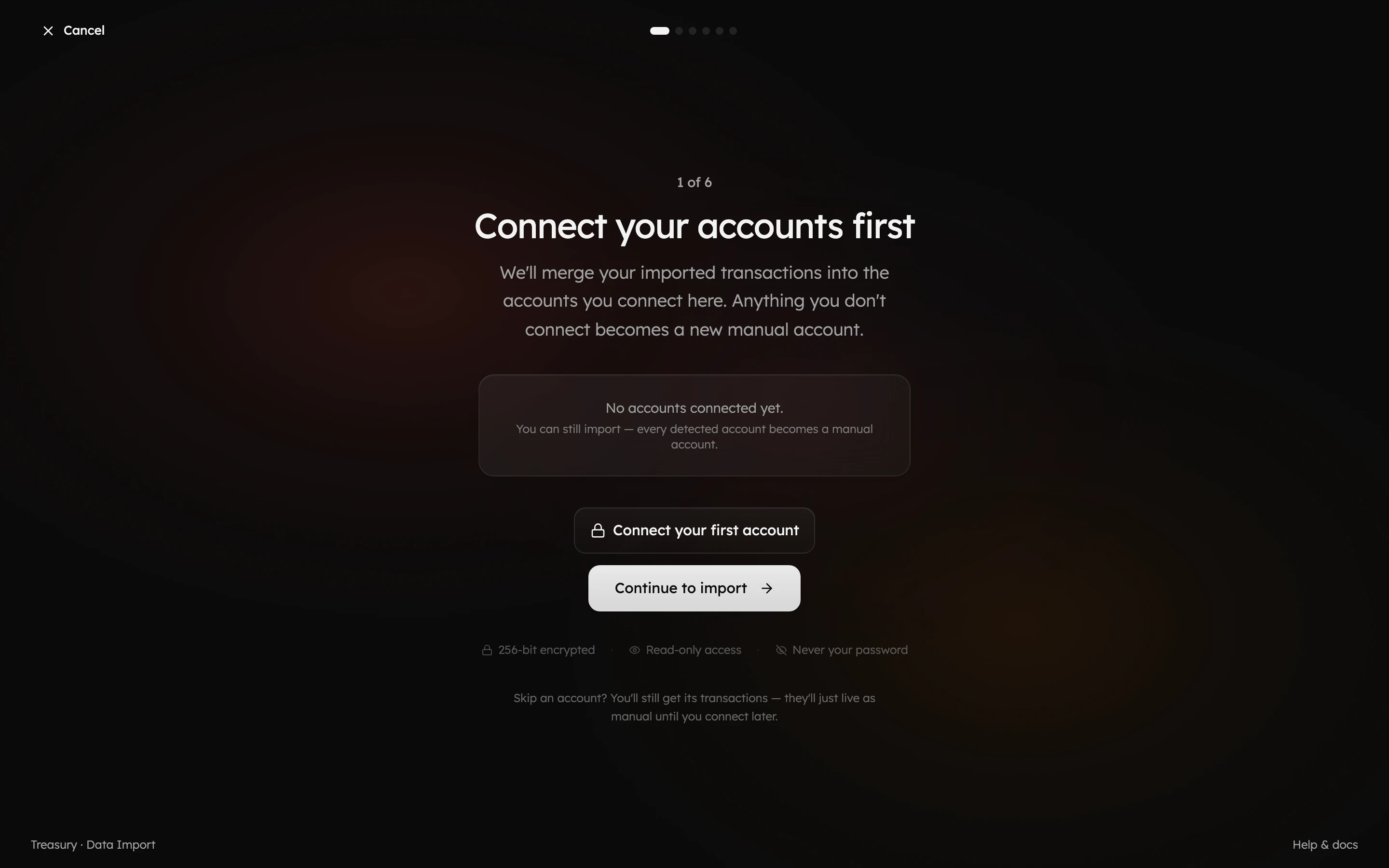
Treasury merges your imported transactions into the accounts you connect here, so your history lines up with live balances going forward. Anything you don’t connect becomes a **new manual account** instead — so you can still import everything even if you’re not ready to link a bank.
### 1. Connect your accounts first
This step applies to **Monarch**. **Apple Card** and **CSV Import** skip straight to upload — see
[Importing from a CSV file](#importing-from-a-csv-file) below.
Treasury merges your imported transactions into the accounts you connect here, so your history lines up with live balances going forward. Anything you don’t connect becomes a **new manual account** instead — so you can still import everything even if you’re not ready to link a bank.
 ### 2. Upload your export
Upload the file you exported from your previous app. Treasury reads your transactions, accounts, and historical balances from it.
### 3. Map accounts and categories
Match the accounts and categories from your export to the ones in Treasury (or let Treasury create new ones). This keeps your history consistent — your old “Groceries” lands in the right Treasury category, and each imported account maps to the right place.
### 4. Review and import
Confirm what’s about to be imported, then let Treasury bring it all in. When it finishes, you’ll see a summary of everything that was added, and your transactions, accounts, and net-worth history will be ready to use.
Connect the matching bank in step 1 before importing. That way your imported history and your live
synced transactions merge into one continuous timeline instead of living in a separate manual
account.
## Importing from a CSV file
Two sources — **Apple Card** and **CSV Import** — bring data in from a CSV file rather than a linked bank. They skip the connect step and go straight to upload.
### Apple Card
Apple Card isn’t available through bank connections, so Treasury imports it from the CSV you export on your device:
1. On your iPhone, open **Wallet** and tap **Apple Card** (on iPad: **Settings → Wallet & Apple Pay → Apple Card**).
2. Tap **Card Balance**.
3. Under **Statements**, tap **Export Transactions**.
4. Choose a start and end date, pick **CSV** as the file format, then tap **Done**.
Upload that file under **Apple Card** in the importer. Every transaction lands in a single **Apple Card** account, and re-importing an overlapping date range later won’t create duplicates.
### CSV Import (any app)
If your app isn’t listed, choose **CSV Import** to bring transactions in from a file that follows Treasury’s template. On the upload step, download the **Transactions** template (and the optional **Balances** template), fill it in, then upload it.
Your CSV must follow this schema:
| Column | Required | What it holds |
| --------------- | -------- | ---------------------------------------------------------------------------------------------------- |
| **Date** | Yes | `YYYY-MM-DD` (or `MM/DD/YYYY`). |
| **Amount** | Yes | Positive for money you **spent**, negative for money you **received**. |
| **Description** | No | The merchant or payee. |
| **Category** | No | Mapped to a Treasury category — or created — during the import. |
| **Account** | No | Matched to an account by name. Leave it blank to group everything into one “Imported (CSV)” account. |
| **Tags** | No | Separate multiple tags with `;` or `,`. |
| **Notes** | No | Anything else you want to keep. |
Column order doesn’t matter and optional columns can be left out — Treasury matches columns by name.
The optional **Balances** template (`Date, Account, Balance`) imports historical balances into
your net-worth timeline. Use a positive balance for assets and a negative balance for what you owe
(for example, a credit-card balance). The account name should match one used in your transactions
file.
## FAQ
**Monarch**, **Apple Card**, and *any* app via **CSV Import** (using our template) are supported
today. **YNAB**, **Copilot**, **Rocket Money**, and **Origin** are on the way.
Yes. Apple Card isn't available through bank connections, so you import it from the CSV you
export in **Wallet → Apple Card → Card Balance → Export Transactions**. See [Apple
Card](#apple-card) above for the full steps.
Yes — choose **CSV Import** and download Treasury's template. As long as your file has a
**Date** and an **Amount** column, Treasury can read it. See [CSV Import](#csv-import-any-app)
for the full schema.
Money you **spent** is a **positive** number; money you **received** (income, refunds) is
**negative**. For the optional balances file, assets are positive and what you owe is negative.
No. For connected sources, Treasury merges imported history into the account you connect. For
CSV and Apple Card imports, re-importing an overlapping date range skips rows it already has
(matched on account, amount, and merchant), so you won't get duplicates.
Anything you don't connect is imported into a **new manual account**, so you keep all the
history. You can connect the live account later.
You map your old categories to Treasury's during the import (or let Treasury create them). Tidy
up any leftovers afterward in [Categories](/core/categories).
## Related
Link the accounts your history should merge into.
Unconnected accounts import as manual accounts.
Where your imported activity lands.
Imported balances and history feed your net worth.
### 2. Upload your export
Upload the file you exported from your previous app. Treasury reads your transactions, accounts, and historical balances from it.
### 3. Map accounts and categories
Match the accounts and categories from your export to the ones in Treasury (or let Treasury create new ones). This keeps your history consistent — your old “Groceries” lands in the right Treasury category, and each imported account maps to the right place.
### 4. Review and import
Confirm what’s about to be imported, then let Treasury bring it all in. When it finishes, you’ll see a summary of everything that was added, and your transactions, accounts, and net-worth history will be ready to use.
Connect the matching bank in step 1 before importing. That way your imported history and your live
synced transactions merge into one continuous timeline instead of living in a separate manual
account.
## Importing from a CSV file
Two sources — **Apple Card** and **CSV Import** — bring data in from a CSV file rather than a linked bank. They skip the connect step and go straight to upload.
### Apple Card
Apple Card isn’t available through bank connections, so Treasury imports it from the CSV you export on your device:
1. On your iPhone, open **Wallet** and tap **Apple Card** (on iPad: **Settings → Wallet & Apple Pay → Apple Card**).
2. Tap **Card Balance**.
3. Under **Statements**, tap **Export Transactions**.
4. Choose a start and end date, pick **CSV** as the file format, then tap **Done**.
Upload that file under **Apple Card** in the importer. Every transaction lands in a single **Apple Card** account, and re-importing an overlapping date range later won’t create duplicates.
### CSV Import (any app)
If your app isn’t listed, choose **CSV Import** to bring transactions in from a file that follows Treasury’s template. On the upload step, download the **Transactions** template (and the optional **Balances** template), fill it in, then upload it.
Your CSV must follow this schema:
| Column | Required | What it holds |
| --------------- | -------- | ---------------------------------------------------------------------------------------------------- |
| **Date** | Yes | `YYYY-MM-DD` (or `MM/DD/YYYY`). |
| **Amount** | Yes | Positive for money you **spent**, negative for money you **received**. |
| **Description** | No | The merchant or payee. |
| **Category** | No | Mapped to a Treasury category — or created — during the import. |
| **Account** | No | Matched to an account by name. Leave it blank to group everything into one “Imported (CSV)” account. |
| **Tags** | No | Separate multiple tags with `;` or `,`. |
| **Notes** | No | Anything else you want to keep. |
Column order doesn’t matter and optional columns can be left out — Treasury matches columns by name.
The optional **Balances** template (`Date, Account, Balance`) imports historical balances into
your net-worth timeline. Use a positive balance for assets and a negative balance for what you owe
(for example, a credit-card balance). The account name should match one used in your transactions
file.
## FAQ
**Monarch**, **Apple Card**, and *any* app via **CSV Import** (using our template) are supported
today. **YNAB**, **Copilot**, **Rocket Money**, and **Origin** are on the way.
Yes. Apple Card isn't available through bank connections, so you import it from the CSV you
export in **Wallet → Apple Card → Card Balance → Export Transactions**. See [Apple
Card](#apple-card) above for the full steps.
Yes — choose **CSV Import** and download Treasury's template. As long as your file has a
**Date** and an **Amount** column, Treasury can read it. See [CSV Import](#csv-import-any-app)
for the full schema.
Money you **spent** is a **positive** number; money you **received** (income, refunds) is
**negative**. For the optional balances file, assets are positive and what you owe is negative.
No. For connected sources, Treasury merges imported history into the account you connect. For
CSV and Apple Card imports, re-importing an overlapping date range skips rows it already has
(matched on account, amount, and merchant), so you won't get duplicates.
Anything you don't connect is imported into a **new manual account**, so you keep all the
history. You can connect the live account later.
You map your old categories to Treasury's during the import (or let Treasury create them). Tidy
up any leftovers afterward in [Categories](/core/categories).
## Related
Link the accounts your history should merge into.
Unconnected accounts import as manual accounts.
Where your imported activity lands.
Imported balances and history feed your net worth.