> ## Documentation Index
> Fetch the complete documentation index at: https://docs.treasury.sh/llms.txt
> Use this file to discover all available pages before exploring further.
# Categories
> Organize your transactions into the income, expense, and saving buckets that power your budgets and insights.
## Overview
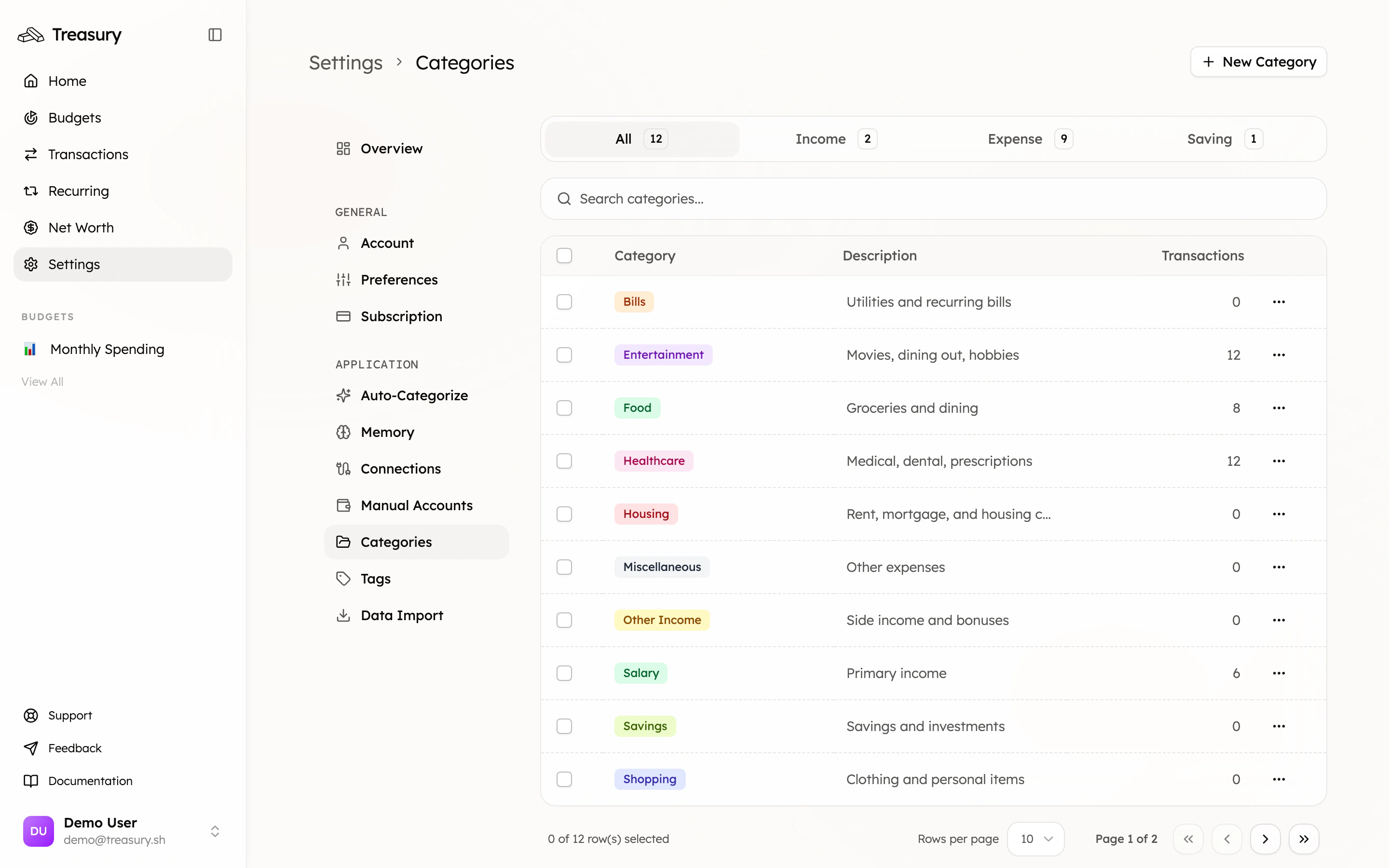
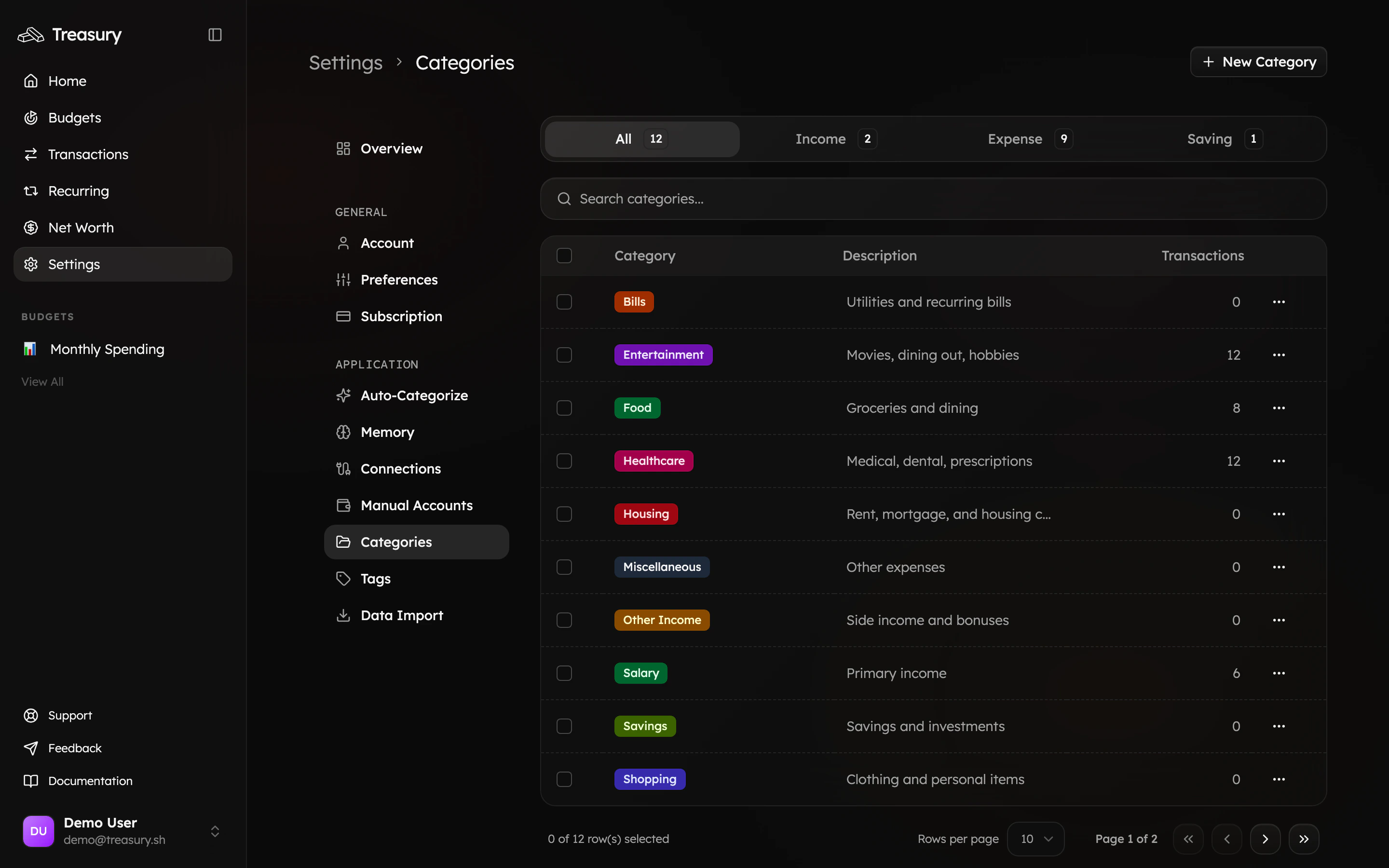
Your categories are found in [Settings > Categories](https://app.treasury.sh/settings/categories). This is where you create and manage the categories that organize your transactions — the foundation every budget and spending insight is built on.
 ## What you can do here
* **Create** custom categories for income, expenses, and savings.
* **Edit** a category's name, type, color, or description.
* **Delete** a category and reassign or clear its transactions.
* Use the **Default** preset to start with a well-rounded set.
## What are Categories?
Categories help you organize and track your expenses by grouping similar transactions together. You can create custom categories to suit your budgeting needs, making it easier to analyze your spending patterns.
### Category Types
Treasury offers three category types that represent how money moves through your accounts:
| Type | Description | Examples |
| :---------- | :------------------------------- | :-------------------------- |
| **Income** | Money coming in. | Salary, refunds, interest |
| **Expense** | Money going out. | Food, rent, healthcare |
| **Saving** | Money you set aside or transfer. | 401(k), HSA, emergency fund |
Keep your categories broad (e.g., **Food**, **Rent**, **Salary**). For trip or event-specific
tracking, use **Tags** instead.
## Manage Categories
To manage your categories, navigate to the [**Settings → Categories**](https://app.treasury.sh/settings/categories) page.
Categories organize your transactions and power your budgets and reports. Use them to group income, expenses, and savings in a way that reflects how you manage your money.
Click the **table view** in the top right corner to see all your categories in a list format — from there, you can **create**, **edit**, or **delete** categories.
### Create a Category
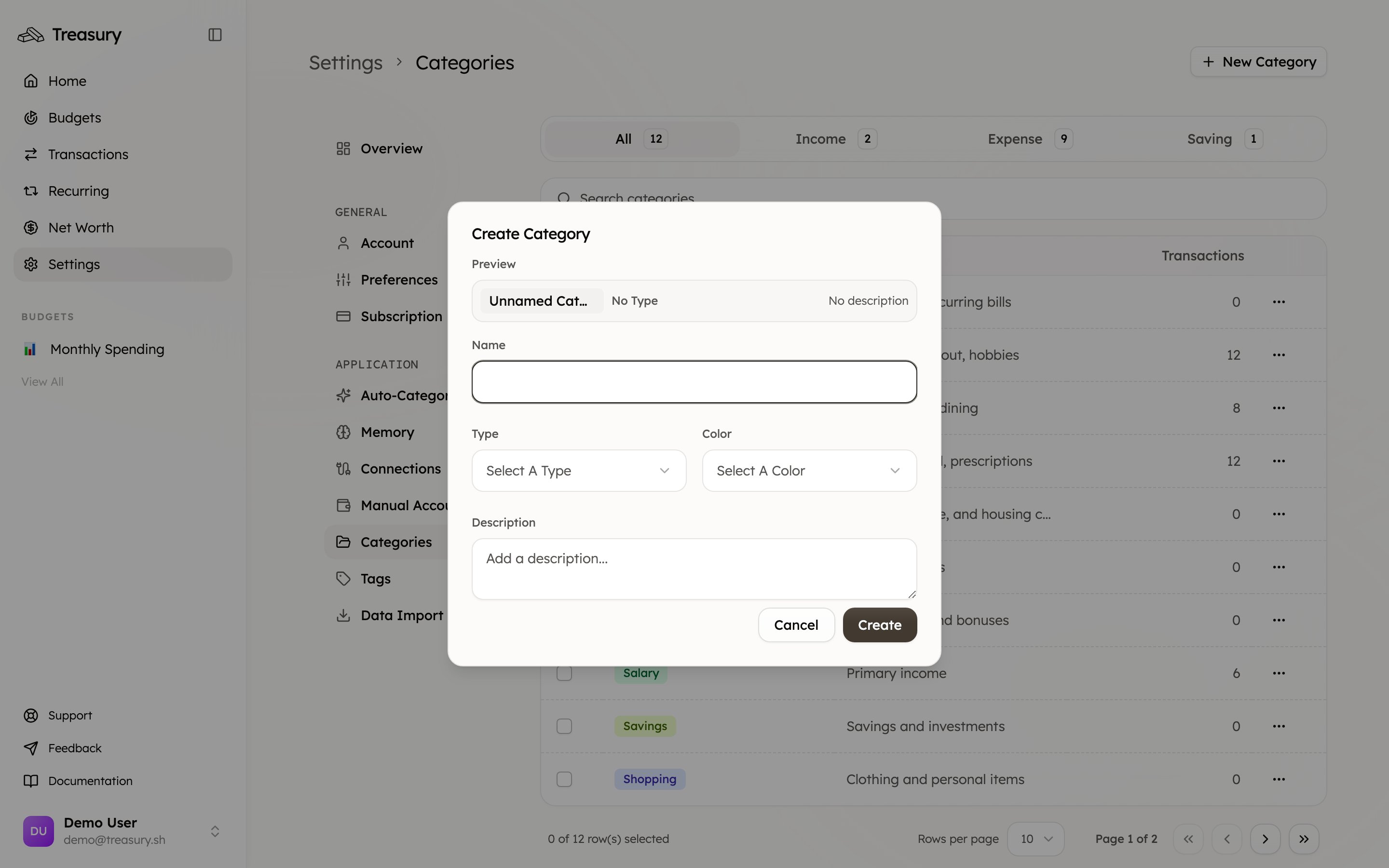
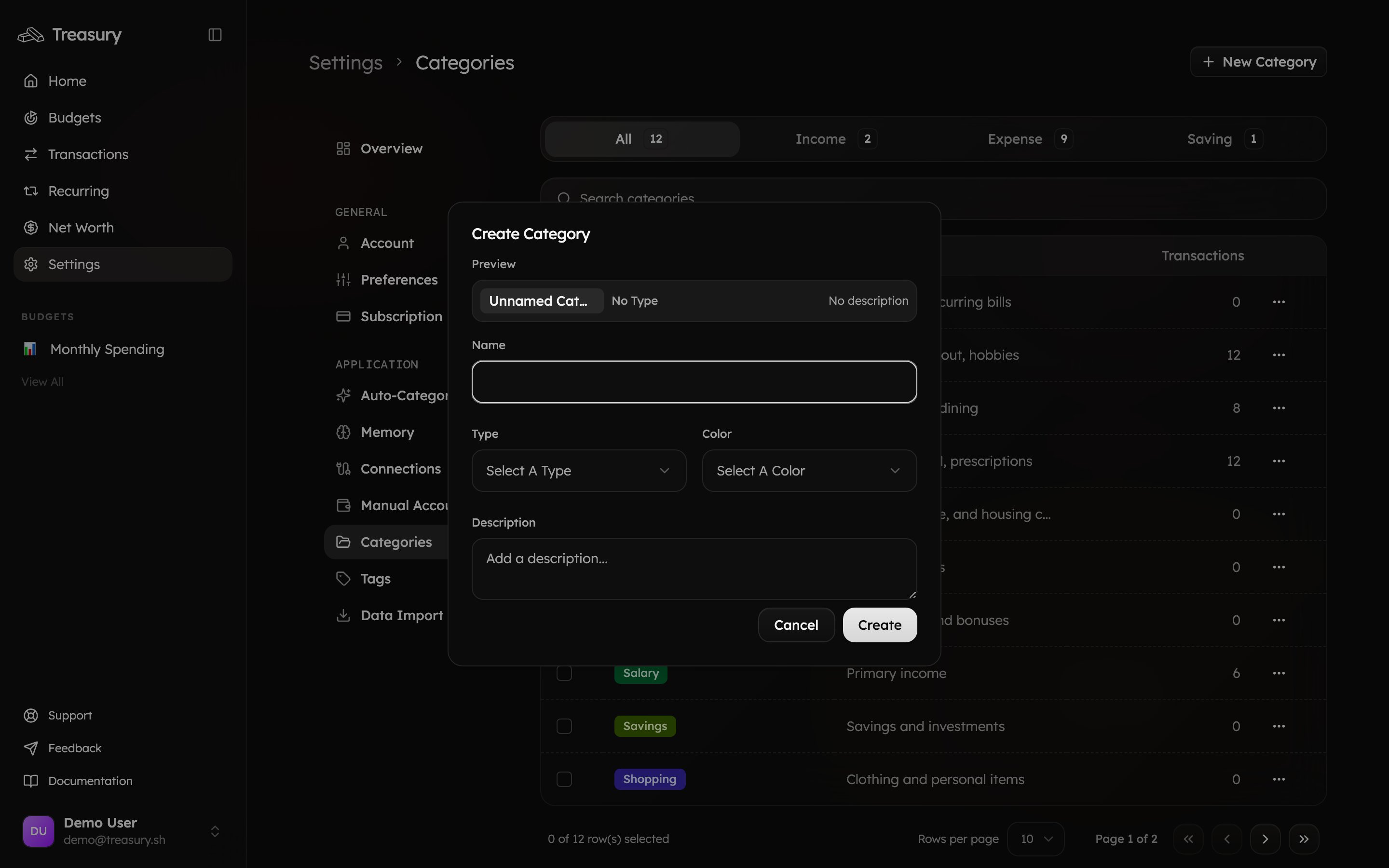
To add a new category:
1. Go to [**Settings → Categories**](https://app.treasury.sh/settings/categories).
2. Click **New Category** in the top right corner.
3. Enter a **Name** for your category.
4. Select a **Type** — *Income*, *Expense*, or *Saving*.
5. Choose a **Color** and optionally add a **Description**.
6. Click **Create** to save.
Your new category will instantly appear in your list and be available when categorizing transactions or building budgets.
## What you can do here
* **Create** custom categories for income, expenses, and savings.
* **Edit** a category's name, type, color, or description.
* **Delete** a category and reassign or clear its transactions.
* Use the **Default** preset to start with a well-rounded set.
## What are Categories?
Categories help you organize and track your expenses by grouping similar transactions together. You can create custom categories to suit your budgeting needs, making it easier to analyze your spending patterns.
### Category Types
Treasury offers three category types that represent how money moves through your accounts:
| Type | Description | Examples |
| :---------- | :------------------------------- | :-------------------------- |
| **Income** | Money coming in. | Salary, refunds, interest |
| **Expense** | Money going out. | Food, rent, healthcare |
| **Saving** | Money you set aside or transfer. | 401(k), HSA, emergency fund |
Keep your categories broad (e.g., **Food**, **Rent**, **Salary**). For trip or event-specific
tracking, use **Tags** instead.
## Manage Categories
To manage your categories, navigate to the [**Settings → Categories**](https://app.treasury.sh/settings/categories) page.
Categories organize your transactions and power your budgets and reports. Use them to group income, expenses, and savings in a way that reflects how you manage your money.
Click the **table view** in the top right corner to see all your categories in a list format — from there, you can **create**, **edit**, or **delete** categories.
### Create a Category
To add a new category:
1. Go to [**Settings → Categories**](https://app.treasury.sh/settings/categories).
2. Click **New Category** in the top right corner.
3. Enter a **Name** for your category.
4. Select a **Type** — *Income*, *Expense*, or *Saving*.
5. Choose a **Color** and optionally add a **Description**.
6. Click **Create** to save.
Your new category will instantly appear in your list and be available when categorizing transactions or building budgets.
 Not sure where to start? During onboarding Treasury offers a **Default** preset with a well-rounded set of categories you can tweak — far faster than building them one by one.
### Edit a Category
To edit an existing category:
1. Go to [**Settings → Categories**](https://app.treasury.sh/settings/categories).
2. Find the category you want to change.
3. Click the **three dots** (`⋯`) and select **Edit Category**.
4. Update the **Name**, **Type**, **Color**, or **Description**.
5. Click **Save Changes** to apply your edits.
Editing a category helps keep your reports clean — for example, if you rename **Dining Out** to
**Restaurants**, all related transactions update automatically.
### Delete a Category
To delete a category:
1. Go to [**Settings → Categories**](https://app.treasury.sh/settings/categories).
2. Find the category you want to remove.
3. Click the **three dots** (`⋯`) and select **Delete Category**.
4. A confirmation window will appear showing how many transactions are currently assigned to that category.
5. Choose one of the following options:
* **Make Uncategorized** — remove the category label so you can review and reassign transactions later in [**Transactions**](https://app.treasury.sh/transactions) or Turbo Review.
* **Reassign to Category** — move all transactions to another category (e.g., merging **Dining Out** into **Food**).
6. Click **Delete Category** to confirm.
Deleting a category is permanent. Once deleted, it cannot be recovered — make sure to reassign any
important transactions first.
## Use Categories in Budgets
Categories are the building blocks of your budgets.\
When you create a new budget in Treasury, you’ll choose which categories to include and how much money to allocate to each one.
For example, if you creates a monthly budget, you might include:
* **Food** → \$600
* **Rent** → \$1,600
* **Shopping** → \$300
As your transactions are categorized throughout the month, Treasury automatically tracks her spending against those category limits.
If she spends less than her budgeted amount, the category will show as **under budget**, and if she spends more, it will show as **over budget**.
You can edit a budget at any time to add or remove categories or adjust spending targets.
## FAQ
A **category** is the *type* of spending (Food, Rent, Salary) — every transaction has one, and categories power your budgets. A [**tag**](/core/tags) is a flexible label you add *across* categories for a theme like a trip or project. Use categories for structure, tags for context.
Keep them broad — a dozen or so is plenty for most people. Too many makes categorizing a chore and budgets noisy. Reach for [tags](/core/tags) when you need finer, one-off grouping.
You choose: **make them uncategorized** (to review and reassign later) or **reassign them** to another category in one step. Nothing is lost.
Yes — and the change applies everywhere automatically. Rename **Dining Out** to **Restaurants** and all its transactions, budgets, and reports update instantly.
## Related
Assign categories to your activity, one by one or in bulk.
Blast through uncategorized transactions fast.
Categories are the building blocks of every budget.
For one-off events and projects, reach for tags instead.
Not sure where to start? During onboarding Treasury offers a **Default** preset with a well-rounded set of categories you can tweak — far faster than building them one by one.
### Edit a Category
To edit an existing category:
1. Go to [**Settings → Categories**](https://app.treasury.sh/settings/categories).
2. Find the category you want to change.
3. Click the **three dots** (`⋯`) and select **Edit Category**.
4. Update the **Name**, **Type**, **Color**, or **Description**.
5. Click **Save Changes** to apply your edits.
Editing a category helps keep your reports clean — for example, if you rename **Dining Out** to
**Restaurants**, all related transactions update automatically.
### Delete a Category
To delete a category:
1. Go to [**Settings → Categories**](https://app.treasury.sh/settings/categories).
2. Find the category you want to remove.
3. Click the **three dots** (`⋯`) and select **Delete Category**.
4. A confirmation window will appear showing how many transactions are currently assigned to that category.
5. Choose one of the following options:
* **Make Uncategorized** — remove the category label so you can review and reassign transactions later in [**Transactions**](https://app.treasury.sh/transactions) or Turbo Review.
* **Reassign to Category** — move all transactions to another category (e.g., merging **Dining Out** into **Food**).
6. Click **Delete Category** to confirm.
Deleting a category is permanent. Once deleted, it cannot be recovered — make sure to reassign any
important transactions first.
## Use Categories in Budgets
Categories are the building blocks of your budgets.\
When you create a new budget in Treasury, you’ll choose which categories to include and how much money to allocate to each one.
For example, if you creates a monthly budget, you might include:
* **Food** → \$600
* **Rent** → \$1,600
* **Shopping** → \$300
As your transactions are categorized throughout the month, Treasury automatically tracks her spending against those category limits.
If she spends less than her budgeted amount, the category will show as **under budget**, and if she spends more, it will show as **over budget**.
You can edit a budget at any time to add or remove categories or adjust spending targets.
## FAQ
A **category** is the *type* of spending (Food, Rent, Salary) — every transaction has one, and categories power your budgets. A [**tag**](/core/tags) is a flexible label you add *across* categories for a theme like a trip or project. Use categories for structure, tags for context.
Keep them broad — a dozen or so is plenty for most people. Too many makes categorizing a chore and budgets noisy. Reach for [tags](/core/tags) when you need finer, one-off grouping.
You choose: **make them uncategorized** (to review and reassign later) or **reassign them** to another category in one step. Nothing is lost.
Yes — and the change applies everywhere automatically. Rename **Dining Out** to **Restaurants** and all its transactions, budgets, and reports update instantly.
## Related
Assign categories to your activity, one by one or in bulk.
Blast through uncategorized transactions fast.
Categories are the building blocks of every budget.
For one-off events and projects, reach for tags instead.