> ## Documentation Index
> Fetch the complete documentation index at: https://docs.treasury.sh/llms.txt
> Use this file to discover all available pages before exploring further.
# Budgets
> Plan and track your income, expenses, and savings by category — and see exactly where you stand.
## Overview
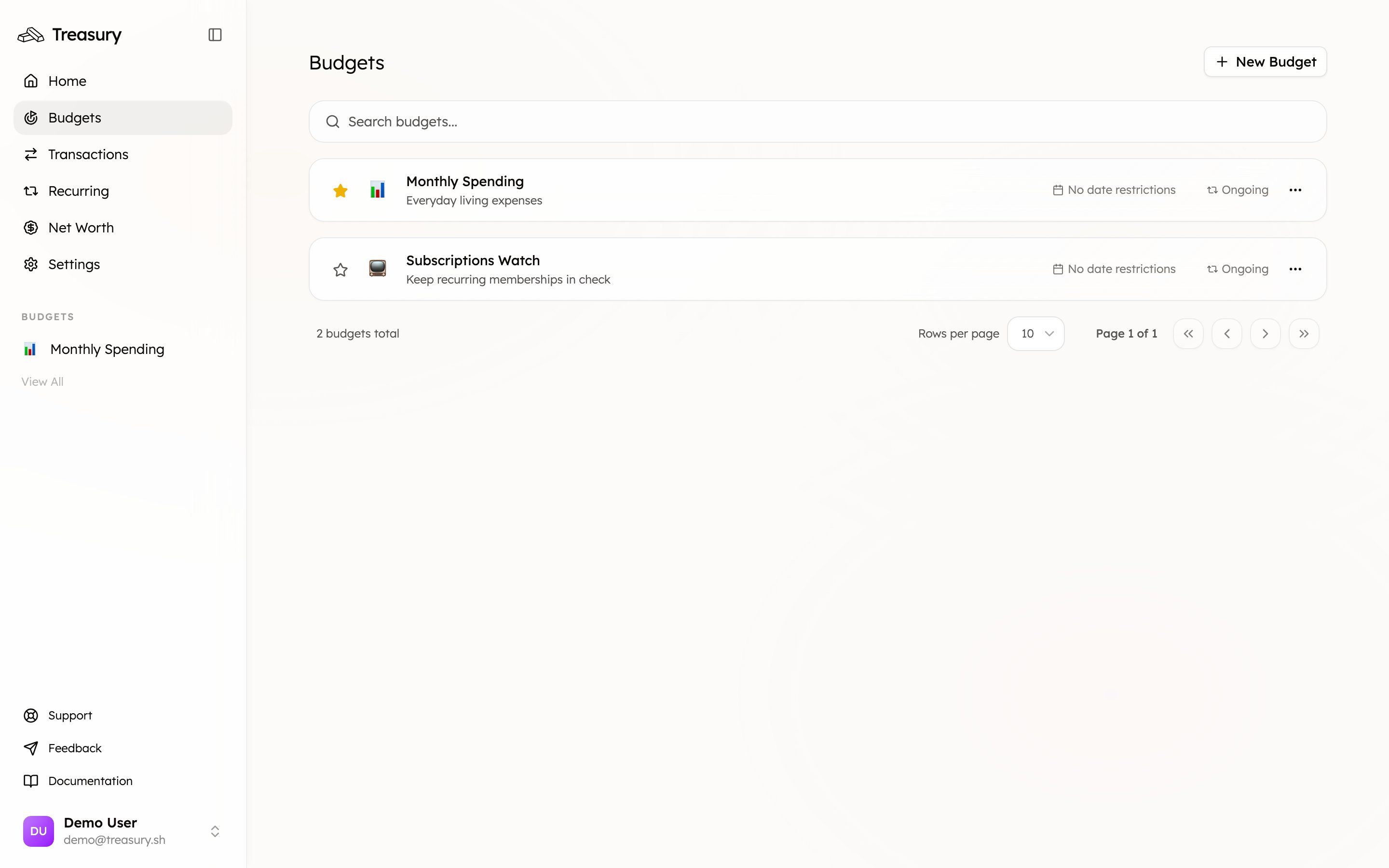
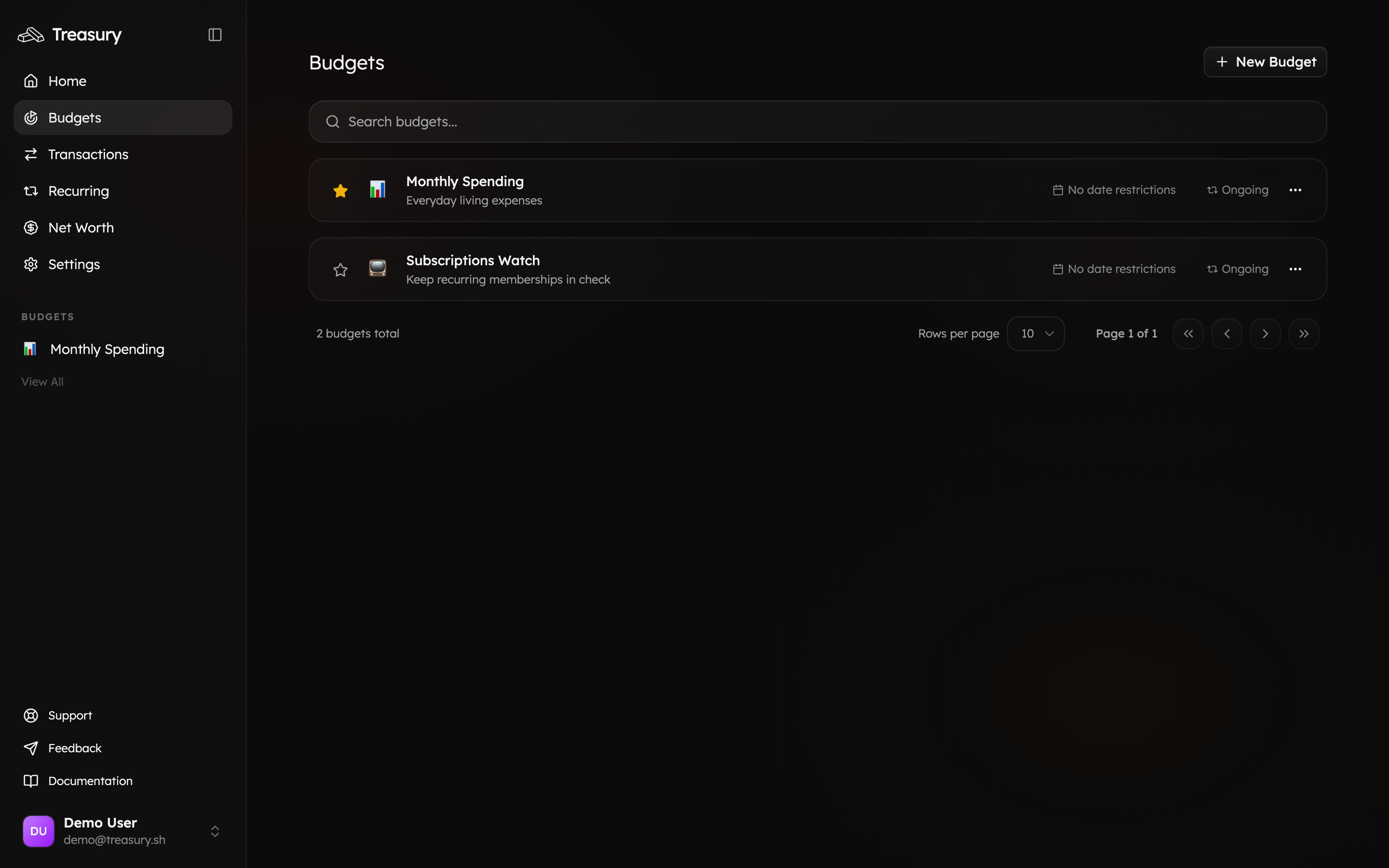
Your [budgets](https://app.treasury.sh/budgets) are found on the navigation bar. This is where you can create, view, and manage the budgets you use to plan and track your income, expenses, and savings over time.
 ## What you can do here
* **Create** ongoing budgets (recurring spending) or goal budgets (one-off targets).
* **Allocate** amounts per category and track **budgeted vs. actual**.
* See **income, expenses, and savings** netted into your cash flow.
* **Pin** the budget you check most to your sidebar and dashboard.
* Step through **previous months** to compare performance.
## What are budgets?
Budgets in Treasury help you plan, track, and visualize your spending and savings over time.
They show how your money flows in and out — giving you a clear picture of your **income**, **expenses**, and **savings** across selected categories.
Each budget displays your total performance at a glance:
* **Income** shows how much money you’ve earned.
* **Expenses** track how much you’ve spent.
* **Savings** capture how much you’ve set aside or transferred toward goals.
Budgets also let you **visualize your spending by category** — so you can see which areas take up the largest share of your expenses. For example, you might notice that some categories make up more of your spending than others. This makes it easy to identify where you can adjust your habits or free up money for savings.
Treasury automatically updates your budget as new transactions sync from your connected accounts and are categorized, so you always know where you stand — whether you’re **under**, **on**, or **over** budget.
Budgets are built from your [categories](/core/categories), so you’ll need at least one category before you can create a budget. If you haven’t set any up yet, Treasury will point you to **Categories** first.
## Create a Budget
To create a new budget, go to **Budgets → New Budget**. You’ll be guided through four steps: **Details**, **Categories**, **Allocate**, and **Review**.
### Step 1: Details
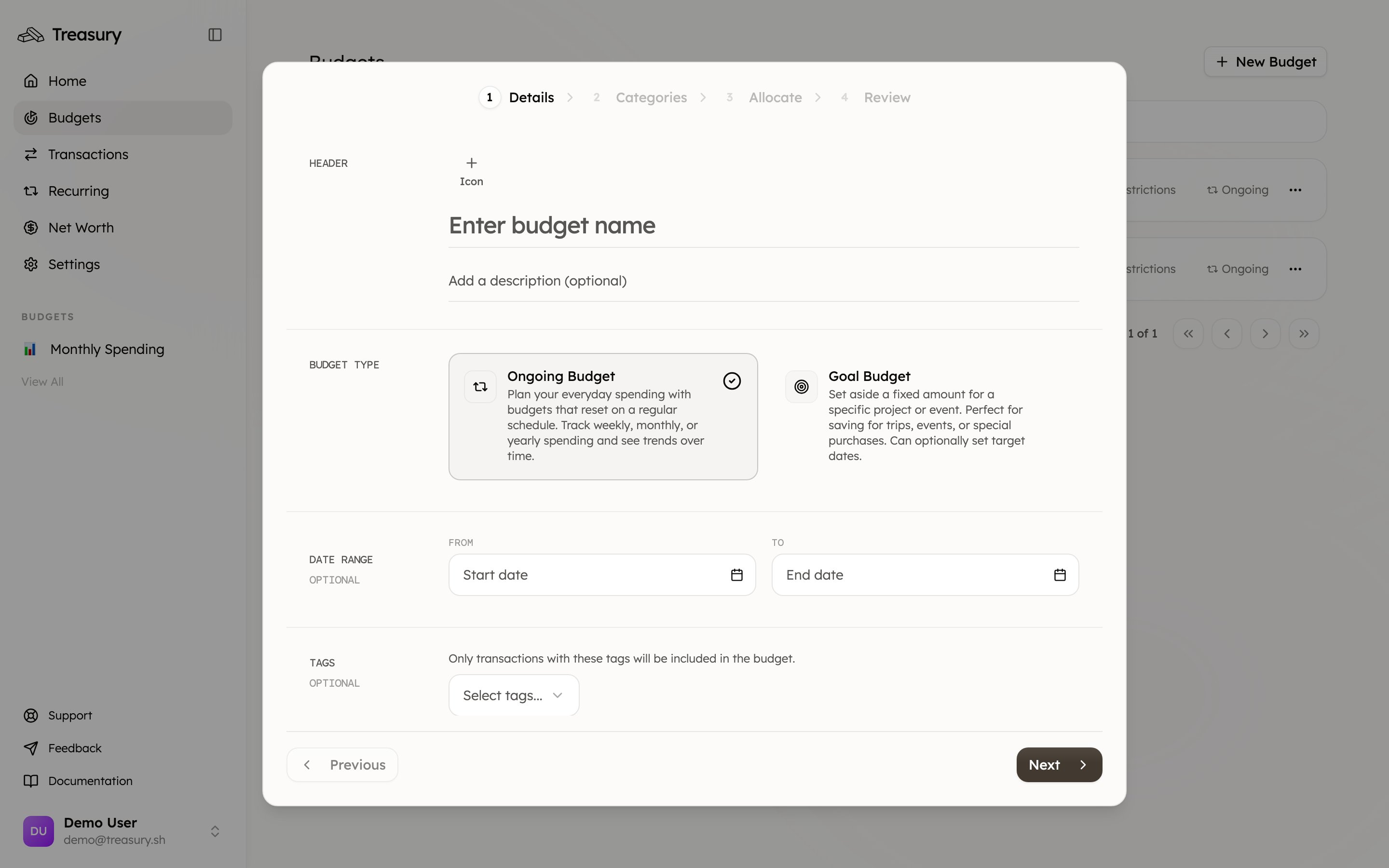
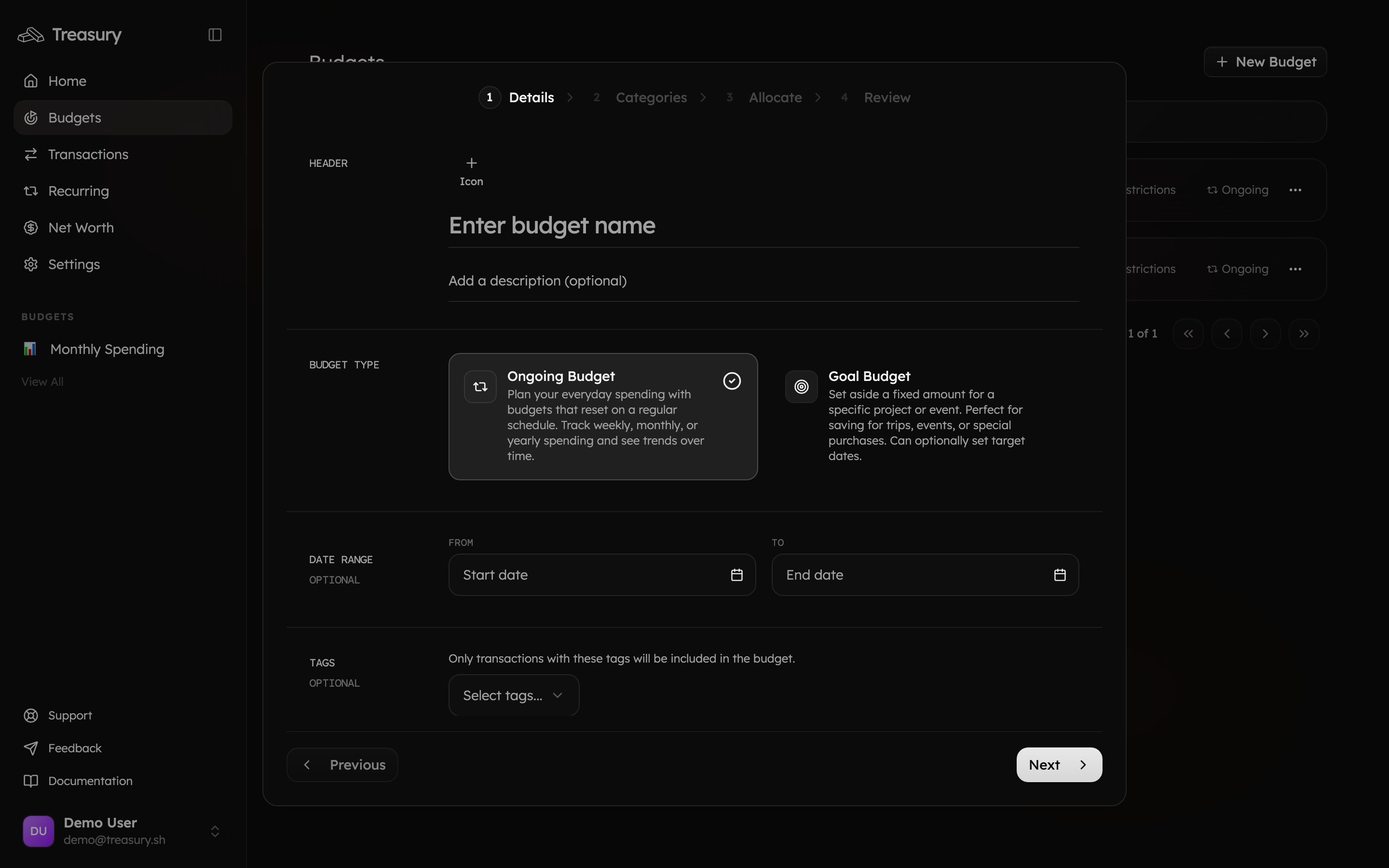
Enter the **name** of your budget, choose an **icon**, and optionally add a **description** to clarify its purpose (for example, “Day to Day” or “Lapland 2025 Trip”). Next, select your **currency** and **budget type**:
* **Ongoing Budget** — great for tracking regular spending that resets on a schedule (e.g., monthly or yearly).
* **Goal Budget** — ideal for specific savings goals or one-time projects (e.g., vacations, events, or large purchases).
You can also set an optional **date range**, depending on the type of budget.
If your budget is linked to a specific purpose, you can apply **tags** so only transactions with that tag appear in the budget. For example, you could tag all trip-related expenses with “Lapland 2025” to track only those transactions.
When you’re ready, click **Next**.
## What you can do here
* **Create** ongoing budgets (recurring spending) or goal budgets (one-off targets).
* **Allocate** amounts per category and track **budgeted vs. actual**.
* See **income, expenses, and savings** netted into your cash flow.
* **Pin** the budget you check most to your sidebar and dashboard.
* Step through **previous months** to compare performance.
## What are budgets?
Budgets in Treasury help you plan, track, and visualize your spending and savings over time.
They show how your money flows in and out — giving you a clear picture of your **income**, **expenses**, and **savings** across selected categories.
Each budget displays your total performance at a glance:
* **Income** shows how much money you’ve earned.
* **Expenses** track how much you’ve spent.
* **Savings** capture how much you’ve set aside or transferred toward goals.
Budgets also let you **visualize your spending by category** — so you can see which areas take up the largest share of your expenses. For example, you might notice that some categories make up more of your spending than others. This makes it easy to identify where you can adjust your habits or free up money for savings.
Treasury automatically updates your budget as new transactions sync from your connected accounts and are categorized, so you always know where you stand — whether you’re **under**, **on**, or **over** budget.
Budgets are built from your [categories](/core/categories), so you’ll need at least one category before you can create a budget. If you haven’t set any up yet, Treasury will point you to **Categories** first.
## Create a Budget
To create a new budget, go to **Budgets → New Budget**. You’ll be guided through four steps: **Details**, **Categories**, **Allocate**, and **Review**.
### Step 1: Details
Enter the **name** of your budget, choose an **icon**, and optionally add a **description** to clarify its purpose (for example, “Day to Day” or “Lapland 2025 Trip”). Next, select your **currency** and **budget type**:
* **Ongoing Budget** — great for tracking regular spending that resets on a schedule (e.g., monthly or yearly).
* **Goal Budget** — ideal for specific savings goals or one-time projects (e.g., vacations, events, or large purchases).
You can also set an optional **date range**, depending on the type of budget.
If your budget is linked to a specific purpose, you can apply **tags** so only transactions with that tag appear in the budget. For example, you could tag all trip-related expenses with “Lapland 2025” to track only those transactions.
When you’re ready, click **Next**.
 ### Step 2: Categories
Next, you can select which **categories** you want to include in your budget.
Click a category to add it to one of the boxes at the top (Income, Expense, or Saving).
You can also click **Create Group** to organize multiple categories of the same type together — for example, grouping **Food**, **Rent**, and **Healthcare** under “Monthly Expenses.”
When your categories are set, click **Next**.
### Step 3: Allocate
Decide how much you want to allocate to each category. You can set daily, monthly, or yearly amounts depending on your tracking preference.
The table will automatically calculate the **net total**, showing the difference between income and expenses (including savings).
Click **Next** once you’ve finished allocating.
### Step 4: Review
Review your budget details, categories, and allocations to make sure everything looks right.
When you’re done, click **Create Budget** — and your new budget will appear on the main Budgets page, ready to track in real time.
## Track a Budget
Click any budget to open its detail view. Here you can see your **Income**, **Expenses**, and **Savings** against their targets, your **Net Cashflow**, and a per-category breakdown of **Budgeted vs. Actual** spending — so it’s instantly clear which categories are on track and which are running hot.
### Step 2: Categories
Next, you can select which **categories** you want to include in your budget.
Click a category to add it to one of the boxes at the top (Income, Expense, or Saving).
You can also click **Create Group** to organize multiple categories of the same type together — for example, grouping **Food**, **Rent**, and **Healthcare** under “Monthly Expenses.”
When your categories are set, click **Next**.
### Step 3: Allocate
Decide how much you want to allocate to each category. You can set daily, monthly, or yearly amounts depending on your tracking preference.
The table will automatically calculate the **net total**, showing the difference between income and expenses (including savings).
Click **Next** once you’ve finished allocating.
### Step 4: Review
Review your budget details, categories, and allocations to make sure everything looks right.
When you’re done, click **Create Budget** — and your new budget will appear on the main Budgets page, ready to track in real time.
## Track a Budget
Click any budget to open its detail view. Here you can see your **Income**, **Expenses**, and **Savings** against their targets, your **Net Cashflow**, and a per-category breakdown of **Budgeted vs. Actual** spending — so it’s instantly clear which categories are on track and which are running hot.
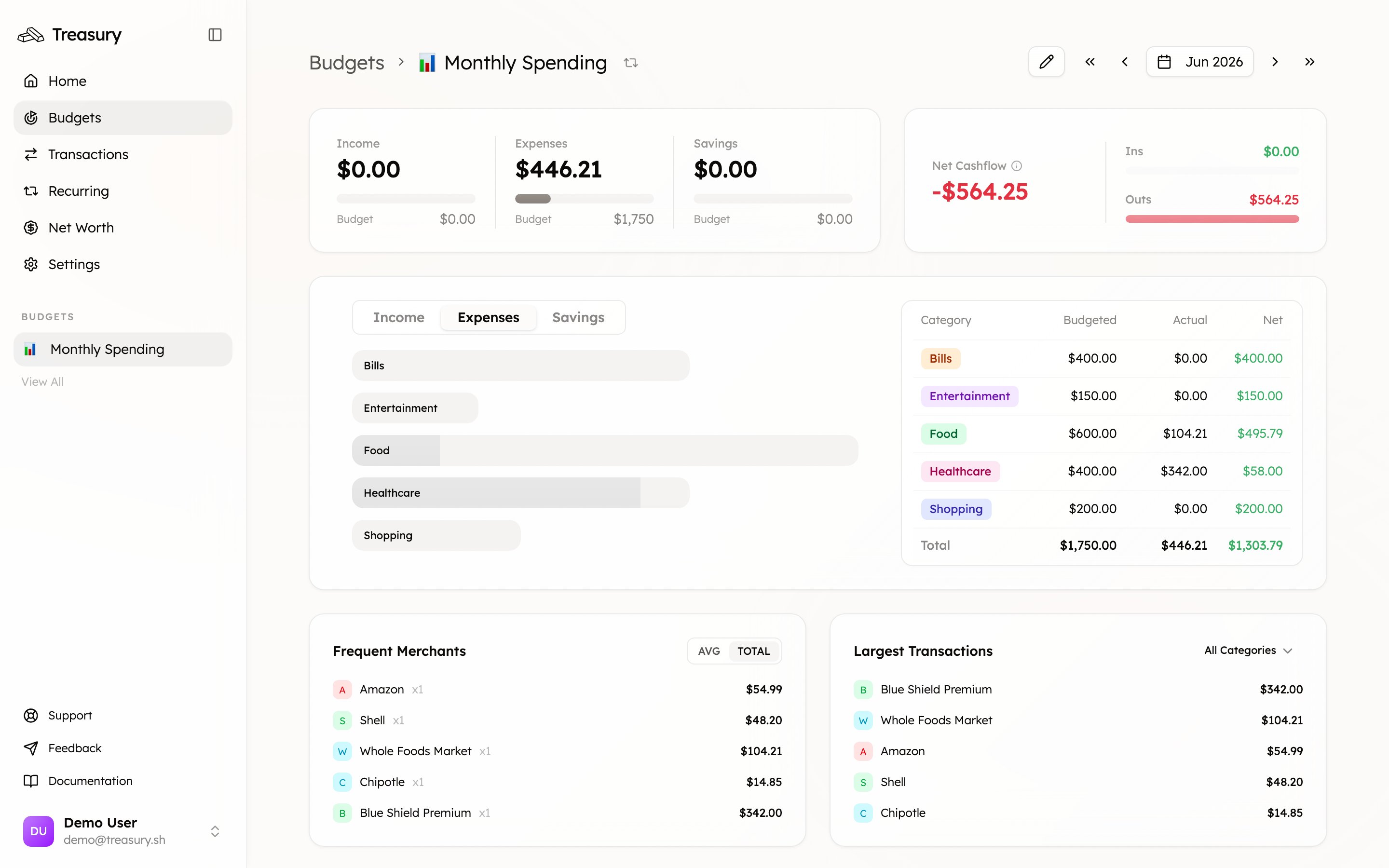
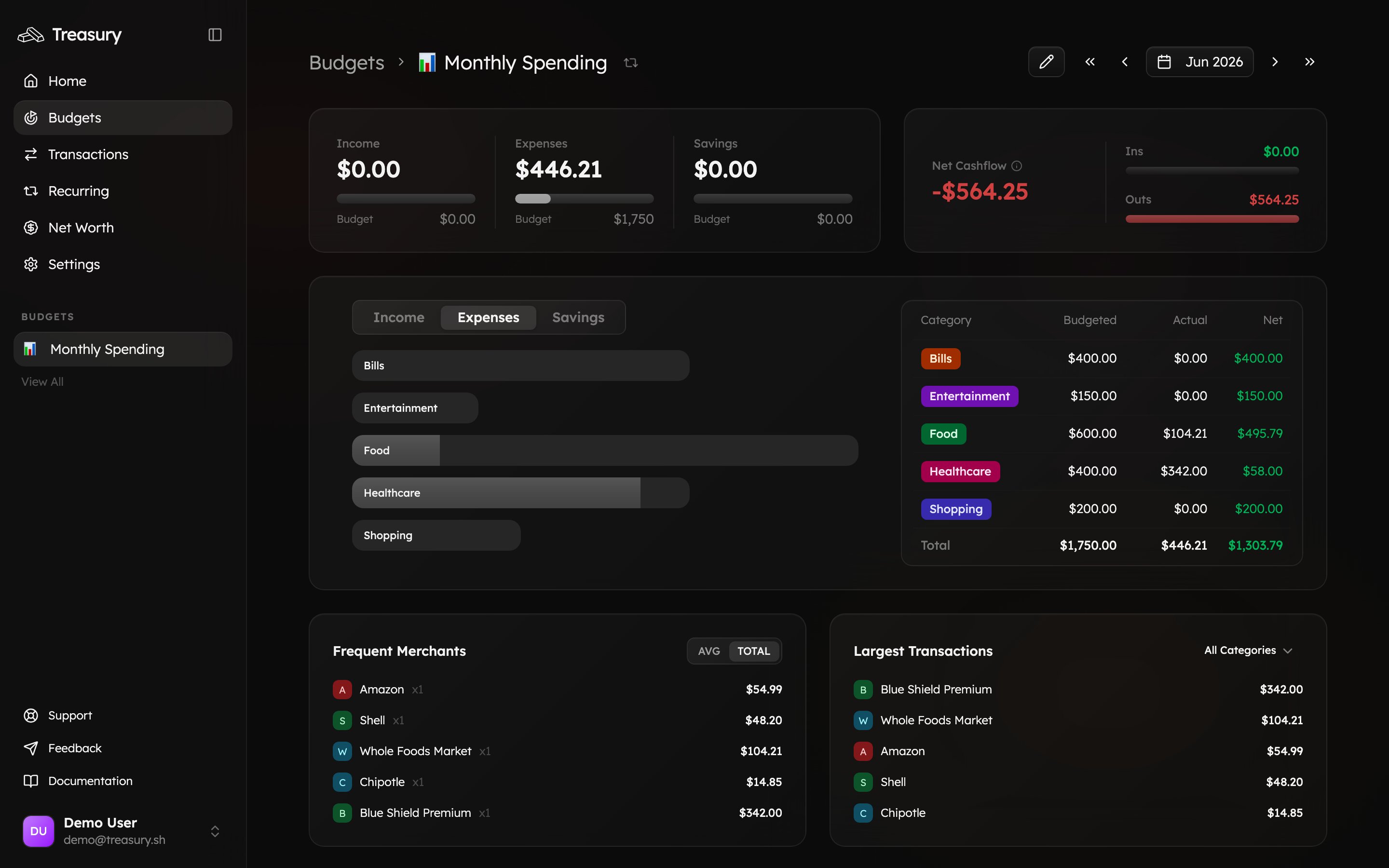 The detail view also surfaces your **Frequent Merchants** and **Largest Transactions** for the period, and you can step through previous months to compare performance over time.
**Pin** the budget you check most often. Pinned budgets appear in the sidebar and on your home dashboard, so your day-to-day spending is always one glance away.
## On the go
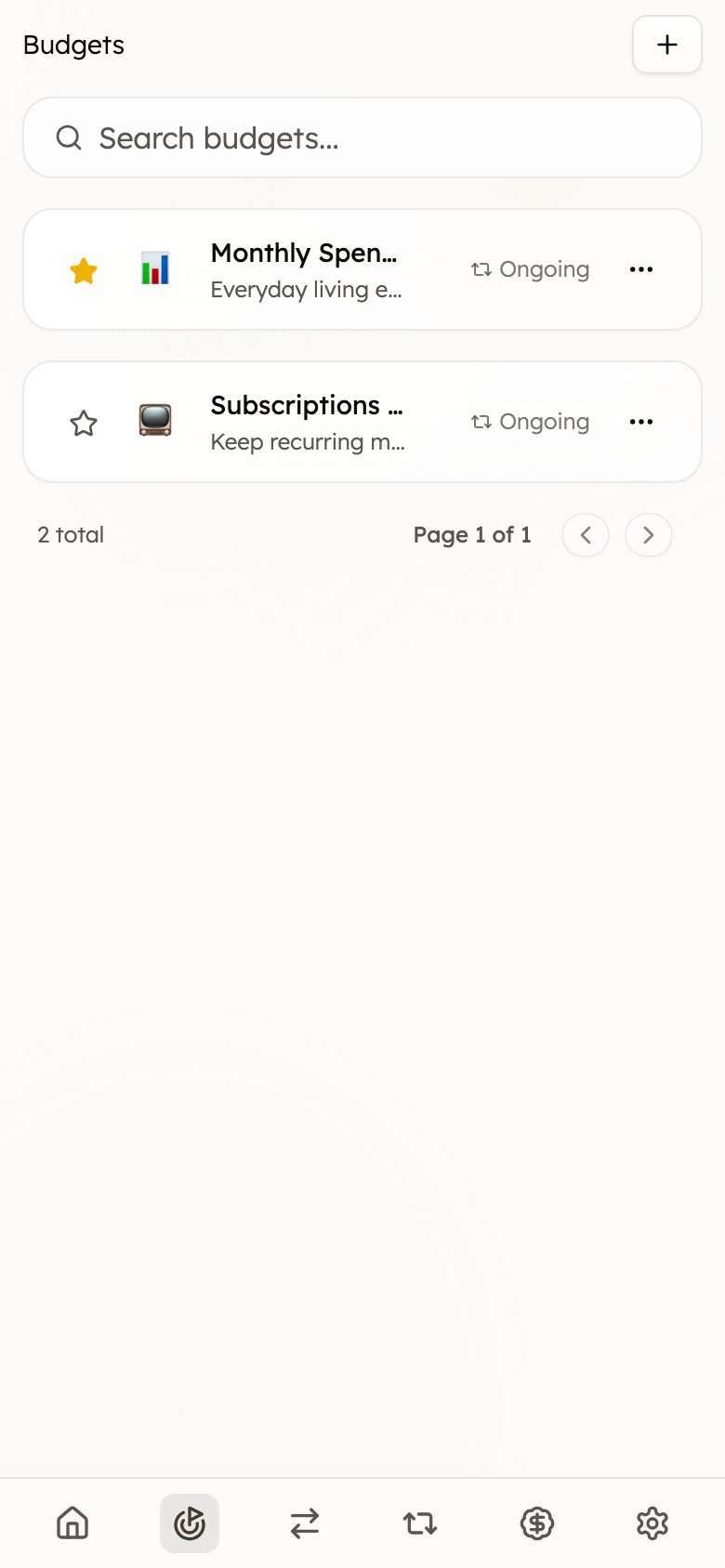
Create, review, and track your budgets from anywhere — the full budget experience is available on mobile.
The detail view also surfaces your **Frequent Merchants** and **Largest Transactions** for the period, and you can step through previous months to compare performance over time.
**Pin** the budget you check most often. Pinned budgets appear in the sidebar and on your home dashboard, so your day-to-day spending is always one glance away.
## On the go
Create, review, and track your budgets from anywhere — the full budget experience is available on mobile.
 ## Tips & best practices
* **Start with an Ongoing budget.** A single “Monthly Spending” budget covering your main expense categories is the fastest way to get value — refine it later.
* **Budget the categories that matter.** You don’t need to budget everything. Focus on the handful of categories where overspending actually happens.
* **Use Goal budgets for one-offs.** Trips, weddings, and big purchases fit a Goal budget better than your everyday spending plan.
* **Keep transactions categorized.** A budget is only as accurate as the transactions behind it — pair budgets with consistent [categorization](/core/transactions) and [Turbo Review](/core/turbo-review).
## FAQ
An **ongoing** budget tracks recurring spending that resets on a schedule (your monthly groceries). A **goal** budget targets a one-off amount for a trip, event, or purchase. Pick ongoing for day-to-day, goal for projects.
No. Budget the handful of categories where overspending actually happens. A focused budget is easier to keep than one that tries to track everything.
Budgets are built from categorized transactions. If a category's transactions aren't categorized yet, they won't count — clear them with [Turbo Review](/core/turbo-review) and the budget fills in.
Yes — apply a [tag](/core/tags) to the relevant transactions and scope the budget to that tag, so only tagged spending counts.
## Related
The building blocks every budget is made from.
The activity that fills your budgets in real time.
Scope a budget to a trip or project with tags.
See budgets in the context of your whole financial picture.
## Tips & best practices
* **Start with an Ongoing budget.** A single “Monthly Spending” budget covering your main expense categories is the fastest way to get value — refine it later.
* **Budget the categories that matter.** You don’t need to budget everything. Focus on the handful of categories where overspending actually happens.
* **Use Goal budgets for one-offs.** Trips, weddings, and big purchases fit a Goal budget better than your everyday spending plan.
* **Keep transactions categorized.** A budget is only as accurate as the transactions behind it — pair budgets with consistent [categorization](/core/transactions) and [Turbo Review](/core/turbo-review).
## FAQ
An **ongoing** budget tracks recurring spending that resets on a schedule (your monthly groceries). A **goal** budget targets a one-off amount for a trip, event, or purchase. Pick ongoing for day-to-day, goal for projects.
No. Budget the handful of categories where overspending actually happens. A focused budget is easier to keep than one that tries to track everything.
Budgets are built from categorized transactions. If a category's transactions aren't categorized yet, they won't count — clear them with [Turbo Review](/core/turbo-review) and the budget fills in.
Yes — apply a [tag](/core/tags) to the relevant transactions and scope the budget to that tag, so only tagged spending counts.
## Related
The building blocks every budget is made from.
The activity that fills your budgets in real time.
Scope a budget to a trip or project with tags.
See budgets in the context of your whole financial picture.