> ## Documentation Index
> Fetch the complete documentation index at: https://docs.treasury.sh/llms.txt
> Use this file to discover all available pages before exploring further.
# Authentication
## Authentication
The **Sign-in Methods** section in your [**Account Settings**](https://app.treasury.sh/settings/account) lets you manage how you sign in to Treasury. Treasury is **passwordless** — you sign in with a passkey or a connected account, never a password to remember or leak.
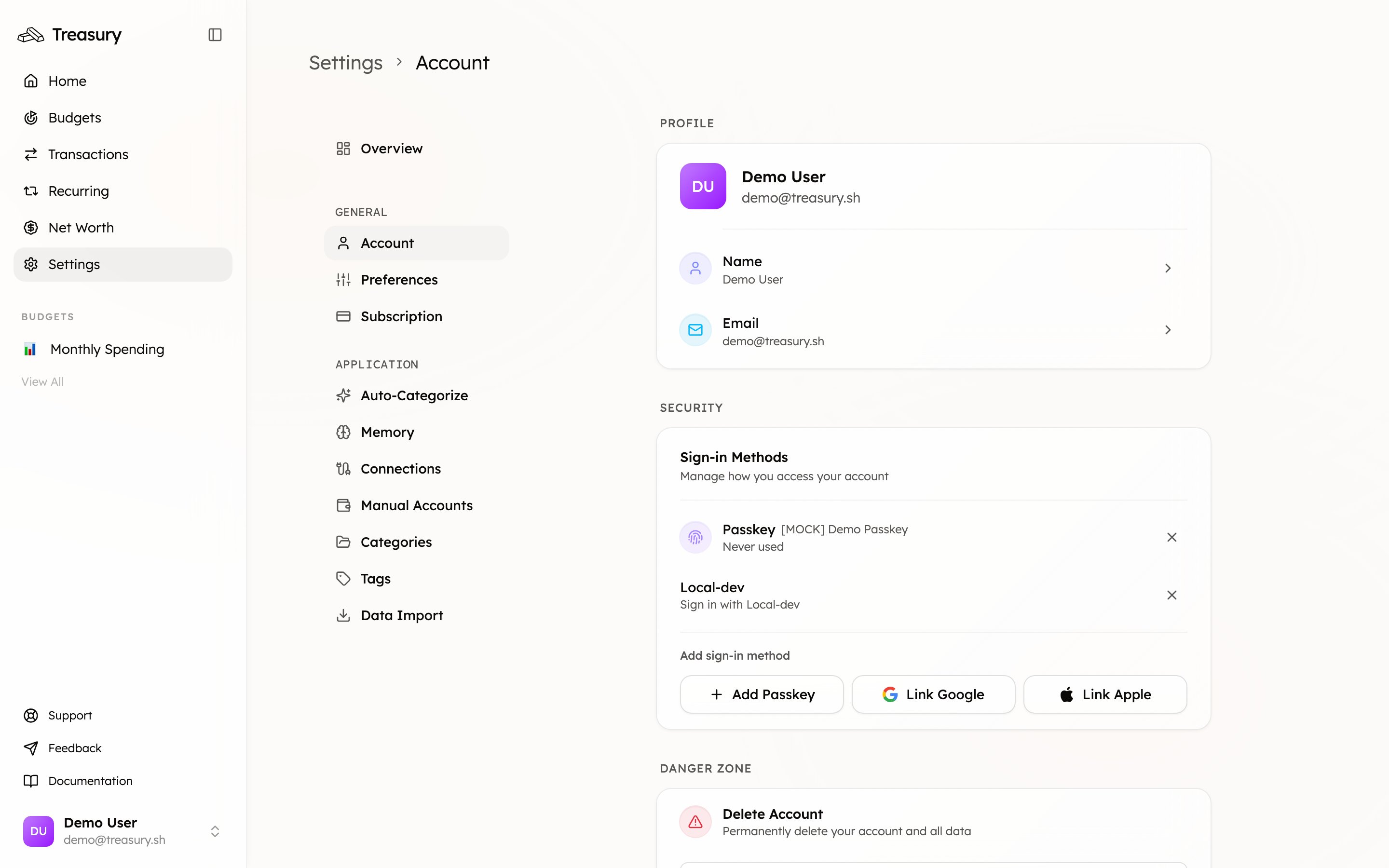
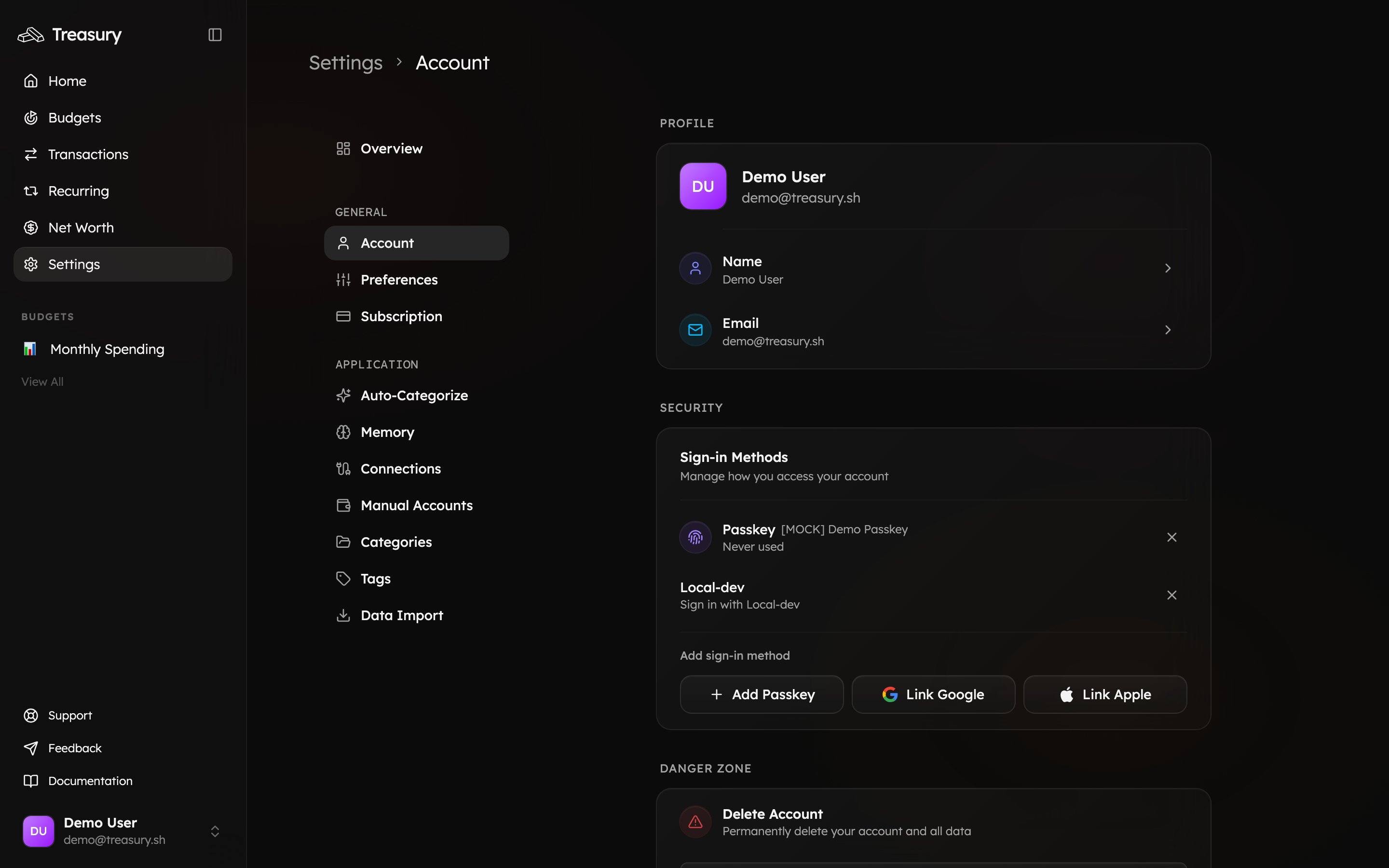 You can use any combination of the following secure sign-in methods — **Passkey**, **Google**, and **Apple**:
Passkeys let you sign in without using a password.
They’re a modern, secure login method that uses your device — such as Face ID, Touch ID, or your computer’s built-in authentication system.
#### Add a Passkey
1. Click **Add Passkey** under the **Authentication** section.
2. Follow your device’s prompt to create a passkey.
3. Once created, it will appear in your authentication list (for example, “Mac (Chrome)”).
You can have multiple passkeys (for different devices) or remove one at any time by clicking the **×** icon next to it.
Removing a passkey means you won’t be able to use that specific device to sign in until a new
passkey is created.
Google OAuth allows you to sign in using your existing Google account.\
It’s quick, secure, and doesn’t require you to remember another password.
#### Connect Google Authentication
1. Click **Sign in with your Google account** under the **Authentication** section.
2. Follow the prompts to link your Google account securely.
3. Once connected, you’ll see it listed as **Google OAuth**.
You can disconnect Google authentication at any time by clicking the **×** next to it.
***
### Using Multiple Sign-In Methods
You can enable both **Passkey** and **Google Authentication** for added security and flexibility.
For example, use a passkey for quick sign-ins on your personal device and Google sign-in when accessing Treasury from another location.
Your authentication list displays the methods currently linked to your account, including when each one was last used.
It’s a good idea to keep at least two authentication methods connected — for example, Passkey and
Google — so you can always access your account, even if one method becomes unavailable.
## Related
Manage Google and Apple sign-in.
Why Treasury doesn't use passwords.
How passkeys keep your account safe.
Update your name and email.
You can use any combination of the following secure sign-in methods — **Passkey**, **Google**, and **Apple**:
Passkeys let you sign in without using a password.
They’re a modern, secure login method that uses your device — such as Face ID, Touch ID, or your computer’s built-in authentication system.
#### Add a Passkey
1. Click **Add Passkey** under the **Authentication** section.
2. Follow your device’s prompt to create a passkey.
3. Once created, it will appear in your authentication list (for example, “Mac (Chrome)”).
You can have multiple passkeys (for different devices) or remove one at any time by clicking the **×** icon next to it.
Removing a passkey means you won’t be able to use that specific device to sign in until a new
passkey is created.
Google OAuth allows you to sign in using your existing Google account.\
It’s quick, secure, and doesn’t require you to remember another password.
#### Connect Google Authentication
1. Click **Sign in with your Google account** under the **Authentication** section.
2. Follow the prompts to link your Google account securely.
3. Once connected, you’ll see it listed as **Google OAuth**.
You can disconnect Google authentication at any time by clicking the **×** next to it.
***
### Using Multiple Sign-In Methods
You can enable both **Passkey** and **Google Authentication** for added security and flexibility.
For example, use a passkey for quick sign-ins on your personal device and Google sign-in when accessing Treasury from another location.
Your authentication list displays the methods currently linked to your account, including when each one was last used.
It’s a good idea to keep at least two authentication methods connected — for example, Passkey and
Google — so you can always access your account, even if one method becomes unavailable.
## Related
Manage Google and Apple sign-in.
Why Treasury doesn't use passwords.
How passkeys keep your account safe.
Update your name and email.